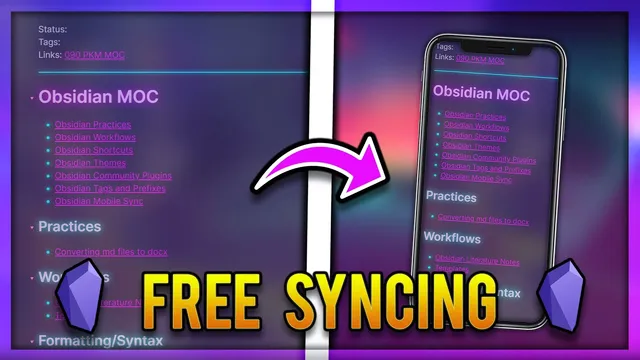
How to Sync Obsidian MD Notes for FREE Across Windows & Android/Mobile Devices using OneDrive
Based on John Mavrick Ch.'s video on YouTube. If you like this content, support the original creators by watching, liking and subscribing to their content.
Create a dedicated OneDrive folder named “obsidian vault” and store only the Obsidian vault there to avoid exceeding the 5 GB free limit.
Briefing
Syncing an Obsidian vault across Windows and Android can be done for free by storing the vault inside a dedicated OneDrive folder and then pointing Obsidian on each device to that synced location. The key move is to create a OneDrive folder specifically for the vault (named “obsidian vault”), enable OneDrive syncing on the computer, and then drag the vault’s contents into that folder. Because the free Microsoft account provides 5 GB of storage, this approach works well for smaller vaults—one example vault size mentioned is about 700 MB—while avoiding accidental backup of unrelated files that could quickly exceed the limit.
On the Windows side, the workflow starts with signing into OneDrive using a standard Microsoft account, downloading the OneDrive app if needed, and letting it sync the OneDrive folder into File Explorer. The setup includes choosing not to back up the entire device—disabling other backup options—so the cloud storage is reserved for the Obsidian vault. Once the “obsidian vault” folder exists in OneDrive, the vault content is dragged into it (the example uses a specific vault folder as the source). After that, syncing may take some time, but the result is a local folder in File Explorer that stays updated as OneDrive syncs in the background.
Accessing the same vault on another computer follows the same pattern: sign into OneDrive, ensure the OneDrive folder is synced into File Explorer, then open Obsidian and use “Open folder as vault” to select the folder that contains the vault contents inside OneDrive. A practical caution is included for laptops and tablets: if a device is offline or syncing lags, Obsidian may open an outdated folder. The guidance is to confirm the OneDrive status shows the folder is “up to date” before relying on it.
Mobile syncing is the most sensitive part of the setup. The guidance warns that the security of the Android approach used isn’t fully verified, and for highly confidential notes it recommends paying for Obsidian Sync or using a safer alternative. The suggested free method uses an Android app called OneSync, which syncs the phone’s internal storage with OneDrive. After installing OneSync and signing into the Microsoft account, the user enables auto-sync, selects which local folder to sync, maps it to the OneDrive folder that holds the Obsidian vault, and turns on two-way syncing so edits on the phone upload back to the cloud. The app also provides sync history, manual refresh, and configurable sync frequency to manage battery and data usage. Finally, Obsidian on Android opens the vault by selecting the synced folder location on the device, mirroring the desktop “Open folder as vault” process.
Cornell Notes
A free cross-device Obsidian setup can be built by placing the vault inside a dedicated OneDrive folder (“obsidian vault”) and then pointing Obsidian on each device to that synced folder. On Windows, create the OneDrive folder, disable unrelated backups to stay within the 5 GB free limit, drag the vault contents into the folder, and wait for OneDrive to finish syncing. On a second computer, sign into OneDrive, confirm the folder is “up to date,” then use Obsidian’s “Open folder as vault” to select the OneDrive-backed vault folder. For Android, the guide recommends OneSync to sync phone storage to OneDrive with two-way syncing, but warns about uncertain security and suggests paid Obsidian Sync for confidential notes.
Why does the setup start with a dedicated OneDrive folder, and what storage constraint matters?
What exact steps make the vault available on Windows through File Explorer?
How should Obsidian be opened on another computer to ensure it uses the synced vault?
What’s the main risk called out for Android syncing, and what alternative is suggested?
How does OneSync map phone edits back to the cloud, and what settings are crucial?
Review Questions
- What steps ensure the OneDrive folder contains only the Obsidian vault and stays within the free storage limit?
- Why is it important to verify OneDrive sync status before opening the vault in Obsidian on a different device?
- Which Android settings (auto sync, two-way sync, folder mapping) are necessary for edits on the phone to reach the OneDrive-backed vault?
Key Points
- 1
Create a dedicated OneDrive folder named “obsidian vault” and store only the Obsidian vault there to avoid exceeding the 5 GB free limit.
- 2
On Windows, sign into OneDrive, let it sync into File Explorer, then drag the vault contents into the OneDrive “obsidian vault” folder.
- 3
Open the vault in Obsidian using “Open folder as vault” and select the folder located inside the synced OneDrive directory.
- 4
On additional computers, confirm the OneDrive folder is “up to date” before relying on it in Obsidian, especially on laptops/tablets.
- 5
For Android, the suggested free approach uses OneSync to sync phone storage to OneDrive, but security isn’t guaranteed in the guidance.
- 6
Enable auto sync and two-way syncing in OneSync so changes made on the phone upload back to the cloud.
- 7
Tune OneSync’s sync frequency and download size to manage battery and data usage.