How to Use Obsidian to Track Your Expenses
Based on Prakash Joshi Pax's video on YouTube. If you like this content, support the original creators by watching, liking and subscribing to their content.
Install and enable the “laser” plugin in Obsidian to create a finance dashboard that renders expenses, income, and balances inside the editor.
Briefing
Obsidian can be turned into a personal finance dashboard by using the Ledger-style plugin “laser,” which stores all money data as plain text and renders it inside Obsidian with interactive charts and tables. The core payoff is simple: expenses, income, and account balances can be tracked directly in Obsidian without relying on a separate mobile app, while keeping the underlying records portable for any tool that supports the laser CLI.
Setup starts with installing and enabling the “laser” plugin from Obsidian’s community plugins. In the plugin settings, the currency symbol matters: only certain currencies are supported (including dollar, Indian rupees, pound, Euro, and Bitcoin). If a user enters transactions using an unsupported currency symbol, those entries won’t appear in the laser dashboard. After enabling the plugin, the user creates a laser dashboard file (named “expenses” in the walkthrough, though other names work). This dashboard file becomes the central place to view accounts, date ranges, and helpful usage tips.
The next step is entering starting balances so the dashboard has a baseline for bank accounts, cash, and credit cards. Starting balances are added in the laser file by defining account names and their initial amounts—for example, assets like “cash” and “assets Nepal bank.” Accounts can be organized with prefixes and sub-accounts using colons; the walkthrough shows creating an expense category “Bill” with a sub-account “electricity.” Once starting balances are set, the dashboard can display how much money is currently held and how much has been spent, with views such as monthly ranges.
Transactions are added through an “add to laser” action (via the command palette, a button, or a hotkey). Each transaction requires mapping the expense or income to the correct account category. The walkthrough emphasizes a double-entry accounting approach: every transaction is recorded twice—once against the category account (like “expenses”) and once against the source or destination account (like an asset account). The amounts must balance so the net effect is consistent. For example, adding an expense for “restaurant” requires recording the outflow in the expense category and the corresponding reduction in the relevant asset account.
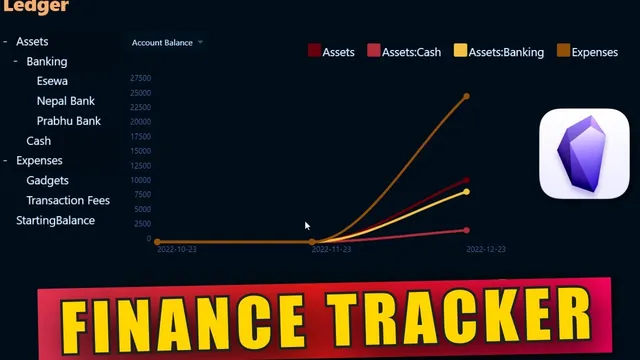
The system also supports transfers between accounts. A transfer example moves money from “Nepal bank” to “cash” (e.g., 15,000 rupees), and the dashboard updates both the increase in cash and the decrease in the bank balance. With multiple accounts defined, the dashboard can visualize different lines for assets, expenses, and income, making it easier to compare spending and balances across categories.
Overall, the approach turns Obsidian into a lightweight personal finance tracker: plain-text, interoperable records paired with in-app dashboards for quick visualization of cash flow and account status.
Cornell Notes
Using the Obsidian “laser” plugin, personal finance tracking becomes a plain-text, dashboard-driven workflow inside Obsidian. After installing laser and setting a supported currency symbol, users create a laser dashboard file (e.g., “expenses”) and enter starting balances for accounts like cash and bank. Accounts and categories can be organized with sub-accounts using colons (e.g., expenses → Bill → electricity). Transactions are added via “add to laser,” and each entry follows a double-entry system—recorded against both the category account (expenses/income) and the related asset account—so the amounts balance. The dashboard then updates monthly views and supports transfers between accounts, showing how balances and spending change over time.
Why does the currency symbol setting affect whether transactions appear in the laser dashboard?
How do starting balances change what the dashboard shows?
What does “double entry system” mean in this Obsidian + laser workflow?
How are expense categories and sub-accounts organized?
How does the system handle transfers between accounts?
What kinds of views help users understand spending and balances?
Review Questions
- What supported currency symbols does laser require, and what happens if an unsupported symbol is used when adding transactions?
- In a double-entry transaction, which two account types must be updated, and why must the amounts balance?
- How do colons in account names help structure categories like expenses and sub-accounts like electricity?
Key Points
- 1
Install and enable the “laser” plugin in Obsidian to create a finance dashboard that renders expenses, income, and balances inside the editor.
- 2
Set a supported currency symbol in laser settings; unsupported currency symbols prevent transactions from appearing in the dashboard.
- 3
Create a laser dashboard file (such as “expenses”) and define accounts with starting balances to establish a baseline for cash flow tracking.
- 4
Use colons to create sub-accounts under account prefixes, enabling detailed categories like Bill → electricity.
- 5
Add transactions through “add to laser” and follow the double-entry rule by recording both the category impact (expenses/income) and the related asset impact.
- 6
Use monthly date ranges to review spending and balance changes over time, and select which accounts to visualize.
- 7
Transfers between accounts update both the source and destination balances, keeping the dashboard consistent with account movements.