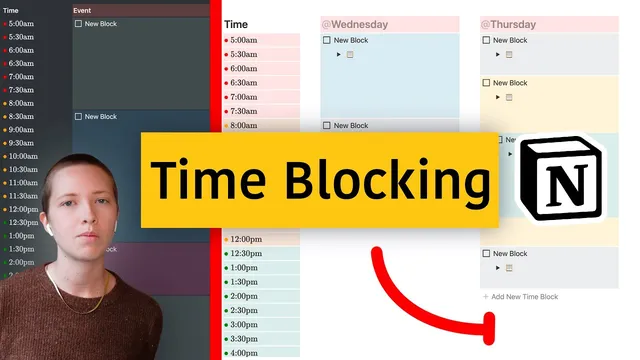
How To Use Time Blocking In Notion
Based on Red Gregory's video on YouTube. If you like this content, support the original creators by watching, liking and subscribing to their content.
Build time blocking using template buttons placed directly inside a planner page, not as a separate database system.
Briefing
Time blocking in Notion is built as a reusable template inside a daily planner page—first for single-day scheduling, then scaled into a multi-day (three-day) view—so tasks can be organized into color-coded time blocks that expand, duplicate, and nest as plans change.
The setup starts with a Notion planner database that already contains pre-filled dates. Instead of creating a database-driven time-block system, the workflow places a “time blocking template” directly in the body of each day’s page. A timetable template button generates time slots from 5 a.m. through midnight, split into sections (early morning, mid-morning, afternoon, evening, late night) and styled using Notion inline equations/text color formatting. Each time slot is created via a template button that inserts a new inline-styled time label (for example, “12:30 a.m.”) so the user can quickly generate consistent time entries and then edit them.
To make the template practical, the page is structured with columns: one for the time labels and another for the actual blocks. A second template button adds “event” blocks as nested items under each time range. These blocks are converted from to-dos into nested blocks (so they behave like resizable containers), and their background colors can be changed to visually distinguish categories. The guide emphasizes flexibility: time blocks can be extended by adding nested lines (e.g., stretching a block from 8 a.m. to 10:30 a.m.), and the interval granularity can be adjusted to fit different planning styles (hour-long blocks, 15-minute blocks, or custom ranges). Color schemes are recommended based on task type rather than difficulty or priority—green for writing, blue for email/admin, for instance.
For multi-day planning, the template is duplicated into a three-day layout. Additional columns are added alongside the time column, then the headers are replaced with dynamic date labels using “@ today,” “@ tomorrow,” and similar date tokens. Time blocks are duplicated under the time column for each day, and the template buttons are configured so new blocks appear above the button rather than below it. A key usability issue emerges as more columns narrow: long task descriptions wrap vertically. To address this, the plan uses a toggle with an embedded code block (with code wrapping disabled) so descriptions and subtasks can expand horizontally without breaking the layout.
Finally, the system supports advanced editing: blocks can be duplicated from one day to another, and time blocks can be nested under related parent blocks (for example, nesting a “work on today” segment under a Tuesday task like “product review”). When the three-day window ends, the entire set can be cleared efficiently by shift-selecting from the first to the last parent block and deleting the row, then updating the date headers for the next cycle. The result is a repeatable, visually structured time-blocking system that adapts to both quick daily scheduling and longer multi-day planning.
Cornell Notes
The method builds time blocking in Notion using template buttons placed directly inside a planner page (not a separate database). A timetable template button generates consistent time labels from 5 a.m. to midnight, styled with inline equation/text color formatting. A second template button creates nested “event” blocks that can be extended by adding nested lines and recolored to match a task-type system (e.g., writing vs. email/admin). For a multi-day view, the layout is expanded into three date columns with headers like “@ today” and “@ tomorrow,” and a toggle + code block hack prevents long descriptions from wrapping vertically. Blocks can be duplicated across days and nested under related tasks for tighter planning.
How does the template generate time slots without relying on a separate database?
What’s the difference between the time column and the event blocks in this setup?
How can a time block be extended or resized after it’s created?
Why use a toggle and code block for descriptions in the multi-day view?
How does nesting help when one task spans multiple time blocks or days?
What’s the fastest way to reset the three-day planner for the next set of dates?
Review Questions
- How do template buttons control where new time slots and blocks appear (above vs. below the button), and why does that matter for daily use?
- What specific Notion formatting choices are used to style the time labels, and how does that improve readability?
- Explain the toggle + code block workaround and how it prevents vertical wrapping in narrow multi-day columns.
Key Points
- 1
Build time blocking using template buttons placed directly inside a planner page, not as a separate database system.
- 2
Use a timetable template button to generate time labels from 5 a.m. to 12 a.m., styled with inline equation/text color formatting for quick scanning.
- 3
Create event blocks as nested blocks under each time range so they align with time intervals and can be extended by adding nested lines.
- 4
Apply a color scheme based on task type (e.g., writing vs. email/admin) rather than difficulty or priority to keep the schedule interpretable at a glance.
- 5
Scale to multi-day planning by duplicating the time-block column into additional day columns and using date tokens like “@ today” and “@ tomorrow.”
- 6
Prevent narrow-column text wrapping by using a toggle that contains a code block with wrap code turned off.
- 7
Reset the planner efficiently by shift-selecting parent blocks across the row and deleting them, then updating date headers for the next cycle.