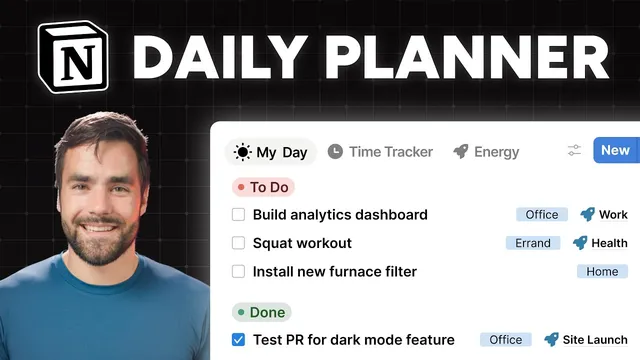
I can't believe how well this Notion daily planner helps me focus
Based on Thomas Frank Explains's video on YouTube. If you like this content, support the original creators by watching, liking and subscribing to their content.
Create a dedicated “my day” checkbox property in the tasks database; use it as the single source of truth for what appears in the Execute list.
Briefing
A daily planning system in Notion becomes dramatically more effective when it forces an “execute” list to start empty every day, then only fills it with a deliberately chosen set of tasks. The core idea is simple: plan what matters, work from a clean short list, and clear it at day’s end—so overdue clutter never accumulates and “due today” doesn’t silently turn into a permanent backlog.
The build centers on a page called “my day,” organized into three sections: **Plan**, **Execute**, and **Wrap-up**. In the morning (or the night before), the user checks a **“my day”** checkbox on tasks in the Plan area. That checkbox doesn’t move tasks into a new place; instead, it makes them appear in the **Execute** view through database filtering. Execute is designed to be the day’s tight working list—blank at the start, populated on purpose, and then cleared when the day ends.
The Execute view is the heart of the system. It’s created by copying a linked database view from a base task manager template and then changing the view’s filter criteria: it shows only tasks where **my day is checked**. To keep the list usable, sorting is removed so tasks can be drag-and-dropped into the order the day will actually be tackled. The result is a focused queue rather than a dashboard of everything that’s “due,” “overdue,” or “urgent.”
At the end of the day, a **“clear my day”** button in the Wrap-up section unchecks the **my day** property for tasks that were selected for that day. In practice, this empties Execute again so the next planning session begins from a blank slate. The button is implemented as a Notion “edit pages in action” workflow: filter tasks where **my day is checked**, then set **my day** to unchecked. A confirmation prompt (“Are you sure…”) can be added to prevent accidental clearing.
Because clearing can feel like losing context, the system adds table-style views that help recover and refine tasks later. A **“clear my day” table view** lets users quickly edit properties (like project or due date) for tasks that didn’t get done before clearing. Additional views support planning the next day: **“review calendar”** surfaces tasks with hard deadlines, while **“plan tomorrow”** lists tasks most recently edited—often the ones that just got cleared—so the user can rebuild tomorrow’s list efficiently.
Finally, the system adds prioritization through three select properties—**energy**, **location**, and **P/I** (process vs immersive). These properties are added to the underlying tasks database, pinned so they appear when viewing any task, and then used to create drag-and-drop grouped views inside my day. The grouping lets tasks be batched by mental energy, errands vs home/office, and whether they’re meant to be started (process) or require full attention (immersive). The practical payoff is sequencing: get process tasks rolling, then switch into immersive work without having blocked tasks pile up behind long focus sessions.
Cornell Notes
The “my day” dashboard in Notion is built around one rule: the Execute list must be empty at the start of each day, then filled only with tasks deliberately selected for that day. A checkbox property called “my day” drives the system—checking it on tasks in the Plan area makes them appear in Execute via database filters. A “clear my day” button unchecks that property for all selected tasks, emptying Execute again so overdue clutter doesn’t accumulate. To prevent losing context, table-style views and next-day planning views help users edit unfinished tasks and quickly rebuild tomorrow’s list. Optional prioritization tags (energy, location, and P/I) further improve ordering by batching similar work and sequencing process vs immersive tasks.
How does the system ensure the daily working list stays clean instead of turning into an overdue backlog?
What’s the difference between the Plan views and the Execute view in this setup?
Why does the tutorial add extra views after clearing the day?
How are prioritization tags implemented, and what do they change operationally?
What does “P/I” (process vs immersive) help with in daily execution?
Review Questions
- If Execute is filtered only by the “my day” checkbox, what exact action makes the list reappear the next day?
- How would you modify the system if you wanted Execute to be sorted by due date instead of allowing drag-and-drop ordering?
- What properties should be edited in the table-style “clear my day” view to avoid losing important context after clearing?
Key Points
- 1
Create a dedicated “my day” checkbox property in the tasks database; use it as the single source of truth for what appears in the Execute list.
- 2
Build Execute as a filtered view that shows only tasks with “my day” checked, and remove sorting so tasks can be manually ordered by drag-and-drop.
- 3
Add a “clear my day” button that unchecks “my day” for all tasks currently selected, ensuring Execute starts empty each day.
- 4
Include recovery and planning views (table-style edits, “review calendar,” and “plan tomorrow”) so clearing doesn’t erase useful context.
- 5
Add prioritization select properties—energy, location, and P/I—and use grouped drag-and-drop views to batch similar tasks and improve sequencing.
- 6
Pin “my day” and the prioritization properties so they remain visible when opening tasks from other parts of the system.
- 7
Lock the tasks database after structural changes to reduce accidental edits, especially when collaborating.