Inside look into AI inside Adobe Photoshop
Based on MattVidPro's video on YouTube. If you like this content, support the original creators by watching, liking and subscribing to their content.
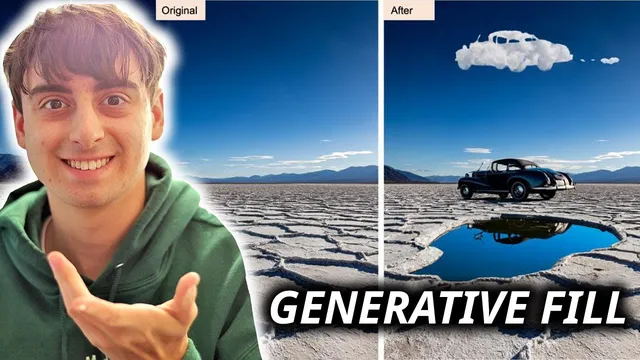
Photoshop’s generative fill can outpaint and extend images quickly, often producing coherent wide compositions that would be time-consuming to paint manually.
Briefing
Adobe Photoshop’s new generative fill and outpainting tools are delivering the kind of “paint-and-expand” results that can collapse hours of manual editing into minutes—while also exposing sharp limits around scale, server reliability, and content moderation. Hands-on testing shows the feature can seamlessly extend scenes, blend separate images into a single wide composition, and invent new elements (people, vehicles, animals, props) that match the surrounding context closely enough to feel integrated rather than pasted.
The most striking demonstrations come from outpainting—expanding an image beyond its original borders. In multiple examples, Photoshop extends a composition by filling in new space on the left, right, and even across large aspect-ratio changes. A time-lapse recreation of a scene blending two similar characters shows the tool can “stitch” the center and then keep expanding outward to form a coherent wide image, though it occasionally produces artifacts or lower-quality regions when the expansion gets too aggressive. Another test starts with a Midjourney-generated cyborg figure and expands it by selecting the bottom portion and using generative fill with a descriptive prompt; the system returns several candidate results, with the best option preserving the character’s overall look while filling the missing body area. When the expansion area becomes too large, the output can degrade into blankness, blobby shapes, or confusing white regions—suggesting the practical workflow is incremental, section-by-section growth rather than one massive outpaint.
Blending context across images is where the tool looks most impressive—and most fragile. When two similar cyborg images are placed side by side, Photoshop struggles with the boundary at first, producing a large confusing block. Iterative fills improve the connection, and the tool also appears to infer context cues such as gender, attempting to keep the second character’s traits consistent with the first. Still, the feature can fail when tonal differences are extreme or when the images are too close in ways that confuse the model’s understanding of where one scene ends and another begins.
The workflow also runs into operational and policy friction. During testing, Photoshop sometimes returns “system is currently busy” errors, which becomes especially frustrating because generative fill is integrated into a paid, professional product. More consequential are guideline enforcement moments: generated content can be removed after the fact for “potentially violates user guidelines,” even when the user is trying to do benign edits. Language strictness adds another layer of annoyance—misspellings or non-English prompts trigger corrections that reduce creative control.
Despite these issues, the practical takeaway is clear: generative fill is strongest for targeted edits, careful outpainting, and iterative refinement. Users can highlight specific problem areas (like a line of error) and regenerate until the seam disappears. The feature also supports “edits on edits,” enabling repeated passes to improve shadows, blending, and object placement. The testing ends with a playful but telling conclusion: the tool is fun, fast, and often surprisingly accurate, but it needs more reliability, more user control, and less overzealous moderation to fully match the promise of “best in painting” and “best in outpainting.”
Cornell Notes
Photoshop’s generative fill can expand images beyond their original borders and blend new elements into existing scenes quickly, often producing coherent results that would take hours of manual work. Outpainting works best when done incrementally; very large expansion areas can lead to blank regions, low-quality detail, or “blobby” artifacts. The tool also attempts context matching—such as keeping character traits consistent across blended images—but struggles with confusing boundaries and mismatched tones. Real-world use is tempered by server load (“system is currently busy” errors) and strict content moderation that can remove generated results for guideline violations. Overall, iterative, targeted edits deliver the most reliable outcomes.
What makes Photoshop’s generative fill feel like a workflow upgrade rather than a novelty?
How does expansion size affect output quality?
What happens when two separate images must be merged into one scene?
Why do “system busy” messages matter in a paid, professional tool?
How do guideline enforcement and language strictness limit creativity?
What editing strategy produced the best results during testing?
Review Questions
- When would you choose incremental outpainting over one large expansion, and what failure modes appear with large selections?
- What signs indicate Photoshop is struggling at an image boundary, and how can iterative fills improve the merge?
- How do server load errors and guideline removals change the practical editing workflow compared with offline or local generative tools?
Key Points
- 1
Photoshop’s generative fill can outpaint and extend images quickly, often producing coherent wide compositions that would be time-consuming to paint manually.
- 2
Quality drops when outpainting selections get too large; incremental, section-by-section expansion helps avoid blank or “blobby” artifacts.
- 3
Blending two images into one scene works best when the boundary is handled iteratively; initial merges can produce confusing blocks that improve after targeted re-fills.
- 4
The feature can infer context cues (such as gender) to keep characters consistent across blended regions, but tonal mismatches can still break realism.
- 5
Server load can trigger “system is currently busy” errors, slowing iteration in a paid, professional workflow.
- 6
Content moderation can remove generated results for guideline violations, and language strictness can block prompts due to misspellings or non-English input.
- 7
The most reliable results come from targeted edits on small highlighted areas, repeated until seams, shadows, and artifacts are corrected.