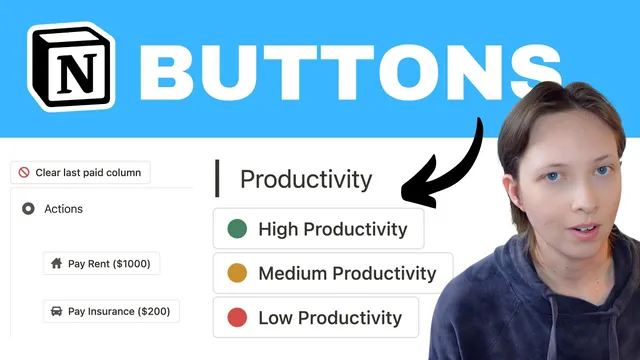
Introducing Notion Buttons: A First Look and Free Template
Based on Red Gregory's video on YouTube. If you like this content, support the original creators by watching, liking and subscribing to their content.
Notion Buttons can run multi-step automations that add pages to databases, edit properties in existing pages, and insert blocks after the click.
Briefing
Notion Buttons introduce click-to-run automations that can update linked databases, create new pages, and insert blocks—turning a dashboard into an action center instead of a static tracker. With a single button press, users can add a “daily habit” page for today, generate a “morning pages” task with due date and assignee set automatically, open the newly created page, and even show a confirmation message afterward. The workflow is built around chaining multiple actions under one button, using database targets and property edits to drive the changes.
A first example, “start day,” demonstrates the core mechanics. The button is configured with a custom icon and then runs several steps: it adds a new page to the Habits database (setting the date property to “today”), adds a new page to the Tasks database (creating a recurring daily task like “morning pages” with status set to “in progress,” due date set to “right now/today,” assignee set to the person who clicked, and a Journal tag), and opens the created task page in the workspace. After the click, the dashboard updates immediately: the habit card becomes tickable for the current day, and the tasks list shows the new “morning page” item. A key limitation appears alongside the feature—buttons can’t apply icons/covers to the pages they create, and they can’t populate formula-driven fields directly.
The tutorial then scales up to more complex interactions using filtered database views. Buttons like “complete all tasks today” edit pages in the Tasks database by selecting all pages whose due date equals today and setting their status to “completed.” Another button, “show overdue tasks,” uses multiple filters (due date before today plus status not completed) and writes to hidden properties (such as a “show alert” field set to “overdue”) so a linked database view can reorder and display only the relevant items. Complementary buttons (“hide overdue tasks,” “expand weekly tasks,” and “hide weekly tasks”) toggle those hidden properties to collapse or expand the dashboard’s task lists.
A groceries section shows the same pattern applied to item categories. Buttons can uncheck all items, pause “other items” while keeping “essential” items visible, and unpause everything—again by editing properties across all pages that match a filter.
Finally, a bills-paid use case ties buttons to a formula-based billing system. A “next bill” calendar is driven by formulas that compute upcoming payment dates based on a “last paid” field. Buttons such as “pay rent,” “pay insurance,” and “pay car” update only the “last paid” property for fixed, named pages (e.g., the rent page), which causes the formulas to advance the billing cycle automatically. A “clear last paid column” button adds a confirmation pop-up before emptying the field. The session closes with an “end day” flow that adds a new mood/journal page for today and then fills survey properties via additional button-driven page edits, plus a “clear all day” reset with confirmation.
Overall, the feature’s value comes from combining page creation, property edits, internal page opening, and view-driven filtering—while working within current constraints around icons/covers and direct formula manipulation.
Cornell Notes
Notion Buttons enable one-click automations that create pages, edit properties in linked databases, and insert blocks—ideal for turning a dashboard into a workflow. A “start day” button can add today’s habit entry, create a “morning pages” task with due date and assignee set automatically, open the new task page, and confirm completion. More advanced buttons use filtered database views and hidden properties (like “show alert” or “expand”) to show overdue tasks, expand weekly tasks, or pause grocery items. Bills-paid automation relies on formulas that respond to updates in a “last paid” field, letting buttons advance billing cycles without editing formulas directly. Limitations include no icon/cover control for created pages and no direct manipulation of formula fields.
How does a button like “start day” create and route new work inside Notion?
Why do hidden properties matter for buttons that control what appears in a linked database view?
How does “complete all tasks today” work without manually updating each task?
What makes the bills-paid automation different from the habit/task examples?
What limitations show up when trying to make created pages look customized?
How can an “end day” button collect structured journal data?
Review Questions
- When building a button that controls a linked database view, what strategy can replace direct view manipulation?
- In the bills-paid workflow, which property must buttons update for formulas to advance the billing schedule?
- What two notable constraints limit how buttons can customize or populate newly created pages?
Key Points
- 1
Notion Buttons can run multi-step automations that add pages to databases, edit properties in existing pages, and insert blocks after the click.
- 2
A single button can create multiple related entries (e.g., a habit card plus a task) and then open the newly created page internally.
- 3
Filtered database views become interactive when buttons edit hidden properties that the view uses for filtering and ordering.
- 4
Bulk actions like “complete all tasks today” are implemented by editing all pages matching a due-date filter and setting a status property.
- 5
Bills-paid automation works by updating a “last paid” input field on fixed pages so formula-driven “next bill” dates recalculate automatically.
- 6
Buttons currently can’t apply icons/covers to pages they create and can’t directly manipulate formula fields.