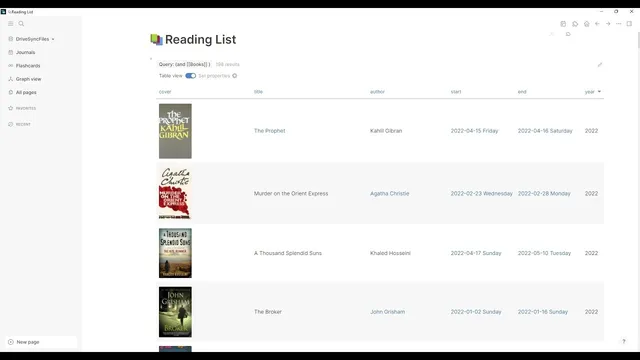
Logseq - Creating a Reading List with Templates, Page Properties and Queries
Based on Ed Nico's video on YouTube. If you like this content, support the original creators by watching, liking and subscribing to their content.
Create a single “books” template page so all book entries share the same metadata fields and content layout.
Briefing
A Logseq reading list can be built quickly by combining three features—templates, page properties, and queries—so every new book page automatically follows the same structure and then appears in a live “Reading List” view. The setup starts with a dedicated template page (named “books” in the walkthrough) that defines consistent metadata fields like Type, Status, Title, Author, Cover image, Start date, End date, and Year, plus a content area for notes and annotations. A cover image is inserted using Markdown image syntax, with a recommended fixed size (17298) so covers don’t need manual resizing each time.
Once the template exists, creating a new book becomes a repeatable form-filling step. A new page is created for a specific book (example: “Thinking Fast and Slow”), then the template is applied via “/template” so the “meta” properties and content block appear immediately. The workflow emphasizes practical sourcing: cover images and links are pulled from Goodreads, with the image address pasted into the Cover property and the external link stored for future reference. Dates can be entered manually or via Logseq helpers like “/today” and a date picker, and the Year property is set to match the reading period. This approach reduces cleanup later because the structure is present from the start rather than retrofitted across many pages.
The reading list itself is generated with a query block. A separate page (example: “Reading list”) uses a query like {{query [books]}} to pull in all pages tagged/typed as books. The query results can be customized to remove unwanted elements (such as the “meta” block title) and to control what displays—keeping the cover, then ordering fields like Title, Author, Start date, End date, and Year. The walkthrough also addresses a common annoyance: the template label can appear in query results, and a simple workaround is to insert a backslash inside the query braces to break the template link, then return to the reading list.
Finally, the query behaves like a lightweight database. Sorting options (first/last, ascending/descending, alphabetical) let the list be rearranged, while filters narrow results using additional query conditions. Examples include filtering by author (adding an “and” condition) and filtering by year (e.g., entering 2022 to show matching books). The result is a maintainable library system where adding a book automatically updates the reading list with consistent fields and usable filtering.
Cornell Notes
The system builds a Logseq “books” template that standardizes every book page with page properties (Type, Status, Title, Author, Cover, Start date, End date, Year) and a content area for notes. Applying the template to new book pages (via /template) makes data entry fast, including cover images and Goodreads links, plus date helpers like /today or a date picker. A separate “Reading list” page uses a query ({{query [books]}}) to automatically display all book pages with chosen fields and ordering. The query can be customized to hide template artifacts and can filter results by author or year, turning the library into a searchable, sortable list.
How does the template ensure every book page stays consistent?
What’s the practical workflow for adding a new book using the template?
How does the “Reading list” page pull in all books automatically?
Why might the template name appear in query results, and how is it handled?
What kinds of sorting and filtering are possible with the query?
Review Questions
- What page properties are included in the book template, and which ones are most important for the reading list display?
- How does applying a template change the speed and consistency of creating new book pages compared with manual setup?
- What query structure is used to generate the reading list, and how can you filter it by author or year?
Key Points
- 1
Create a single “books” template page so all book entries share the same metadata fields and content layout.
- 2
Use page properties for Type, Status, Cover, Title, Author, Link, Start date, End date, and Year to make query results reliable.
- 3
Insert cover images using Markdown and keep a consistent image size to avoid repetitive resizing.
- 4
Apply the template to new book pages via “/template” so the “meta” section and content area appear automatically.
- 5
Build the reading list with a query like {{query [books]}} to aggregate all book pages into one view.
- 6
Customize query output by removing unwanted blocks (like template/meta labels) while keeping the cover and key fields.
- 7
Add query conditions to sort and filter results by author and by year (e.g., 2022).