Logseq - How to Manage Projects with Examples + Intro to Tasks and Namespaces
Based on Ed Nico's video on YouTube. If you like this content, support the original creators by watching, liking and subscribing to their content.
Create one Logseq page per project using a namespace-style title like “project/abc” so projects behave like files inside a project folder.
Briefing
Logseq can function as a lightweight project management system by structuring each project as a dedicated page, then organizing meeting notes and action items underneath it using clear parent blocks and tasks. The payoff is fast retrieval: months later, a single “project elevator pitch” page can answer what the project is, who’s involved, what was discussed, and what remains—without digging through scattered notes.
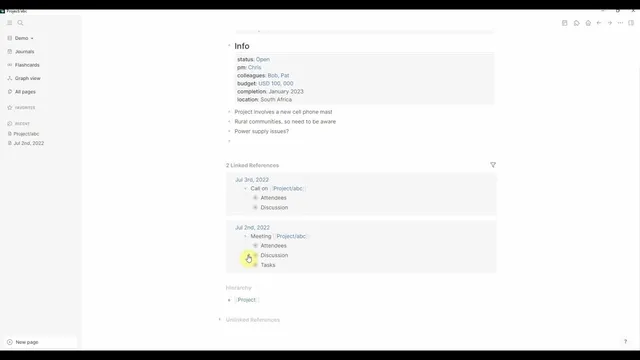
The workflow starts with creating a project page using a namespace-style title: a base name (like “project”) followed by “/” and the project identifier (e.g., “project/abc” or “project/df”). That slash becomes a folder-like hierarchy inside Logseq, letting “project” act as a container and “abc” behave like a file within it. On the project page, key metrics are stored as properties—status (open/closed), project manager, colleagues, budget, planned completion, and optionally actual completion and spend—so filtering and quick scanning stay practical even when the number of projects grows.
Instead of dumping meeting content into one flat list, meeting notes are organized with section breaks (parent blocks) that separate “who attended,” “what was discussed,” and “what tasks were assigned.” Each meeting entry includes an indented attendees list and a dedicated child block for discussion topics (for example, issues with a local authority). Action items are captured as tasks using Logseq’s task syntax: typing a task label under the meeting section and assigning it to a person (e.g., “to do prepare revised budget” assigned to Bob or “update milestones” assigned to Pat). This structure matters because it keeps future review readable; the transcript contrasts the clean, scannable version with a messy scenario where dozens of discussion points and attendees would be impossible to distill.
A second layer of usefulness comes from linking and aggregation. When meetings are recorded as linked references under the project page, the project view automatically shows the meeting history. From there, it’s easy to jump to a specific date, confirm attendees, skim the discussion, and check task completion status—crossing off tasks that were done and immediately spotting who still has open items.
Namespaces also enable role-based and subtopic-based navigation. Indenting pages further (e.g., “project/abc/budget”) creates subfolders so related artifacts live under the right project. Assigning tasks to individuals then turns Logseq’s standard “to-do” view into a per-person task queue: opening a person’s page reveals which meetings they attended and which tasks they own, along with a snapshot blurb. Finally, the workflow explains how these pages appear in the file explorer: Logseq stores slash-based namespaces in a filesystem-friendly way (showing a percent-encoded form), but Logseq renders them correctly inside the app.
Overall, the method turns meeting notes into structured project records—properties for facts, parent blocks for readability, and tasks for accountability—so project status can be answered quickly on demand, not reconstructed later from chaos.
Cornell Notes
The workflow uses Logseq namespaces and page properties to turn each project into a navigable hub for status, meeting history, and assigned tasks. Projects are created as pages like “project/abc,” where the slash acts like a folder boundary, and key metrics (status, project manager, colleagues, budget, planned/actual completion) are stored as properties. Meeting notes are organized into parent blocks so attendees, discussion, and tasks stay separated and easy to scan months later. Tasks are created under the meeting section and assigned to specific people, enabling quick cross-checking of who still has open work via both the project page and individual to-do views. Namespaces can be extended to subfolders like “project/abc/budget” for topic-level organization.
How does using namespaces (slash-based page titles) make project management easier in Logseq?
Why separate meeting notes into parent blocks instead of keeping everything at one level?
What role do page properties play, and which project metrics are emphasized?
How do tasks and assignments turn meeting notes into actionable accountability?
How does the workflow support quick “elevator pitch” recall months later?
What does deeper indentation (subfolders) enable beyond basic project pages?
Review Questions
- If you had 30 meetings and 10 attendees per meeting, what specific structural choice in this workflow prevents the notes from becoming unreadable?
- How would you design a project page so that both the project manager’s responsibilities and the meeting discussion are recoverable quickly months later?
- What is the difference in purpose between storing facts as properties versus capturing work as tasks in this Logseq workflow?
Key Points
- 1
Create one Logseq page per project using a namespace-style title like “project/abc” so projects behave like files inside a project folder.
- 2
Store core project facts as properties (status, project manager, colleagues, budget, planned completion, and later actual completion/spend) to enable fast scanning.
- 3
Record meeting notes using parent blocks that separate attendees, discussion, and tasks to keep future review readable.
- 4
Turn action items into Logseq tasks assigned to specific people so task completion can be tracked from both the project page and individual to-do views.
- 5
Use linked references from the project page to surface meeting history automatically, enabling quick checks of what happened on specific dates.
- 6
Extend namespaces with deeper indentation (e.g., “project/abc/budget”) to organize subtopics within each project.
- 7
Expect slash-based namespaces to appear encoded in the filesystem, but rely on Logseq to render them correctly inside the app.