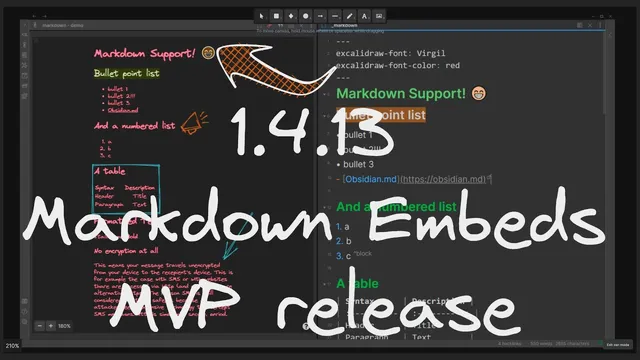
Markdown Embeds with Excalidraw Obsidian - MVP release (1.4.13)
Based on Zsolt's Visual Personal Knowledge Management's video on YouTube. If you like this content, support the original creators by watching, liking and subscribing to their content.
Ctrl-drag-and-drop a Markdown file onto an Excalidraw canvas to create a transcluded embed image with live-style updates.
Briefing
A new Markdown embed workflow in Excalidraw inside Obsidian lets users drag a Markdown file onto the canvas and instantly generate a transcluded, styled preview—complete with hover previews and side-by-side editing. The core payoff is speed and control: holding Ctrl while dropping creates a Markdown-to-image embed, hovering with Ctrl reveals a preview, and Ctrl-click (with optional Ctrl+Shift-click) opens the embedded content in-place or alongside other work. Even small Markdown changes—like adding exclamation marks—show up directly in the embedded image, making the embed behave like a live reference rather than a static screenshot.
Beyond basic embedding, the feature adds a set of global defaults that govern how transcluded Markdown renders. Four settings control the embed output: default width, default height (used as a maximum so shorter documents fit naturally), default font, and default font color. Changing these defaults updates the embed immediately—for example, switching to a narrower layout, using “Cascadia” as the font, and applying a sky-blue text color. The styling isn’t limited to global preferences either; each Markdown file can override the defaults using front matter keys. One front matter key selects a font for that specific embed, and another sets the font color, allowing different sections of a knowledge base to carry distinct visual identities.
The workflow also supports custom fonts. Users can upload TrueType fonts and then reference them via front matter, but the font filename extension must be included so Excalidraw can load it correctly. The transcript notes experimentation with Chinese fonts as a long-requested capability, showing that the embed can render those fonts once configured.
For finer control, the embed can target only part of a document. When the embedded image is too tall, the default height acts as a cap; the bottom portion may be hidden until the height is increased. More importantly, users can edit the embed’s parameters directly: using Alt+Ctrl click opens an editor where they can add a pipe character to specify custom width and maximum height (e.g., setting a very large height like 2000 to reveal the full document). They can also reference a specific section—either by adding a chapter/section reference in the embed parameters or by using Obsidian’s Markdown-mode selection approach—then reduce the maximum height (e.g., to 800) so only that chapter transcludes. Hover previews reflect the same scoped section.
Long documents are supported as well. A longer article can be embedded with large width and height values (the example uses a width of 600 and a maximum height of 10,000 pixels), enabling users to zoom and continue taking notes next to the embed. One limitation remains: dropping a Markdown file directly creates a non-working Obsidian link (“obsidian md” link) inside the embed. The workaround is to open the preview (Ctrl-hover), scroll to the link, and click it from within the preview so it opens the correct page.
Overall, the feature turns Excalidraw canvases into a flexible front-end for Obsidian Markdown—fast to embed, easy to style, and capable of section-level transclusion with practical workarounds for link behavior.
Cornell Notes
Ctrl-based drag-and-drop in Excalidraw (inside Obsidian) creates a Markdown embed image that supports hover previews and click-to-open behavior. Global settings let users set default width, maximum height, font, and font color, while front matter keys override those choices per file (including custom TrueType fonts when the filename extension is provided). Alt+Ctrl clicking the embed allows editing parameters such as custom width and maximum height, and users can reference a specific chapter/section so only that portion transcludes. The embed can handle long documents by increasing width/height, but embedded Obsidian links may not work when dropped directly; opening the preview and clicking the link from there is the workaround.
How does a user create and interact with a Markdown embed on an Excalidraw canvas in Obsidian?
What global rendering controls exist for Markdown embeds, and what do they change?
How can a single Markdown file override embed styling?
How do custom fonts work in embeds, and what detail is required?
How can embeds show only a section (chapter) of a long document?
What limitation exists with links inside embeds, and what workaround fixes it?
Review Questions
- What combination of keys and actions produces a Markdown embed image, and how do hover and click behaviors differ?
- Which front matter keys are used to override font and font color for a specific embedded Markdown file?
- How do width and maximum height interact when embedding long documents, and how can a user limit the embed to a single chapter?
Key Points
- 1
Ctrl-drag-and-drop a Markdown file onto an Excalidraw canvas to create a transcluded embed image with live-style updates.
- 2
Ctrl-hover shows a preview; Ctrl-click opens the embed, and Ctrl+Shift-click opens it on the side.
- 3
Global embed settings control default width, maximum height, font, and font color, and changes apply immediately.
- 4
Per-file front matter can override font and font color for that embed, enabling different styling across a knowledge base.
- 5
Custom TrueType fonts can be used, but the font filename extension must be included in the configuration.
- 6
Alt+Ctrl clicking the embed enables parameter edits (custom width and maximum height) and section-level transclusion via references.
- 7
Obsidian links inside embeds may not work when dropped directly; clicking the link from within the Ctrl preview is the workaround.