MUST-KNOW Notion Formulas for Beginners | Date, Text, If, Calculations, and More!
Based on The Organized Notebook's video on YouTube. If you like this content, support the original creators by watching, liking and subscribing to their content.
Use the `style` function in a Formula property to apply bold/underline/italics/code/strike-through and color choices to another property’s value.
Briefing
Notion formulas don’t have to be intimidating: beginners can start by using a handful of built-in functions to format text, compute date differences, build progress-style metrics, and generate conditional messages—then scale up to counting related records. The payoff is practical automation inside a database, from “how many days left?” to “good job” when a checkbox is ticked.
The first formula technique focuses on styling. By adding a Formula property and using the `style` function, users can apply formatting and colors directly to another property’s value. Valid formatting styles include bold, underline, italics, code, and strike-through, while colors range across gray through red. The transcript shows how to wrap a property (like `name`) inside `style(...)`, then supply a style keyword (e.g., bold) and optionally a color and background (using an underscore prefix for background). The same approach can format other property types too—such as turning a multi-select tag into a consistently styled label.
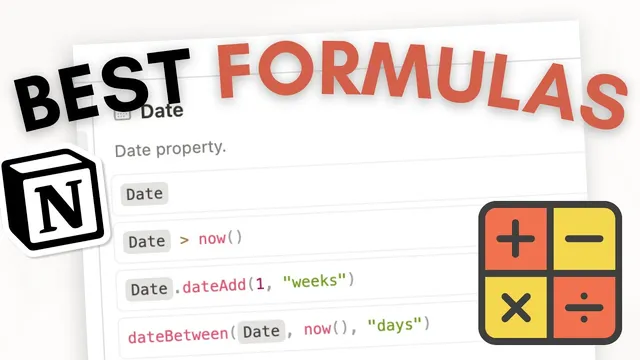
Next comes date math, built around date properties and functions like `date between`, `date add`, `date range`, and `format date`. `date between` calculates the number of days separating two dates, with the larger (more current) date placed first and the older date second. A simple example demonstrates returning “5” when dates are the 12th and 17th, and the formula can be extended to output human-readable text like “5 days.” For forward-looking tracking, `date add` supports adding time intervals such as one week to a date—useful for subscription renewals or recurring schedules. `date range` constructs a combined range from a start and end date, while `format date now` with `HHmm a` outputs the current time in a readable format including AM/PM.
For numeric progress, the transcript uses multiple number properties—pages read and total pages—to compute a percentage via division. That percentage can then be displayed as a progress bar or ring by switching the formula’s number format to percent. The same calculation pattern supports more complex equations, including scaling values (such as multiplying by 100,000) when needed.
Conditional logic arrives through `if` statements tied to Boolean values like checkboxes. When a completion checkbox is true, the formula returns a message such as “good job”; when false, it returns blank. Finally, formulas can summarize relationships. After creating a relation between two databases (e.g., tasks and subtasks), the formula uses `length` on the related set to count how many subtasks belong to each task, producing a simple number (like “2”) without listing every related record.
Taken together, these beginner-friendly patterns—`style`, date functions, percentage calculations, `if` logic, and `length` over relations—form a practical foundation for building more complex Notion automations.
Cornell Notes
Beginners can use Notion formulas to do more than calculations: they can style text, compute date differences, format dates, show progress percentages, generate conditional messages, and count related records. Text styling uses the `style` function with valid formatting options (bold, underline, italics, code, strike-through) plus color choices and optional background colors. Date functions like `date between`, `date add`, `date range`, and `format date now` help track timelines, subscriptions, and readable timestamps. Numeric formulas can convert “read vs total” into a percent that renders as a progress bar or ring. With `if` and relation-based `length`, formulas can react to checkboxes and summarize related database entries.
How does the `style` function let a Notion formula change the appearance of another property’s value?
What’s the practical difference between `date between` and `date add` in Notion formulas?
How can a formula turn a raw date into a readable timestamp?
How do multiple number properties become a progress bar or ring in Notion?
How does an `if` statement work with a checkbox in Notion?
How can a formula count related records between two databases?
Review Questions
- When using `date between`, what ordering of the two dates is required to get a positive day count?
- What arguments would you include in a `style` function call to make a property value bold and underlined, and how would you add a background color?
- How does `length` over a relation differ from listing related items, and what does it return?
Key Points
- 1
Use the `style` function in a Formula property to apply bold/underline/italics/code/strike-through and color choices to another property’s value.
- 2
Add optional background colors in `style` by using an underscore prefix before the color name (e.g., `_pink`).
- 3
Compute day differences with `date between`, placing the more current date first and the older date second.
- 4
Track future dates with `date add` (e.g., add 1 week to a date) and display readable ranges with `date range`.
- 5
Format timestamps using `format date now` with patterns like `HHmm a` for hours/minutes plus AM/PM.
- 6
Turn “part-to-whole” metrics into progress visuals by dividing two number properties and switching the formula’s number format to percent.
- 7
Use `if` with checkbox Booleans for conditional text, and use `length` on a relation to count related database entries.