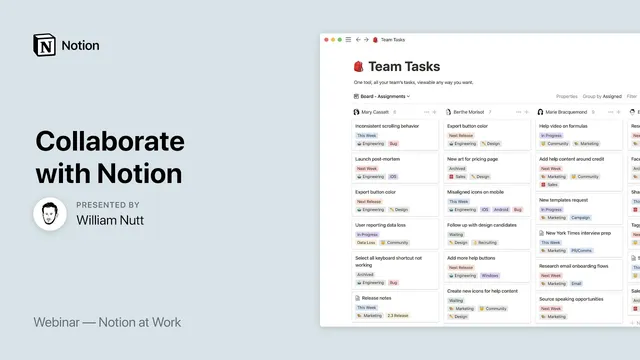
Notion at Work: Collaborate with Notion
Based on Notion's video on YouTube. If you like this content, support the original creators by watching, liking and subscribing to their content.
Sharing a top-level Notion page automatically applies the selected access level to sub-pages created within that shared page.
Briefing
Collaboration in Notion hinges on two mechanics: precise page-sharing permissions and a comment/notification system that keeps teams aligned without constant meetings. The core idea is that when someone shares a page, the access level chosen for that top-level page automatically applies to all sub-pages created within it—so teams can control whether collaborators can only view, comment, edit, or also extend access to others.
Notion’s permission model runs from “can read” (view-only; no commenting, modifying, or granting access) to “can comment” (view plus comment) to “can edit” (view, comment, and modify) and finally “full access,” which also allows people to extend access and choose access levels for others. Sharing can be public—available to anyone with the share URL—or restricted to individual users, guests, members, groups, or the entire workspace. Public pages can be set to “can read” or “can comment,” meaning any signed-in Notion user can comment if the page is configured for it. For typical team workflows, sharing is usually done with individual users: guests are non-members who need a Notion account and are invited per page (not to the whole workspace), while members are colleagues who can also be invited per page or granted access to all members via a workspace-wide toggle. Groups provide a middle path by letting teams share pages with a defined set of members as a unit.
Once people have access, collaboration becomes visible through live presence, structured commenting, and targeted alerts. When an invited user visits a page, their avatar appears at the top; hovering reveals their name, email, and last viewed time. As collaborators navigate, their avatar can move block-by-block, indicating active reading. Comments come in three forms: on highlighted text snippets, on entire blocks, and as top-level page discussions (with database pages offering a built-in discussion area for commenting on properties indirectly).
Comments support ongoing threads, not just one-off notes. Users can edit or delete their comments and resolve discussions, which hides the thread once the issue is settled. Mentions add an alert layer similar to social platforms: typing “@” can mention people, pages, and even reference dates. Mentioning a person triggers notifications in context; mentioning a page inserts the page title as a dynamic link that updates if the page is renamed. Date references can become clickable links that let collaborators quickly change dates, choose times, set date ranges, and create reminders. Reminders can also use friendly relative language (like “Friday” or “tomorrow”), remain dynamic as time passes, and can optionally mention someone so they receive both the mention notification and the reminder alert.
Notifications then surface through multiple channels: in-page update badges, mobile app badges, push notifications (with rules about when they’re suppressed), and email digests. On paid plans, page history snapshots allow restoring earlier versions. There’s also integration with Slack via page-to-channel connections, funneling the same update stream into team chat. The session closes with Q&A, including limits on seeing where others are actively working (presence is visible only on the shared page via avatars), and guidance that product roadmap questions should go through Notion’s in-app priority system.
Cornell Notes
Notion collaboration is built on permission inheritance plus a threaded commenting and alert system. When a top-level page is shared, its access level automatically applies to sub-pages created within that shared page. Teams can collaborate through three comment types—text snippet, full block, and top-level page discussion—then resolve threads when work is done. Mentions (“@”) can alert people, link to pages dynamically, and create clickable date references and reminders with relative, dynamic formatting. Notifications appear in-page, on mobile (badges and push), and via email, with optional Slack channel delivery for page updates.
How does Notion ensure shared-page permissions stay consistent across a hierarchy of pages?
What are the main ways to share pages with people in a team setting?
What kinds of comments can collaborators leave, and how do they differ?
How do mentions work, and what can be mentioned besides people?
What does a date reference or reminder look like in practice?
Where do updates and alerts show up for recipients?
Review Questions
- When sharing a page with “can comment” versus “can edit,” what actions does each permission level allow, and what additional capability comes with “full access”?
- What are the three comment types in Notion, and how does the UI behavior differ between snippet comments and block comments?
- Why can’t collaborators always see where others are actively working, and what exception does Notion provide on the shared page?
Key Points
- 1
Sharing a top-level Notion page automatically applies the selected access level to sub-pages created within that shared page.
- 2
Notion permission levels progress from view-only (“can read”) to commenting (“can comment”), editing (“can edit”), and finally “full access,” which includes the ability to extend access.
- 3
Guests are invited per page (not to the whole workspace) and must have a Notion account to access shared content.
- 4
Notion comments come in three forms—snippet, block, and top-level page discussion—and can be resolved to hide the thread.
- 5
Mentions (“@”) can alert people, link to pages dynamically, and create interactive date references and reminders with relative formatting.
- 6
Notifications surface across in-page updates, mobile badges/push, and email digests, with optional Slack channel delivery for page updates.
- 7
On paid plans, page history snapshots allow restoring earlier versions of a page via the clock icon.