Notion Basics: Building a team workspace
Based on Notion's video on YouTube. If you like this content, support the original creators by watching, liking and subscribing to their content.
Keep all company work in a shared workspace when possible to simplify cross-functional collaboration and content sharing.
Briefing
A Notion workspace can be built into a living “team long-term memory” system by combining pages, blocks, and databases—without forcing teams into rigid templates. The core takeaway is that Notion’s building blocks let teams start with a simple wiki, then progressively turn static text into structured, searchable information (including database-backed views like calendars and boards) that multiple people can use and update.
The session begins with a workspace tour of the default team workspace and how Notion organizes work. Workspaces are accessed from the top-left workspace switcher, and account-level settings (like display name, avatar, and language) apply across all workspaces, while workspace-level settings affect only the current workspace. Members and admins are managed from the settings area; admins can make high-impact changes such as billing and security, so the guidance is to keep the admin group small. Collaboration is emphasized early, including adding co-workers directly into the workspace.
From there, the focus shifts to pages and the sidebar. Everything in Notion lives on a page, and pages are grouped in sidebar sections such as Public/Workspace, Shared, Private, and Favorites. Sidebar items often represent top-level pages, while additional content sits inside them as sub-pages. For quick access, frequently used pages can be favorited so they appear in the Favorites section. Navigation is intentionally kept manageable: the recommendation is to keep the sidebar minimal and rely on sub-pages for deeper structure.
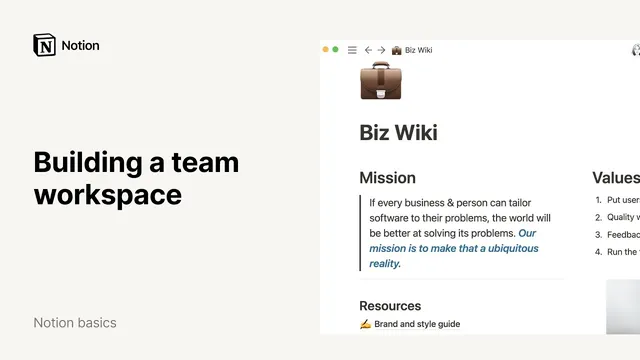
After the tour, the session builds a business wiki from scratch using blocks. The “wiki” is defined as a central repository for policies, goals, employee information, engineering practices, and anything a new hire needs. The demo starts with bullet points and value statements, then uses Notion’s formatting shortcuts (like bold) and interactive elements such as toggles to hide or reveal details. A key concept is that every piece of content—text, toggles, lists, and more—is a block. Notion includes more than 500 block types, and the session frames them as “lego blocks” for software: mix and match to create tailored workflows.
Blocks can be inserted with slash commands (or the plus button) and converted using the six-dot menu (“turn into”). The demo shows turning mission and values into headings and converting bullet lists into pages, making the wiki feel more like a website. It also demonstrates media blocks (like images from Unsplash) and layout controls such as dragging blocks into columns and adding icons.
The most practical upgrade comes with databases. A “meeting notes” table is created as a database where each row represents a meeting and each column is a typed property (text, tags, date, people). Because it’s a database, the same underlying data can be displayed in multiple views: table, board, timeline, calendar, list, and gallery. The calendar view is used to show meetings on dates, and view properties can be adjusted via a properties menu. The session reinforces a best practice: keep related information in one database so views, filters, and sorting stay consistent.
By the end, the workflow expands beyond basic editing into collaboration and customization features: permissions via locking and sharing, database views that don’t affect others, filtering by person (e.g., meetings where “meeting attendees contains me”), and synced blocks for updating the same content across multiple pages from one source. Templates and Notion’s help resources are offered as shortcuts for teams that want ready-made structures like CRM setups or other workflows.
Cornell Notes
Notion’s team workspace becomes useful when content is organized into pages, built from blocks, and—when needed—structured into databases. The session starts with workspace basics (switching workspaces, managing members/admins, and using sidebar sections like Private and Favorites) and then builds a business wiki as a “team long-term memory.” Blocks are treated as the fundamental unit: text, toggles, headings, images, and more can be inserted with slash commands and converted via “turn into.” The meeting notes database shows how typed columns (text, tags, date, people) power multiple views such as table and calendar, enabling teams to manage the same data in different ways. Synced blocks and templates round out the workflow by reducing repetitive updates and speeding up setup.
How does Notion’s page and sidebar structure help teams organize a workspace over time?
What are “blocks,” and why does converting blocks matter for building a wiki?
How do databases in Notion differ from a spreadsheet, and what does “typed” data enable?
Why can one database support many views (calendar, board, list), and how does that help teams?
What collaboration and permission controls were highlighted for pages and shared work?
How do synced blocks reduce repetitive updates across a workspace?
Review Questions
- When should a team use sub-pages versus favoriting a page in the sidebar?
- In the meeting notes database example, what property types were used for meeting date and meeting attendees, and why does typing matter?
- How do synced blocks differ from simply copying and pasting text into multiple pages?
Key Points
- 1
Keep all company work in a shared workspace when possible to simplify cross-functional collaboration and content sharing.
- 2
Use sidebar sections (Workspace/Public, Shared, Private, Favorites) and sub-pages to organize depth without cluttering navigation.
- 3
Treat blocks as the fundamental unit of content; use slash commands to insert them and the six-dot menu to convert them into headings, pages, and other structures.
- 4
Use databases for structured, typed information so the same dataset can power multiple views like table and calendar.
- 5
When building workflows, prefer keeping related items in one database so filters, sorting, and views stay consistent without reconnecting data across tools.
- 6
Apply page-level controls like locking and sharing to manage editing permissions and protect key documents.
- 7
Use synced blocks for repeated content (e.g., mission/values) so updates happen once and propagate everywhere.