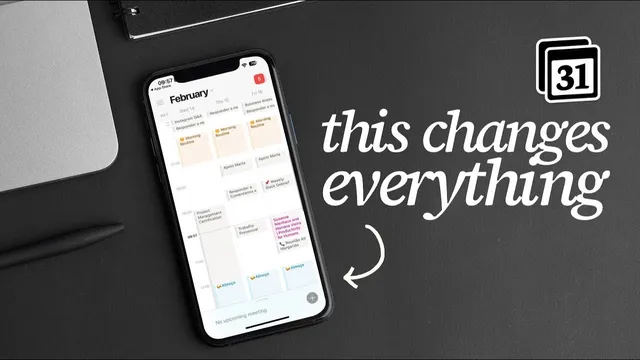
Notion Calendar is a Game Changer
Based on Mariana Vieira's video on YouTube. If you like this content, support the original creators by watching, liking and subscribing to their content.
Notion Calendar’s calendar-account integration currently works only with Google accounts, not Outlook or other providers.
Briefing
Notion Calendar adds a long-awaited calendar layer to Notion, but its real value comes from how it reshapes scheduling and time blocking—especially when paired with task databases and appointment links. The setup is straightforward: connect a calendar account to Notion, import the right database views, and then use Notion Calendar to display time-specific items in a familiar calendar grid. The biggest practical constraint is integration: calendar account syncing works only with Google accounts right now, not Outlook or other providers. On the upside, multiple Google emails can be connected, making it easier to compare personal and professional schedules side by side.
Once connected, the import workflow hinges on view types. Only databases exposed through a Timeline view or a Calendar view will appear for import—so even if someone prefers working in database views, they still need to create one of those timeline/calendar views (even if it’s not used day-to-day). Date and time properties also behave in a specific way: without the “include time” toggle, items become all-day events and land in the upper portion of the calendar; with “include time,” they occupy the correct time slots. That detail matters because it determines whether Notion Calendar functions like a true time-blocking tool or just a date tracker.
Task management is where the feature becomes most interesting—and most nuanced. Notion Calendar isn’t positioned as a full task manager replacement. Instead, tasks are imported from a separate Notion database into the calendar, and the calendar becomes a scheduling interface for those tasks rather than a dedicated system for prioritization and habits. The transcript uses TickTick as a reference point: task managers often organize work using lists (personal, business, family, etc.). In Notion Calendar, there are two ways to mirror that structure. One approach creates separate databases per broad category so tasks land in distinct calendar “lists.” The other keeps a single main database and relies on filtered views, but that can flatten visual differentiation—color coding won’t carry over by category when tasks share one underlying database. A workaround is using emojis/icons to distinguish categories across the calendar. The tradeoff: filtered calendar views may not support the same category-level filtering behavior people expect from their original database.
Notion Calendar also supports deeper workflow integration. Imported tasks open as full Notion pages, meaning details can be customized after they appear on the calendar. For availability and scheduling, it offers a “share availability” flow: users select a meeting provider such as Zoom or Google Meet, drag across the calendar to mark availability, and send the resulting link to team members, family, or clients—reducing overlap concerns without micromanaging every appointment.
Overall, Notion Calendar is framed as a barebones scheduling layer: excellent for seeing appointments and time blocking, but missing task-manager staples like Eisenhower Matrix-style prioritization or habit tracking. The practical recommendation is to keep task logic in Notion (or a dedicated task system) and use Notion Calendar primarily as the scheduling surface for that information.
Cornell Notes
Notion Calendar turns Notion into a scheduling hub by letting users import time-based items from Notion databases into a calendar view. Setup requires connecting a Google calendar account and importing only databases exposed through Timeline or Calendar views. Date/time behavior depends on whether “include time” is enabled: it determines whether items become all-day entries or occupy specific time slots. For task workflows, Notion Calendar works best as a time-blocking interface rather than a full task manager, since it lacks features like Eisenhower Matrix or habit tracking. Users can manage category organization either with separate databases (clean list separation) or one database with filtered views (often requiring emoji/icon workarounds for visual differentiation).
Why does connecting a calendar account to Notion matter, and what limitation affects users?
What determines whether a Notion database appears as an import option for Notion Calendar?
How does the “include time” toggle change how items appear on the calendar?
What are the two main ways to organize tasks by category, and what tradeoff comes with each?
How does Notion Calendar handle task details and appointment scheduling beyond the calendar grid?
Review Questions
- What steps are required to make a Notion database eligible for import into Notion Calendar, and why might a preferred working view still need a Timeline/Calendar view created?
- How would you expect an item to display if it has a date/time property but “include time” is not enabled?
- If a user wants category-based color coding but uses a single main task database with filtered views, what workaround is suggested?
Key Points
- 1
Notion Calendar’s calendar-account integration currently works only with Google accounts, not Outlook or other providers.
- 2
Multiple Google calendar accounts can be connected, enabling side-by-side views of personal and professional schedules.
- 3
Only Notion databases exposed through Timeline or Calendar views appear for import into Notion Calendar.
- 4
Enabling “include time” places items into specific time slots; leaving it off turns them into all-day events.
- 5
Notion Calendar functions best as a time-blocking and appointment view, not as a full task-manager replacement with prioritization or habit features.
- 6
Task category organization can be done via separate databases (clean list separation) or one database with filtered views (often requiring emoji/icon workarounds for visual differentiation).
- 7
Notion Calendar supports “share availability” with Zoom or Google Meet links, reducing scheduling overlap through a drag-to-select availability flow.