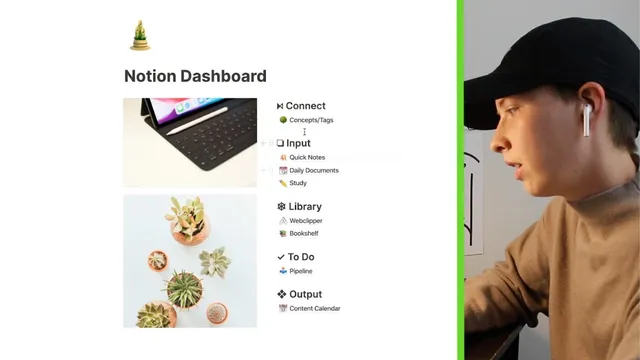
Notion Dashboard Inpso And How To Build A Tag Wall
Based on Red Gregory's video on YouTube. If you like this content, support the original creators by watching, liking and subscribing to their content.
Create a dedicated Concepts table and connect every other database to it using a relation property so tags become shared across domains.
Briefing
A Notion “concept cloud” (also called a tag wall or master database) can unify scattered notes, study material, saved web articles, and reading lists by routing everything through shared tags—so related items automatically appear in one central place. Instead of treating tags as isolated multi-select fields inside each database, the setup builds a dedicated Concepts table and connects every other database back to it via a “concept” relation. The result is a single dashboard layer where new concepts (like “money” or “science”) populate automatically as content gets tagged.
The workflow starts with an “Input” zone: Quick Notes, Daily Documents, and a Bookshelf. Quick Notes is used for fast capture on mobile—grocery lists, podcast notes, or free-form brain dumps—each card gets a concept tag (for example, “money” under personal finance) and a relation to the Concepts table. Daily Documents supports free-writing sessions using templates for Light Mode and Dark Mode, including a Pomodoro timer widget that appears inside the page. It also tracks word count through Notion’s word count feature, and each writing session can be related to another concept (such as “productivity”). Study material then adds structure: a board view organizes lessons by subject, with properties like class date, semester, quarter, instructor, and grade (where a numeric grade converts to a percentage). Each lesson card also links to the Concepts table, so concepts accumulate across domains.
Saved web content is handled through the Web Clipper database. When an article is clipped from Chrome, the database stores the created date, the link, and a manual tags field, plus a “consumed” checkbox. Two filtered views—“consume” and “consumed”—keep reading workflow clean by moving items between states. Some clipped pages even populate the article body and cover image when available, but the system doesn’t depend on that.
A Bookshelf database rounds out the system with reading progress and metadata. It tracks progress using page counts (e.g., entering “78” out of “336” implies roughly 30% complete) and uses a finished flag logic based on progress thresholds. It also includes formula-driven “difficulty” based on page length (quick read, ideal read, lengthy read), plus a custom ID generated from author name, book name, and publication year. That database connects to the same Concepts table via a concept property (for example, “narrative”), so reading themes show up in the same tag wall as notes and study.
Finally, an “Output” layer uses a Content Calendar to plan publishing tasks. Each item includes due dates, status, social metadata, hashtags, links, and a short description. A progress/warning mechanism compares today’s date to the due date: items due tomorrow or today get “get it done,” past due items flip to “past due,” and farther deadlines show “do in a while.” The approach emphasizes why a single merged mega-database is usually messy: separate databases stay manageable, while the Concepts relation provides the unifying master view.
Cornell Notes
The system builds a central “concepts tags” master database in Notion and connects multiple independent databases to it using relation properties. Quick Notes, Daily Documents, Study lessons, Web Clipper saves, and Bookshelf entries each assign a concept (e.g., “money,” “productivity,” “science,” “narrative”). As items are tagged, the Concepts table populates automatically, creating a tag wall that lets related content surface across otherwise separate databases. The setup also includes practical workflow features: Daily Documents templates with a Pomodoro timer and word count, Web Clipper views that filter by a “consumed” checkbox, and Bookshelf formulas for reading difficulty and progress. A Content Calendar then manages publishing output with date-based warning/progress logic.
How does a Notion “concept cloud” differ from traditional tagging with multi-select fields?
What does the Quick Notes workflow look like for capturing ideas on mobile?
How are writing sessions handled in Daily Documents, including timers and word tracking?
How does the Web Clipper database manage a reading workflow?
What reading metrics and formulas are used in the Bookshelf database?
How does the Content Calendar’s date-based progress/warning logic work?
Review Questions
- What mechanism ensures that concepts tagged in separate databases appear in one central tag wall?
- Describe how the “consumed” checkbox and filtered views change what appears in the Web Clipper workflow.
- Which Bookshelf formula determines “difficulty,” and what page ranges map to each category?
Key Points
- 1
Create a dedicated Concepts table and connect every other database to it using a relation property so tags become shared across domains.
- 2
Use Quick Notes for mobile capture and link each note to a concept (e.g., “money”) so the concept cloud grows automatically.
- 3
Build Daily Documents with templates (Light Mode/Dark Mode) and include a Pomodoro timer plus word count to support consistent writing sessions.
- 4
Manage saved articles with a Web Clipper database that uses a “consumed” checkbox and filtered views to separate “to consume” from “consumed.”
- 5
Track reading progress in Bookshelf using page-based progress entry, a finished flag, and a formula-driven “difficulty” category based on page length.
- 6
Keep databases separate for manageability, then unify them through the Concepts relation rather than merging everything into one mega-database.
- 7
Use a Content Calendar with due-date comparisons to drive a warning-style progress indicator for publishing tasks.