Notion Databases Just Got 10x Better
Based on Thomas Frank Explains's video on YouTube. If you like this content, support the original creators by watching, liking and subscribing to their content.
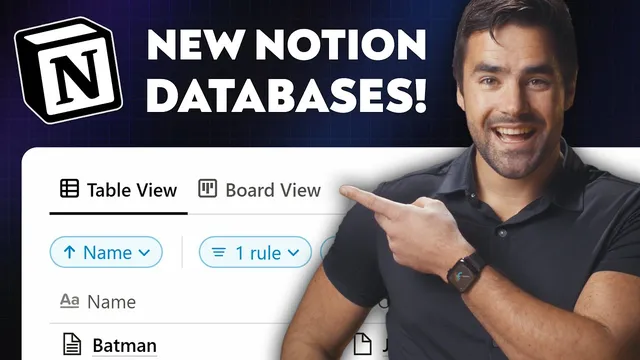
Notion now shows database views as clickable tabs across the top, making view switching faster when only a few views exist.
Briefing
Notion’s database overhaul centers on making views easier to navigate, filters faster to apply, and linked databases far more flexible—especially for team dashboards. The biggest day-to-day change is a redesigned database UI that surfaces view switching and view controls directly in the workspace, reducing the need to dig through dropdown menus.
At the top of a database, views now appear as tabs across the screen. When there are only a few views, switching becomes a single click rather than a dropdown hunt. A unified “view options” menu consolidates layout and configuration controls into one place. From there, users can rename views, switch layouts (including board, table, and timeline), show or hide the database title, and adjust properties, filters, sorts, and other view-specific settings.
Filters and sorting get a major redesign, with sorting moved to a new location while filters receive the most functional upgrades. The update introduces two filter types: advanced filters (the familiar multi-step, groupable filters) and quick filters (single-step, basic filters). Quick filters are designed for speed and personal tailoring. A key behavior is visibility: quick filters can be saved “for everyone” or left as personal-only. That means a shared team dashboard can still include a view that only the current user sees—without forcing everyone else to adopt the same filter.
Quick filters also come with tradeoffs. They lack some of the dynamic date options available in advanced filters. For example, quick filters can handle a fixed date condition (like “last contacted before December 9, 2021”), but they don’t offer relative options such as “today,” “tomorrow,” or “last week.” To use those dynamic date presets, the filter needs to be converted into an advanced filter.
Linked databases receive the most consequential upgrade. Instead of being tied to a single source database per linked block, a linked database block can now host multiple views sourced from different databases. In a sales dashboard example, one linked view can pull from a “customers” database (“sales by customer”), while another view inside the same linked block pulls from an “organizations” database (“sales by organization”). A new source menu in each linked view lets users swap the underlying database without rebuilding the whole dashboard.
Creating these linked views also gets smoother. When adding a linked view, Notion prompts for a data source database and offers the option to copy an existing view from the original database—useful for reusing complex layouts, hidden properties, or filter/sort setups. The workflow can also start from an empty view, and users can hide the database title to make dashboards cleaner. Finally, views inside the linked database block can be locked independently, separate from locking the underlying database.
Overall, the update keeps core database behaviors—sorting, property management, calculations—while tightening the interface and expanding linked-database power in ways that better match real-world team reporting needs.
Cornell Notes
Notion’s database redesign improves how people switch between views, manage filter logic, and build dashboards—especially with linked databases. Views now appear as tabs, and a unified view options menu consolidates layout, title visibility, properties, and view-specific settings. Filters split into advanced filters (multi-step, groupable, with dynamic date options) and quick filters (single-step, fast, and optionally personal-only via “save for everyone”). Linked database blocks become dramatically more useful by allowing multiple views within the same block to pull from different source databases, with per-view source selection and optional copying of existing views.
What changes make switching between database views faster and less error-prone?
How do quick filters differ from advanced filters, and why does that matter for team dashboards?
What limitation appears with quick filters for date-based conditions?
What’s the practical breakthrough in linked databases?
How does creating linked views help reuse existing work?
What does locking change for linked database views?
Review Questions
- When would someone convert a quick filter into an advanced filter, and what specific capability is gained?
- How does the new linked database source menu change the way teams build multi-database dashboards?
- What’s the difference between saving a quick filter for everyone versus leaving it personal-only?
Key Points
- 1
Notion now shows database views as clickable tabs across the top, making view switching faster when only a few views exist.
- 2
A unified view options menu consolidates layout changes, view renaming, title visibility, and view-specific configuration into one place.
- 3
Filters split into quick filters (single-step, fast, optionally personal-only) and advanced filters (multi-step, groupable, with dynamic date presets).
- 4
Quick filters can be saved for everyone or kept personal-only, enabling shared dashboards with individualized views.
- 5
Quick filters lack dynamic relative date options like “today” or “last week,” which requires advanced filters.
- 6
Linked database blocks can host multiple views sourced from different databases, with per-view source selection.
- 7
Linked views can be locked independently from locking the underlying database, giving finer control over dashboard stability.