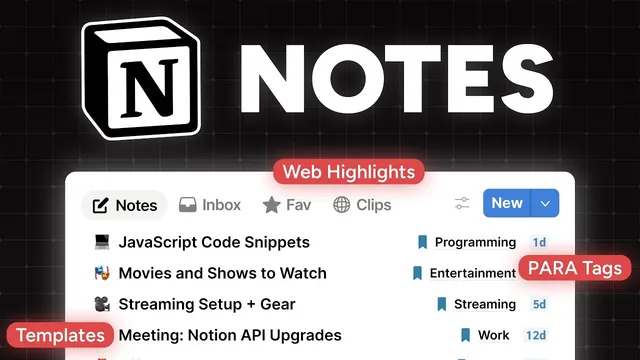
Notion feels incomplete without this note-taking setup
Based on Thomas Frank Explains's video on YouTube. If you like this content, support the original creators by watching, liking and subscribing to their content.
Build the system on two linked databases: Notes (capture + metadata) and Tags (PAR categories + navigation).
Briefing
A complete, PARA-inspired note-taking system can be built in Notion from a blank free workspace by anchoring everything to two connected databases—one for notes and one for tags—then turning those databases into a dashboard of purpose-built views. The core idea is simple: every note gets structured metadata (favorite, type, tags, archive status, timestamps, and optional media/URL fields), while every tag becomes a navigational hub that can surface related notes quickly. The payoff is speed and retrieval: inbox processing, favorites, web clipping, voice notes, and journal/meeting workflows all become different “windows” into the same underlying data.
The build starts by creating an “Ultimate Notes” dashboard page and keeping it clean by disabling backlinks, page discussions, and minimizing inline comments. From there, it creates a “databases” subpage that holds the two foundational databases: a notes database and a tags database. The notes database is designed with properties that support capture and organization. It includes a favorite checkbox, a relation-based tags property linking to the tags database (with two-way relations so tags can list their notes), a select “type” property for special categories like voice notes, web clips, highlights/research, and journal/meeting notes, plus URL, created/updated timestamps, and media fields (including a dedicated audio file field for voice workflows). An archived checkbox implements the “A” in PARA, keeping old material out of daily views without deleting it.
To make the notes database usable as an app-like interface, the page layout is customized: key fields (tag, favorite, type, URL) are pinned, while helper properties (like formula outputs used for compact UI) are hidden. Two default table views are created—unarchived and archived—using filters on the archived checkbox and sorting by updated time. The tags database mirrors this structure but adds PARA semantics directly into tag types. Instead of a simple select, it uses a status property with a default value so every tag is automatically one of three categories: area, resource, or entity (a fourth concept added to separate “shape-based” collections like apps/repos/essays from topic-based resources). Tags also support hierarchy via parent/sub-tag relations, and a rollup computes a “root tag” so parent pages can automatically include notes tagged to their descendants.
Once the databases exist, the dashboard is assembled using list-style views that link to the notes database with different filters and sorts: a default Notes view (excluding web clips and journal/meeting types), an All view, an Inbox for untagged notes, a Clips view for web clippings (identified by URL/type logic), a Voice view, plus dedicated Journal and Meeting views. Favorites get their own view with favorite checked and no forced sorting so users can manually order. Formula properties are then filled in to create compact UI elements like a clickable URL icon and “updated short” (e.g., days since last update), and tag pages use formulas like note count and latest activity so tag ordering reflects activity inside related notes.
The final step turns the system into a low-friction workflow by adding database templates. Tag pages get templates that automatically generate an embedded notes area (recent, A–Z, by tag, favorites, voice) and a web clips area (including grouping by site via URL base). Journal and meeting templates auto-fill “today when duplicated” dates and prebuilt sections like plan/review or agenda/action items. A “New note” button adds pages quickly. After locking the database structure, the result is a free-plan Notion setup that supports capture (including web and voice), PARA-style organization, and fast retrieval through a dashboard of specialized views.
Cornell Notes
The system is built around two connected Notion databases—Notes and Tags—then surfaced through a dashboard of filtered views. Notes store capture-ready metadata (favorite, type, tags relation, URL, timestamps, media, and an archived checkbox for PARA). Tags encode PARA categories using a status property (area, resource, entity) and support hierarchy via parent/sub-tag relations plus a rollup for “root tag,” letting parent tags automatically include descendant-tag notes. Dashboard views (Notes, Inbox, Clips, Voice, Journal, Meeting, Favorites, All) are just different windows into the same notes database, sorted and filtered for fast retrieval. Templates make new pages self-populating: tag pages include embedded related-note and web-clip views, while journal/meeting pages auto-fill dates and sections.
Why does connecting the Notes database to the Tags database matter more than adding more fields?
How does the PARA “Archive” concept get implemented in this system?
What is the purpose of the “type” property, and how does it drive different views?
How does the system make tag pages automatically include notes from sub-tags?
Why use formula properties like “URL icon” and “updated short” instead of showing raw fields everywhere?
What makes the templates essential for turning the setup into a workflow, not just a database?
Review Questions
- If a note has type = web clip and a non-empty URL, which dashboard view should it appear in, and why?
- How do parent/sub-tag relations and the root tag rollup work together to make a parent tag page include notes from descendant tags?
- What filters distinguish the Inbox view from the default Notes view in this system?
Key Points
- 1
Build the system on two linked databases: Notes (capture + metadata) and Tags (PAR categories + navigation).
- 2
Use a relation-based tags property with two-way linking so tag pages automatically list related notes.
- 3
Implement PARA with an archived checkbox in both databases and separate unarchived vs archived views.
- 4
Drive dashboard behavior with a select “type” property so each view can filter by note category (clips, voice, journal, meeting).
- 5
Customize database page layouts by pinning the most-used properties and hiding helper/formula properties to keep entry screens fast.
- 6
Use formulas to create compact clickable UI elements (URL icon, updated short) and to sort tag pages by latest activity across related notes.
- 7
Make templates do the heavy lifting: tag pages embed filtered related views, while journal/meeting pages auto-fill dates and prebuilt sections.