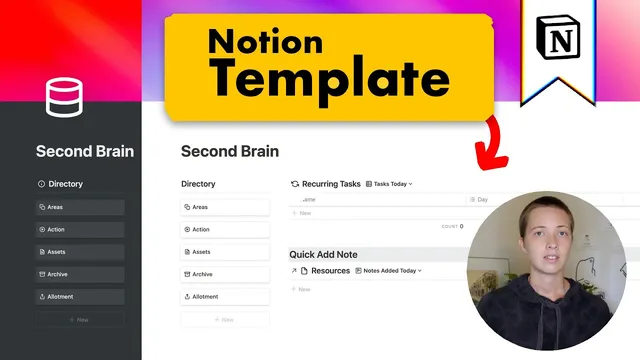
Notion for Knowledge Management: Second Brain Template (PARA inspired)
Based on Red Gregory's video on YouTube. If you like this content, support the original creators by watching, liking and subscribing to their content.
Use Areas as actionable life domains, then nest Projects inside them so calendar filters and navigation stay consistent.
Briefing
A PARA-inspired “second brain” built inside Notion unifies note taking, web clipping, and task management into one system organized by Areas, Projects, Resources, and an Archive. The core payoff is that every note or link saved from the web can be routed to a specific Area or Project, while tasks and deadlines automatically surface in the right places—so planning, execution, and reference stay connected instead of living in separate tools.
The setup starts by treating “Areas” as the top-level buckets for ongoing life domains that are actionable (for example, Content Creation or Health and Fitness). Projects then sit inside Areas. From there, the system uses a project calendar with filters tied to the selected Area: when a user creates a project from the Content Creation Area, the project calendar view automatically shows it with the correct deadline and start date. Each project also supports priority tagging and recurring work.
Recurring tasks are handled through two database views: one for “today” and one for “all.” A recurring task can be scheduled for specific weekdays (like Tuesday and Thursday), and the “today” view populates based on the current day. This keeps daily execution lightweight—users can check off tasks without navigating into every project.
Projects can be created with or without a deadline. If a project is meant to be worked on but not scheduled yet, it can live in the Projects list without appearing on the calendar until it’s ready. Active work is tracked through an “active tasks” area that aggregates tasks from all projects that are still unfinished. When tasks are marked “done,” they move into a separate “done” view, and project progress updates—complete with a progress bar—so status is visible at a glance.
Reference material is integrated through a Resources layer fed by a browser extension (“Save to Notion”). The extension supports saving either a link-only “resources link” entry or the full page content (“resources full”). Users can attach saved resources to a specific Area (so it can support multiple projects) or to a particular Project (so it stays tightly scoped). Resources also include read statuses (such as note, reference, and other states), and highlights can be captured directly from the saved page into bullet points.
To reduce clutter, completed items don’t vanish immediately; they can be archived. Archived content is accessible via an Archive section that links together archived projects, archived resources, and archived areas. A separate “Action” area provides system-wide next actions by filtering tasks across all Areas, while “Home” aggregates recurring tasks for today, a quick-add note workflow, and a “latest 10 resources” view.
Finally, a master calendar spans multiple Areas at once, letting users add new projects directly from the calendar and assign them to an Area without extra navigation. The result is a single workflow where web research, highlighted notes, and task execution all stay linked to the same PARA structure—making it easier to move from inspiration to action and back to reference.
Cornell Notes
The system builds a PARA-inspired “second brain” in Notion that connects Areas, Projects, Resources, and an Archive. Areas hold ongoing domains (like Content Creation), while Projects live inside Areas and can be scheduled on a project calendar or kept unscheduled until ready. Tasks are managed through recurring-task views (“today” and “all”) and project-level task breakdowns, with an “active tasks” aggregator and a “done” view that updates project progress. Resources are imported via a Notion web clipper/extension that saves either links or full page content, supports read statuses, and lets users add highlights that become bullet points. Archiving consolidates finished projects, resources, and areas so older work can be resurfaced without clutter.
How does the template keep Projects tied to the correct Area without manual re-filtering?
What’s the practical difference between a Project that has a deadline and one that doesn’t?
How are recurring tasks surfaced for daily use?
How does the system connect web research to execution work?
What mechanisms prevent the system from becoming cluttered over time?
How does the Home page support both quick capture and planning?
Review Questions
- How does attaching a resource to an Area versus a Project change where that resource appears later?
- What database views are used to manage recurring tasks, and how does that affect what shows up on a given day?
- Describe how “done,” “active tasks,” and “archive” work together to track progress without clutter.
Key Points
- 1
Use Areas as actionable life domains, then nest Projects inside them so calendar filters and navigation stay consistent.
- 2
Create projects from Area templates so the project calendar automatically filters by the selected Area.
- 3
Manage daily execution with recurring-task views for “today” and “all,” driven by weekday selections.
- 4
Break each Project into manageable tasks and use an “active tasks” aggregator to see everything still in progress across projects.
- 5
Import research with a Notion web clipper/extension that saves either links or full content, then attach resources to Areas or specific Projects.
- 6
Capture highlights during saving so key passages become bullet points inside the resource and appear in the related project context.
- 7
Reduce clutter by moving finished tasks to “done” and finished items to an Archive that links archived projects, resources, and areas.