Notion for Organization: How to Merge Tables to One Calendar!
Based on Red Gregory's video on YouTube. If you like this content, support the original creators by watching, liking and subscribing to their content.
Use a single “activity log” database as the master list of dates, with one record per day.
Briefing
A Notion “master calendar” can double as an activity log by linking multiple databases—tasks, notes, and media—into one date-driven timeline. Instead of manually placing entries into a calendar slot, each new task or note connects to a shared “activity log” date record through relation properties, letting Notion populate the correct day automatically. The payoff is a single place to see what happened on any date: how many tasks were completed, how many notes were added, and what media was captured.
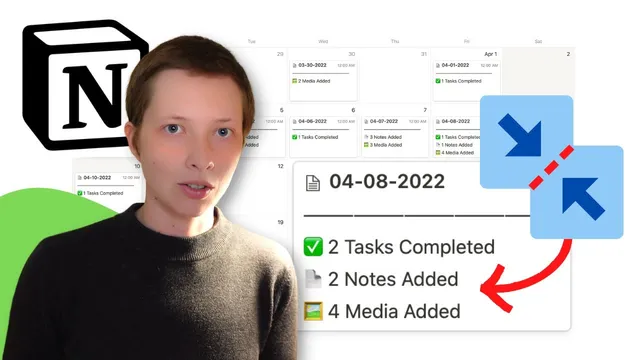
In the working setup, an “activity log” database acts as the master. It uses a gallery view with one card per day (sorted ascending by date). Each card displays summary metrics: completed tasks, notes added, and media added. For future-dated items, incomplete tasks appear with a red indicator, and clicking a card links directly to the underlying task page. A key mechanism is a formula-based “date” property: the card title stores a month/day/year string, and the formula converts that title into a real date property. That conversion is what enables a calendar view to render all activity-log days automatically.
The system then connects other databases to the master. A task database includes a relation property (e.g., “to master calendar”) so tasks can be assigned to a specific activity-log day. A notebook (notes) database includes an “added” relation to the same master date records. When a note or task is created and the relation is set (or selected from an existing day), the corresponding activity-log card updates immediately. The master calendar page itself is a linked database that shows the activity-log records in a calendar layout, filtered and grouped by month.
To build this from scratch, the workflow starts with creating the activity-log gallery database. The gallery cards are customized so only the title and the computed date formula show, while default properties like “created” and “tags” are removed. Next comes the formula: it parses a title formatted like “MM DD YYYY” (with allowed separators) into a true date property. Then two example databases are created: a task list (using a template like Notion’s “task list”) and a simple notebook (using a template like “simple notebook”). Each database gets a relation back to the activity-log database—tasks via a relation such as “to master calendar,” and notes via a relation such as “added.”
The activity-log cards are enhanced with formulas that count related items. Notes added is computed by counting relation entries (implemented by counting commas in the relation’s rendered text, then adjusting to get “count = commas + 1”). Tasks are handled more carefully: a checkbox formula marks tasks as “done” only when status equals “completed,” and a rollup aggregates counts of incomplete tasks. Those results are formatted into human-readable strings like “3 notes added” or “2 tasks completed.”
Finally, a “master calendar” page is created using a linked database view of the activity log, set to “calendar” and “show calendar by date” using the formula date property. A small visual divider can be added per day, and a template for “new date” can embed linked task and note lists filtered to the currently selected day. The result is a low-friction daily hub: create tasks or notes from within the day view, and the calendar updates without manual calendar placement.
Cornell Notes
A Notion master calendar can function as an activity log by making one “activity log” database the source of truth for dates. Other databases—tasks and notes (and optionally media)—link back to the activity-log date via relation properties, so new entries automatically appear on the correct day. The activity-log gallery uses a formula to convert a title like “MM DD YYYY” into a real date property, which then powers a calendar view. Card-level formulas and rollups summarize activity per day, such as “notes added” counts and “tasks completed/incomplete” totals. This matters because it turns scattered work into a single, navigable daily timeline without extra manual steps.
How does the setup turn a gallery card title into something a calendar can use?
What role do relation properties play when creating tasks and notes?
How are “notes added” counts computed on each activity-log card?
How are completed vs incomplete tasks counted for each day?
Why create a separate “master calendar” page instead of using the activity log directly?
What does the “new date” template accomplish inside the calendar?
Review Questions
- What is the exact purpose of the formula date property, and what breaks if the calendar view doesn’t use it?
- How would you modify the system if you wanted to track a fourth category (e.g., expenses) per day—what new database pieces and relations would you add?
- Why might a rollup plus a checkbox formula be necessary for task completion counts instead of a simple count of tasks?
Key Points
- 1
Use a single “activity log” database as the master list of dates, with one record per day.
- 2
Convert the day title into a real Date with a formula property so a calendar view can render correctly.
- 3
Link tasks and notes back to the activity-log date using relation properties (e.g., “to master calendar” and “added”).
- 4
Build per-day summaries on the activity-log cards using formulas (for notes) and rollups (for tasks).
- 5
Create a master calendar page as a linked database calendar view of the activity log, grouped by month views.
- 6
Add a “new date” template that embeds day-filtered linked lists so creating entries happens in-context.