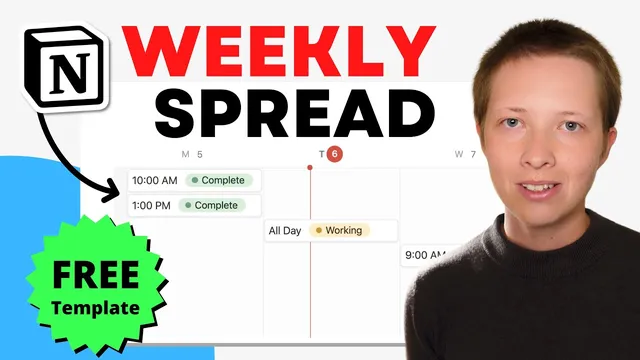
Notion for Productivity: My Favorite Weekly Spread (Free Template)
Based on Red Gregory's video on YouTube. If you like this content, support the original creators by watching, liking and subscribing to their content.
Use a tasks database with a Date property (with optional time) and a Status property to power the weekly Timeline layout.
Briefing
A clean weekly task spread in Notion can be built from a single tasks database by combining Timeline view, side peak task previews, and two lightweight formula fields that label tasks by week and extract start times. The payoff is a dashboard-like weekly layout that stays tidy—showing only Monday–Sunday tasks for “this week” or “next week,” while automatically displaying either a specific time (e.g., 12 P.M.) or “all day” when no time is set.
The setup starts with a tasks database that includes at least a Date property and a Status property. The Date field can include time for some tasks and be time-less for others; Notion’s date settings also allow toggling end dates and time display. For the weekly spread to remain readable, the database is paired with a Pipeline (board view) and a filter that hides clutter: completed tasks older than a week are removed, inbox tasks scheduled too far in the future are excluded, and only active items (like “working”) remain.
Next comes the weekly view itself. A new database view is created from the same tasks database, set to Timeline and configured to display Week mode (with the red “today” line acting as the anchor). Sorting by date ascending improves scanability, and the card/table property display is tuned so the task name appears only where intended. To isolate tasks to the current week, a formula property named “week” is added. It uses Notion’s date formatting to compute the week number (capital “W” for Monday–Sunday weeks) and returns either the string “this week” or a blank. A view filter then keeps only rows where the “week” formula contains “this week.”
A second formula property, “start time,” turns the Date field into a display-friendly scheduling cue. It formats the time portion (using “LT”) when a task has a time, but when the Date resolves to 12 a.m. (a common marker for “no time provided”), it outputs “all day.” This “start time” field is then shown in the weekly Timeline cards alongside Status, giving each task a quick scheduling glance.
For aesthetics and dashboard use, the weekly view is placed on an empty page via a linked database view. Linked views preserve the original filters and sorts while allowing the layout to live inside a callout-based block. The result is a compact weekly spread with cards that open in side peak—making it possible to edit task properties without leaving the weekly context.
Finally, “next week” is created by duplicating the “this week” view and adjusting the “week” formula. A second formula branch converts the current week number into a numeric comparison (using Notion’s two number conversion) so tasks whose week number equals “this week + 1” are labeled “next week.” The duplicated view is filtered to show only “next week,” enabling planning by adding tasks directly into the correct week from the dashboard-style layout.
Cornell Notes
A Notion weekly spread can be built from a tasks database by using Timeline view in Week mode, side peak task previews, and two formula fields. First, a “week” formula labels tasks as “this week” or “next week” by comparing the week number derived from the Date property (capital “W” for Monday–Sunday). A view filter then shows only tasks whose “week” formula matches the target label. Second, a “start time” formula formats the time from the Date property when a time exists, but outputs “all day” when the Date is effectively 12 a.m. For a dashboard feel, the weekly view is embedded on an empty page using a linked database view and callout styling.
What minimum database fields are needed to generate the weekly spread, and why do they matter?
How does the “week” formula isolate tasks to Monday–Sunday for “this week” (and later “next week”)?
What logic determines whether a task shows a specific time or “all day”?
Why use a linked database view on an empty page instead of building everything directly there?
How is “next week” created without rebuilding the whole weekly system?
What role does side peak play in the weekly spread workflow?
Review Questions
- How would you modify the “week” formula if you wanted weeks to run Sunday–Saturday instead of Monday–Sunday?
- What specific condition in the “start time” formula triggers the “all day” output, and what does it return when that condition is false?
- If tasks are missing from the weekly view, which two places would you check first: the view filter logic or the Date property’s time settings?
Key Points
- 1
Use a tasks database with a Date property (with optional time) and a Status property to power the weekly Timeline layout.
- 2
Create a Timeline view in Week mode and sort by Date ascending for a cleaner weekly scan.
- 3
Add a “week” formula that labels tasks as “this week” or “next week” using formatted week numbers (capital “W” for Monday–Sunday).
- 4
Filter the weekly view by the “week” formula so only Monday–Sunday tasks appear.
- 5
Add a “start time” formula that shows formatted time when a time exists, but outputs “all day” when the Date resolves to 12 a.m.
- 6
Embed the weekly spread on an empty page using a linked database view and style it with callouts for a dashboard-like look.
- 7
Duplicate the “this week” view to create “next week” by adjusting the “week” formula to compare against “this week + 1.”