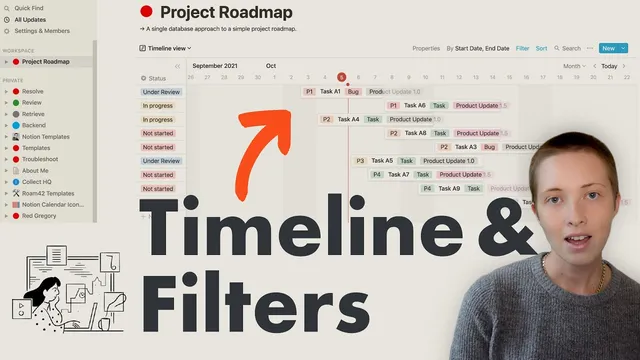
Notion From Day One: Timelines & Filters
Based on Red Gregory's video on YouTube. If you like this content, support the original creators by watching, liking and subscribing to their content.
Create a timeline view from a database and ensure every task has a date property (either a single date or a start/end range).
Briefing
Notion timelines can be turned into an “automatic archive” system by combining a timeline date property with stacked filters that hide completed work after a set age. The workflow starts with a database timeline view where each task has a date (or start/end dates) and then uses filter groups to control what appears—so completed items don’t linger indefinitely, but also don’t vanish immediately.
The setup begins by creating a timeline page (e.g., a “Task Manager” timeline) and using the timeline’s requirement: a date property. With a date range, the timeline can show tasks across multiple days; with an end date toggled off, it can instead treat tasks as single-day items. The transcript demonstrates both approaches: a “start date” property with a separate “end date” (or “due date”) that can be toggled into “use separate start and end dates,” so adjusting the end date updates the task’s placement on the timeline.
From there, the database is enriched with properties that later become filter and sort controls. Status is set up with Not started, In progress, and Completed, and an additional status like Under review can be added. Other classification properties include Project (as a select like “product update 1.0”), Priority (select values such as P1–P5 with color coding), and Sprint (another select to group tasks into batches). The timeline can display or hide properties, and sorting follows the order of the dropdown conditions—Notion applies them like stacked rules, where the top condition takes precedence.
Filters are then layered to create practical views. A “Type” select (Task vs Bug) is introduced, and filter groups are used to include tasks while also optionally including bugs via an OR group. Status filtering is grouped so multiple statuses can be included at once. Another group sets time-based behavior for new items—such as automatically setting Start date to today or constraining it relative to today.
The key automation is the archive behavior. Completed tasks are kept visible initially, then removed from the timeline only after they’re older than a week. This is done by adding a filter group that targets Status = Completed and applies a date condition (e.g., Start date or End date on or after “one week ago”). As a result, tasks disappear from the timeline once they meet both conditions.
To collect those archived items, a separate list view (e.g., “completed”) is created with a filter Status = Completed and sorting by end date descending. Finally, to focus on a single project without rebuilding logic, the timeline view can be duplicated and renamed (e.g., “product update 1.0”), then given an extra filter Project = product update 1.0—preserving the same auto-archive and sort behavior.
The transcript closes by emphasizing that many workflow rules can be implemented with filters, sometimes even preferring filters over formulas for certain logic patterns.
Cornell Notes
A Notion timeline becomes a self-maintaining task manager when tasks use a date property (single date or start/end range) and the view relies on stacked filters. The workflow builds a timeline with properties like Status, Project, Priority, and Sprint, then sorts using the dropdown order (top rule applies first). Filters are grouped to handle inclusion logic (e.g., Type = Task OR Type = Bug) and to apply time rules (e.g., Start date relative to today). The “automatic archive” effect comes from filtering out Status = Completed items only when their date is at least one week old. Duplicating the timeline view and adding Project-specific filters lets the same logic run per project.
What makes a Notion timeline work, and how do start/end dates change the timeline behavior?
How do stacked sorts and filter groups behave in Notion?
How can filters automatically set or constrain fields for new tasks?
What exact filter logic creates the “archive after one week” effect for completed tasks?
How do you preserve the same timeline logic for a single project without rebuilding filters?
Review Questions
- Why does the timeline require a date property, and what changes when you use separate start and end dates?
- How does the order of dropdown conditions affect sorting in a Notion timeline view?
- What two conditions must a task meet to disappear from the timeline under the one-week archive setup?
Key Points
- 1
Create a timeline view from a database and ensure every task has a date property (either a single date or a start/end range).
- 2
Use Start date and End date (or Due date) to control how tasks span across the timeline, and verify that end-date edits update the timeline placement.
- 3
Add select properties like Status, Project, Priority, and Sprint so they can drive sorting and filtering.
- 4
Sort rules in Notion apply in the dropdown order, with the top condition taking precedence like stacked logic.
- 5
Use grouped filters to implement inclusion logic such as Type = Task OR Type = Bug and to combine multiple status options.
- 6
Implement automatic archiving by filtering out Status = Completed only when the relevant date is on or after one week ago.
- 7
Duplicate the timeline view and add a Project filter to generate per-project timelines while keeping the same archive and sort behavior.