Notion Masterclass: Build a Note Taking System from Scratch
Based on Thomas Frank Explains's video on YouTube. If you like this content, support the original creators by watching, liking and subscribing to their content.
Build the dashboard from one master notes database and one tags database, then generate every section using linked database views with filters.
Briefing
A complete Notion note-taking dashboard can be built from a blank page by using one “master” notes database plus linked database views, filters, and templates—turning Notion into an inbox-to-archive system for both handwritten notes and web clips. The core idea is to capture quickly in an Inbox, then automatically route items out of that Inbox once they’re tagged or identified as web content, while keeping everything sortable and searchable through views like Favorites, Recents, Tags, and a drag-and-drop Noteboard.
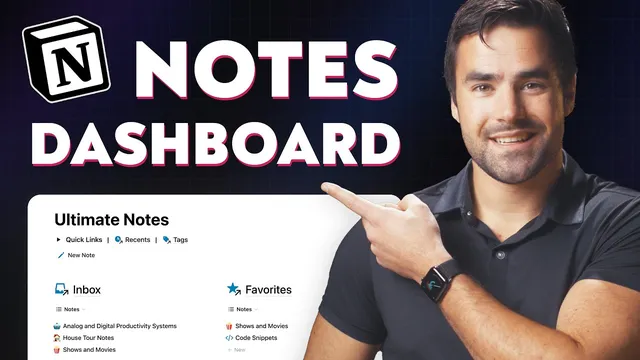
The build starts with a full-width, two-column layout and a clear navigation structure: Inbox and Favorites at the top, followed by Recents, Tags, and a full-width Noteboard. The Inbox is designed as a holding area for unprocessed items—notes that have not yet been tagged and (for the “Web Clips” tab) items that do have a URL. This separation matters because it supports two different capture contexts: something created by the user versus something clipped from the internet.
Under the hood, everything runs through a single notes database that holds each note as a row with properties. The tutorial adds key properties: favorite (checkbox), archived (checkbox), created time, edited time, URL (for web clips), and a select “type” (e.g., lecture, book, voice note). A second database called tags stores tag pages with similar favorite and archived checkboxes, plus a relation back to notes. That relation is what enables the Inbox filter logic: notes leave the Inbox once their tag relation is no longer empty.
Linked views then create the dashboard sections. The Inbox view uses advanced filters such as “archived is unchecked,” “tag is empty,” and “URL is empty” (for Notes) or “URL is not empty” (for Web Clips). Favorites is another linked view, filtered to “favorite is checked,” with sorting removed so items can be manually reordered. Recents is filtered to “archived is unchecked” and sorted by edited time descending, with load limits reduced (e.g., 10 pages) to keep columns from becoming unwieldy. An additional Recents tab for voice notes filters by type = voice note.
The Tags area shifts from duplicating note views to building linked views of the tags database itself. It includes an A–Z list view, a Favorites gallery view (card cover, small cards, side peek), and a Noteboard board view that groups notes by tag or by type. Notes can be dragged between groups, mimicking a kanban-style workflow.
The “next level” feature is a tag database template. A self-referential filter automatically updates linked views inside each tag page so that a tag page’s notes, favorites, and web clips always reflect the tag it represents—no manual filter rewiring for each new tag. A button workflow (“New note”) uses Notion’s button steps to create a new page in the notes database and open it in side peek.
Finally, an Archive page provides safe storage by filtering for archived = checked, with table views and a column-freezing feature to keep the archived checkbox visible while scrolling. The tutorial also adds formula-based “sprinkles” like edited-time badges, duration formatting, AI cost formatting, and tag-page formulas such as latest note, latest note date, and note count—plus a base URL formula that can group web clips by source domain. The result is a single-page system that manages notes end-to-end: capture, tag, review, browse by tag, and archive without losing context.
Cornell Notes
The system is built around one master “notes” database and one “tags” database, then uses linked database views with filters and sorting to create an end-to-end dashboard. Inbox views route items automatically: notes appear when tag is empty and URL is empty, while Web Clips appear when URL is not empty. Favorites and Recents are separate linked views—Favorites filters on favorite = checked (with manual ordering), and Recents sorts by edited time descending with a load limit to keep things tidy. Tag pages are generated from a tags database template using a self-referential filter, so each new tag automatically shows its own notes, favorites, and web clips. An Archive page completes the loop by filtering archived = checked, keeping old content out of active views without deleting it.
How does the dashboard ensure that Inbox items “graduate” once they’re processed?
Why create a separate tags database instead of just using a tag property on notes?
What’s the purpose of duplicating linked views and then tweaking filters rather than building everything from scratch?
How does the tag template avoid manual reconfiguration for every new tag page?
What makes the Favorites area different from Recents in day-to-day use?
How do formulas and property visibility “sprinkles” improve the system without changing its structure?
Review Questions
- If a note has URL filled in but no tag relation yet, which dashboard section should it appear in, and what filters cause that behavior?
- Describe how the tags database template’s self-referential filter works and why it matters when creating new tag pages.
- What tradeoff does the system make by using load limits in Recents, and how does that affect usability when the database grows?
Key Points
- 1
Build the dashboard from one master notes database and one tags database, then generate every section using linked database views with filters.
- 2
Use Inbox filters to separate user notes from web clips: URL empty for Notes, URL not empty for Web Clips, while tag empty keeps items in the holding area.
- 3
Create a relation between tags and notes so Inbox can detect “untagged” items and tag pages can list their related notes like folders.
- 4
Use Favorites as a manually ordered view by filtering favorite = checked and removing automatic sorting.
- 5
Use Recents as a recency-driven view by sorting on edited time descending and applying a load limit to keep columns readable.
- 6
Generate tag pages from a tags database template with a self-referential filter so each tag automatically shows its own notes, favorites, and web clips.
- 7
Add an Archive page that filters archived = checked to remove items from active views without deleting them, and freeze key columns for usability.