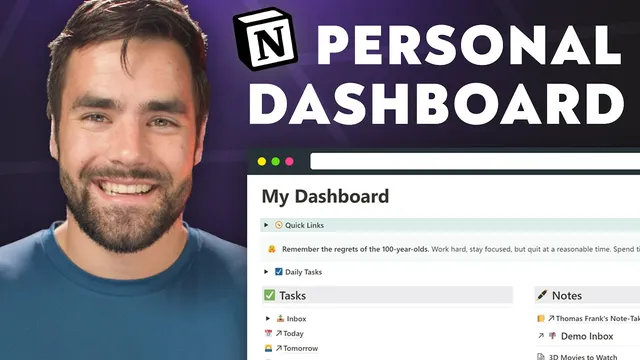
Notion Masterclass: Build a Personal Dashboard from Scratch
Based on Thomas Frank Explains's video on YouTube. If you like this content, support the original creators by watching, liking and subscribing to their content.
Build the dashboard as a multi-column Notion page with styled headings, then use toggles to keep dense content collapsible.
Briefing
A personal dashboard in Notion can function as a single “home base” that links to tasks, notes, projects, and reference pages—while also letting people take quick actions (like adding inbox items) without leaving the page. The core build centers on a multi-column layout with linked and embedded views, so the dashboard becomes both a navigation hub and an interactive workspace rather than a static collection of links.
The tutorial starts by defining the dashboard’s purpose: quick access to a task manager, a note-taking system, project tracking, and even embedded database views. The example dashboard is designed around a “link-heavy” philosophy—favoring page links and linked database views so updates stay consistent across the workspace. The builder begins with a blank full-width page, adds styled headings (gray backgrounds and emojis), and sets up a multi-column structure: Tasks on the left, Notes to the right, with Web Links and Reference sections beneath.
In the Tasks column, the dashboard pulls in multiple views from a free “Ultimate Tasks” system—Today, Tomorrow, and Next 7 Days—by creating links to those pages and pinning the dashboard itself to the favorites bar for fast sidebar access. A habit tracker template is added as another quick entry point. The most interactive element is an inbox-style task area: instead of embedding a raw “all tasks” database and rebuilding filters, the tutorial duplicates the already-configured inbox view from Ultimate Tasks and pastes it into the dashboard. That embedded inbox sits inside a toggle (collapsed by default) and is tuned to load fewer items on first page load (10 instead of 50) to keep the dashboard responsive on narrower screens.
The Notes column uses a free note-taking system template. A linked database is required so that notes added from the dashboard appear in the original note inbox—unlike a copied database, which would create a separate dataset. The linked view is configured with filters that ensure only relevant notes show up (status not empty, and URL not empty), plus a sort that surfaces the most recently updated notes first. A Notion workaround is used to duplicate the view configuration: a “dummy” view is created to access duplication controls, then the view is adjusted to a list format for better fit in the dashboard’s layout.
Web Links and Reference sections round out the page with quick bookmark-style access and linked page blocks for frequently visited materials. A quick links bar is added via a toggle containing a table of contents link, improving navigation especially on mobile where the dashboard collapses into a single column. Additional dashboard blocks include a callout reminder (“work hard… quit at a reasonable time… spend time with your friends and your family… go outside”) and a synced block demo to show how one block can appear in multiple locations while staying linked.
Finally, the dashboard adds a daily tasks checklist using a gallery view of a database inside a toggle, filtered to hide archived items and set to show a small number of cards initially. A weather widget is embedded at the end using Indify (free), configured for Denver and displayed for today and tomorrow. The result is a practical, mobile-friendly dashboard that supports both navigation and fast capture—built with linked views, toggles, and embeds so the dashboard stays current as the underlying systems evolve.
Cornell Notes
The dashboard is built as a Notion “home base” that combines navigation and quick capture. It uses a multi-column page with linked page blocks and linked database views so tasks and notes added from the dashboard update the original systems. The task inbox is duplicated from an already-filtered Ultimate Tasks view to avoid rebuilding complex filters, then placed inside a collapsed toggle with reduced initial load (10 items). The notes inbox requires a linked database (not a copied database) so new notes appear in the same dataset; filters handle quirks with the Notion web clipper. A mobile-friendly quick links bar, a daily checklist, and an Indify weather embed finish the dashboard.
Why does the tutorial emphasize “linked” views instead of copying databases into the dashboard?
How is the task inbox made interactive without rebuilding filters and sorts from scratch?
What filters are used for the notes inbox, and why do they matter?
What’s the “dummy view” trick used for duplicating a complex view configuration?
How does the tutorial improve mobile usability for a dashboard with many sections?
How is the weather widget added, and what does “embed” accomplish here?
Review Questions
- When would a copied database fail to behave like an inbox, and how does a linked database fix that?
- What steps are used to keep the inbox fast on first load, and why does that matter for dashboard usability?
- How do the notes inbox filters relate to the behavior of the Notion web clipper?
Key Points
- 1
Build the dashboard as a multi-column Notion page with styled headings, then use toggles to keep dense content collapsible.
- 2
Use page links and “link to database” views so the dashboard stays synchronized with the underlying task and note systems.
- 3
Create the task inbox by duplicating an already-configured inbox view (filters/sorts included) rather than rebuilding those rules from scratch.
- 4
For the notes inbox, use a linked database and apply filters that account for web clipper behavior (status not empty OR url not empty).
- 5
Wrap large inboxes in toggles and reduce initial load (e.g., 10 items) to keep the dashboard responsive.
- 6
Add mobile navigation support with a quick links bar (toggle + table of contents link) so users can jump to sections quickly.
- 7
Use third-party embeds like Indify for widgets (e.g., weather) to add real-time utility without cluttering the page with manual updates.