Notion Masterclass: Create a Simple & Effective Dashboard
Based on The Organized Notebook's video on YouTube. If you like this content, support the original creators by watching, liking and subscribing to their content.
Notion’s strength for dashboards comes from combining a centralized workspace with customizable layouts and scalable database features.
Briefing
Notion is positioned as a flexible “single home” for personal productivity—capable of replacing scattered notes, calendars, and task lists with one customizable dashboard that can grow from simple to highly structured. The core pitch: build a personal dashboard in Notion using a deliberate, step-by-step system so it stays useful instead of turning into an overwhelming catch-all.
The session starts by laying out why Notion works well for dashboards. It acts as a centralized information hub where personal and professional details can live together. Unlike productivity tools with fixed layouts, Notion can be molded from scratch to match an individual workflow. Access is cross-platform—usable on mobile, web, and through the Notion app—so the dashboard stays reachable anywhere. Under the hood, Notion’s database functionality can be kept lightweight (simple pages) or expanded into relational structures for deeper tracking. The platform also benefits from growing integration capabilities and frequent updates, including newer features such as Notion Mail and form builders.
To prevent “dashboard sprawl,” the session recommends a five-step design approach. First, identify what to track—examples include to-do lists, calendars, habit tracking, meal planning, and even niche interests like gardening. Second, create only the necessary databases and pages, since everything doesn’t need to be a database; overusing databases can add complexity without improving clarity. Third, design the main dashboard view by deciding what belongs at the top of the page versus what can be hidden in side navigation. Fourth, personalize the space with visual elements or a minimal layout that motivates daily use. Fifth, refine over time: use the dashboard, then adjust based on what actually helps.
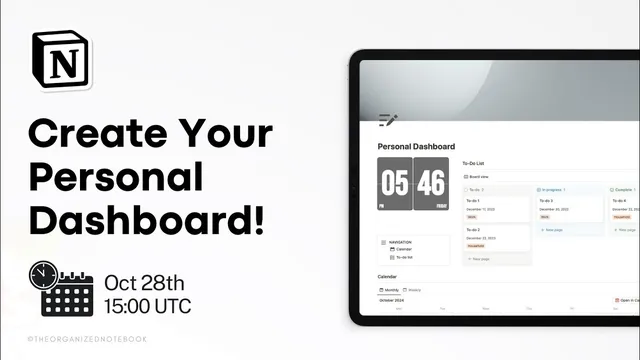
The walkthrough then builds a personal dashboard from an empty Notion page. It uses a full-page layout, a two-column structure, and a left-side navigation area. On the right, it creates a to-do list in board view and a calendar beneath it. The calendar is set up as a calendar view database with properties like tags, and it’s duplicated into month and week views. The to-do list is configured with status columns (e.g., not started, in progress, done) and then adjusted to group items by a tag using a multi-select property, plus a due date for scheduling. A notes database is added with metadata such as created time and last edited time, along with URL and files/media fields; the session also highlights Notion’s newer layout customization options for pages.
A key design choice appears in the reading list section: not everything needs database treatment. A reading list for 2024 is presented as a simple checklist with an icon and cover photo, with the option to convert it into a database later if it grows. Linked views are used to surface the to-do list and calendar inside the main dashboard while keeping the underlying databases in place.
In the Q&A, Notion forms are discussed as potentially useful for team workflows, but less essential for a personal dashboard unless the user wants structured input like quick notes or reading entries. Notion AI is suggested as a practical assistant for task management and note enrichment, including generating ideas or research prompts directly within tasks. The session also distinguishes Notion Home from a personal dashboard: Notion Home is more controlled and can connect to Google Calendar, while a custom dashboard remains more free-form. The overall takeaway is pragmatic—start simple, link views, keep the front page focused, and iterate until the dashboard fits real life.
Cornell Notes
Notion is presented as a customizable “personal productivity system” where tasks, calendars, notes, and other life data can live in one place. The session’s main method is a five-step build process: define what to track, create only the needed databases/pages, design the main view (what appears first vs. what goes in navigation), personalize the layout for motivation, and refine after using it. A live example constructs a dashboard with a two-column layout, a to-do board view (grouped by tags and including due dates), a calendar database (month and week views), and a notes database with created/edited timestamps plus URL/files/media. The reading list is intentionally kept as a simple checklist to show that not every component needs database complexity. Linked views bring database content into the main dashboard while preserving the underlying structure.
Why does Notion work well as a personal dashboard compared with more rigid productivity apps?
What’s the five-step approach for designing a dashboard that doesn’t become overwhelming?
How is the calendar set up in the example dashboard?
How is the to-do list structured to stay simple but flexible?
When should a reading list be a database versus a simple page?
What role do linked views play in the dashboard build?
Review Questions
- What criteria would you use to decide whether a dashboard component should be a database or a simple page?
- How would you redesign the main dashboard view if your daily priorities changed after two weeks of use?
- In the example build, what properties make the to-do list useful for both organization (tags) and planning (due dates)?
Key Points
- 1
Notion’s strength for dashboards comes from combining a centralized workspace with customizable layouts and scalable database features.
- 2
A dashboard stays manageable when tracking needs are defined first and only necessary databases/pages are created.
- 3
Keep the front page focused: decide what appears at the top daily and what lives in navigation or side views.
- 4
Use linked views to surface database content in the main dashboard without duplicating data.
- 5
Not every tracker needs database complexity; simple pages (like a checklist reading list) can be more appropriate early on.
- 6
Refine the dashboard after real use—small adjustments based on what helps you stay productive matter more than building everything at once.