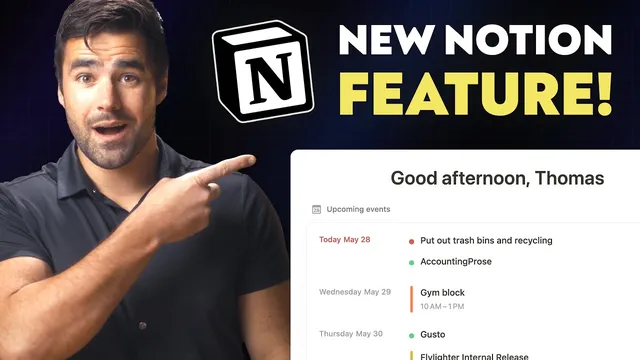
Notion's new Home feature: Everything you need to know!
Based on Thomas Frank Explains's video on YouTube. If you like this content, support the original creators by watching, liking and subscribing to their content.
Notion Home is available on desktop and web browsers, and it introduces a widget-based dashboard that’s more structured than a blank canvas.
Briefing
Notion’s new Home feature makes the workspace feel more like a personalized dashboard—complete with calendar previews, task management, and embedded database views—while staying tightly integrated with existing Notion data. The biggest shift is visual and functional: Home introduces fixed “widgets” that act as an opinionated starting point for jumping into the right pages, and it’s currently available only on desktop and in web browsers.
At the top of Home sits a “Recently visited” area for quick backtracking to pages worked on in the past, closely mirroring the jump-back behavior found in Notion’s mobile app. The “Upcoming events” widget pulls directly from Notion Calendar, including support for multiple Google Calendar accounts (for example, separating work and personal calendars into one unified view). A three-dot menu lets users tailor what appears: whether the widget mirrors Notion Calendar’s own visibility settings, how far ahead to look (today through a week, or just today/tomorrow), and whether to hide all-day events. Additional toggles filter out events without participants or without conferencing/location details—useful for teams that want a meeting-only feed rather than a full schedule.
The most consequential part of Home is “My tasks,” which adds a capability Notion previously lacked: a single view that can display rows from multiple task databases at once. Task databases require at least three specific property types—an “assign” property (person), a “status” property (status), and a “due date” property (date). Once a database is converted into a task database, Home’s My tasks view can pull in tasks from both a team task database and a personal/private task database simultaneously. Filters and sorting determine which rows appear, and the transcript highlights an “advanced filter” approach that combines conditions like “assign contains me” with a second rule that includes tasks from the private database.
That power comes with a trade-off. Because rows come from multiple databases, Home can only show a strict set of properties that are common across all included task databases. Unique fields—such as GTD contexts or priorities that may exist in one database but not the other—won’t appear in the My tasks widget. Even so, creating a new task from within Home follows the view’s default destination and assignment logic, with the option to move it to other task databases later.
Beyond tasks, Home can embed views of other databases directly into the dashboard. Users can add a linked database view, choose a layout (like a list), customize which properties show (such as movie genre), and even add multiple embedded views from different databases. Smaller sections round out the experience: “Suggested for you” and “Trending” pages are personalized and can be filtered by teamspace, while “Learn” provides documentation links. Home is also customizable through a three-dot menu that allows hiding most widgets—though “Recently visited,” “Suggested,” and “Trending” can’t be removed—plus options to change the default start page (last visited, Notion AI, or Home). Finally, the greeting can be customized, including setting a nickname like “Optimus Prime.”
Cornell Notes
Notion’s Home feature turns a workspace into a dashboard with widgets for quick navigation, calendar previews, and task tracking. The standout capability is “My tasks,” which can display rows from multiple task databases in one view—something previously unavailable in Notion. Task databases must include an “assign” (person), “status” (status), and “due date” (date) property, and Home’s multi-database view only shows properties common to all included databases. Calendar events come from Notion Calendar (including multiple Google Calendar accounts) and can be filtered by date range and meeting details. Home also supports embedding custom database views, plus suggested/trending sections and a customizable greeting and default start page.
What makes Notion Home different from a typical Notion page layout?
How does the “Upcoming events” widget connect to calendars, and what can be customized?
What requirements define a “task database” for Home’s My tasks widget?
How can Home’s “My tasks” show tasks from both team and personal sources at once?
Why can’t Home’s My tasks view show every custom property from every task database?
What other dashboard-style capability does Home add besides tasks and calendar?
Review Questions
- What three property types must exist in a database for it to function as a task database in Home’s My tasks widget?
- How do filters enable My tasks to include both team-assigned tasks and personal tasks in the same view?
- What limitation arises when combining multiple task databases into one My tasks view, and how does that affect which properties appear?
Key Points
- 1
Notion Home is available on desktop and web browsers, and it introduces a widget-based dashboard that’s more structured than a blank canvas.
- 2
The “Upcoming events” widget pulls from Notion Calendar and supports multiple Google Calendar accounts, with controls for date range and meeting-focused visibility.
- 3
Home’s “My tasks” is the standout feature because it can display rows from multiple task databases in a single view.
- 4
Task databases require an “assign” (person), “status” (status), and “due date” (date) property, and other databases can be converted if they meet those requirements.
- 5
Multi-database task views only show properties common to all included task databases, so unique fields like context or priority may not appear.
- 6
Home can embed customized views of other databases (including layout choice, property selection, and icons) directly into the dashboard.
- 7
Home customization includes hiding most widgets (with “Recently visited,” “Suggested,” and “Trending” remaining), changing the default start page, and editing the greeting nickname.