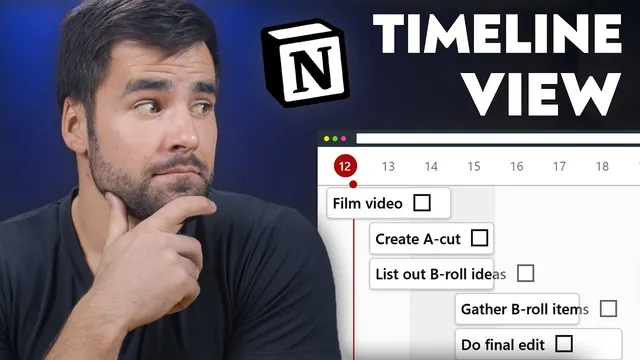
Notion's Timeline View (and 3 Other New Features!)
Based on Thomas Frank Explains's video on YouTube. If you like this content, support the original creators by watching, liking and subscribing to their content.
Notion’s Timeline view enables Gantt-style scheduling for database items, but timeline views are quota-limited by plan (three free, five team, unlimited enterprise).
Briefing
Notion’s latest release adds a database Timeline view—aimed at building Gantt-style schedules—but the feature arrives with plan-based limits that force power users to rethink how they structure projects. On the free plan, only three timeline views are allowed; team plans get five; enterprise users get unlimited. That restriction matters because templates like “Ultimate Tasks” can spawn many project instances, and each instance would otherwise consume a timeline slot. A workaround is to keep a single timeline view and switch which project it shows via filters, effectively trading multiple timelines for one configurable view.
The Timeline view itself stretches items across timeframes by mapping a database property to a visible schedule window. By default, items are “timelined” using a single date property (such as Due date), which creates a subtle mismatch: Notion filters based on the underlying date value, but the timeline display uses the computed start/end range. In the example given, a task due “today” appears on the timeline with an end date later than today, even though filtering still treats it as due today. To avoid that discrepancy, the recommended setup is to timeline using separate Start and End date properties—setting Start to one property (like “start”) and End to another (like “due”). With that approach, the timeline reflects the intended schedule, and sorting (for example, by start date) can enforce the real execution order.
Timeline views also support independent property display: the table and the timeline can show different fields. That enables a cleaner schedule view—such as showing a Done checkbox on the timeline without cluttering the table. But there’s a tradeoff: hiding the table can hide any items that don’t have the required start/end fields, so databases with mixed date structures may need compromises.
Beyond timelines, three quieter features land that directly improve day-to-day usability. First, Notion now allows customizing which properties appear on individual pages and database pages. For database-backed pages, the customization applies across all pages in that database, letting users hide properties that are empty or hide large property sets by default—so key sections like scripts and checklists become immediately visible.
Second, sharing permissions become more granular for sub-pages. Instead of sub-pages inheriting parent-page access settings, each sub-page can now have its own sharing rules. That unlocks more precise permission “trees,” such as giving a sponsor list view-only access to most employees while granting full access to specific people, or limiting edit rights on dashboards to only the dashboard owner and a manager.
Third, inline database views can now limit how many rows load on first display. A database can show only 10 (or another chosen number) initially, with a “load more” control to fetch additional rows later—helpful for dashboards and mobile layouts where loading hundreds of items would push important content far below the fold.
Taken together, the release targets both planning (Timeline view) and information management (property customization, sub-page sharing, and row-loading limits), with the biggest caveat being timeline view quotas that require thoughtful workspace design.
Cornell Notes
Notion’s new Timeline view brings Gantt-style scheduling to database items, but it’s capped by plan: three timelines on free, five on team, unlimited on enterprise. The timeline can misalign with filtering when it’s based on a single date property, so using separate Start and End date properties is the safer setup. Alongside timelines, Notion adds page/database property customization (including hiding empty properties), granular sharing for sub-pages that no longer must inherit parent permissions, and a way to limit how many rows load in inline database views on first render. These changes matter most for large workspaces where clutter, slow loading, and rigid permissions make databases harder to use day to day.
How does Notion’s Timeline view schedule items, and what goes wrong when it’s based on a single date property?
Why do separate Start and End date properties improve both accuracy and workflow?
What are the plan-based limitations on Timeline views, and how can users work around them in templates?
What does “Customize page” change, and how does it reduce database clutter?
How do granular sharing permissions for sub-pages differ from the old inheritance model?
What does “limit rows loaded on first load” do for inline database views?
Review Questions
- When would a Timeline view based on a single date property produce a misleading schedule relative to filtering, and how does the Start/End setup prevent that?
- How do Timeline view quotas affect template design, and what filter-based workaround can keep timelines within limits?
- What practical benefits come from customizing page properties and limiting inline database rows on first load?
Key Points
- 1
Notion’s Timeline view enables Gantt-style scheduling for database items, but timeline views are quota-limited by plan (three free, five team, unlimited enterprise).
- 2
Timeline view can display a computed start/end range that may not match filtering when it’s driven by a single date property like Due date.
- 3
Using separate Start and End date properties (Start = start, End = due) aligns the timeline display with intended scheduling and sorting.
- 4
Customize page lets users hide or show specific properties on database-backed pages, including hiding properties when empty, reducing clutter.
- 5
Sub-pages no longer have to inherit parent-page sharing settings, enabling case-by-case permission control for teams and dashboards.
- 6
Inline database views can limit how many rows load on first render, improving dashboard usability and mobile performance with a “load more” option.
- 7
Some timeline and sharing behaviors have practical constraints (e.g., items may disappear if required start/end fields are missing; linked filtered views still require access to underlying databases).