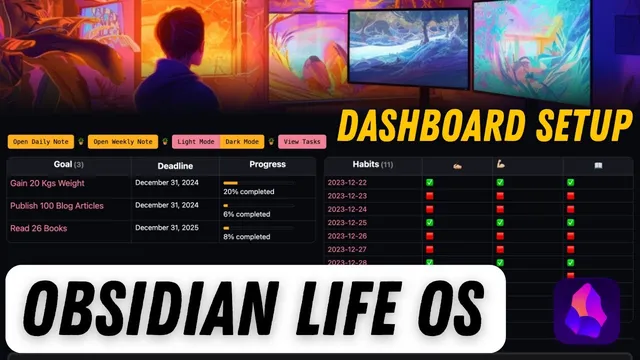
Obsidian Dashboard Setup: Plan & Track Your Life in 2024 With Obsidian(Showcase)
Based on Prakash Joshi Pax's video on YouTube. If you like this content, support the original creators by watching, liking and subscribing to their content.
Build the vault around templates (goal, daily, weekly) so inputs are standardized and metadata is consistent.
Briefing
A personal “life OS” built in Obsidian turns goal setting, daily reflection, weekly review, and task management into a connected system—so progress updates automatically instead of relying on manual bookkeeping. The core idea is to structure a vault around templates and metadata-driven widgets: goals get a progress bar tied to frontmatter, daily notes track productivity and habits through the same metadata, and dashboards pull that information into calendars, tables, and card layouts.
At the center sits a homepage hub (“OB cdan lifeo”), designed as a control panel for the whole setup. It includes a banner with quick-action buttons (open daily/weekly notes, view tasks, toggle light/dark), a goals and habits multicolumn section, a satisfaction heat map calendar, and panels for recently created and recently updated notes. The homepage also features a heat map view based on a numeric property (0–10) and a modular CSS layout that switches between card and table styles depending on enabled CSS snippets.
Goal tracking is anchored by a “goal template” that defines key properties such as area, progress, target, start date, deadline, and completion date. A progress bar widget is wired to metadata using the Meta Bind plugin: dragging the slider updates the underlying frontmatter automatically. The template also uses Banner plugin styling for a gradient header and includes callouts (info/success/danger) plus a set of goal prompts adapted from Improve.app-style questions. A recurring method for strengthening commitment is a “why” chain: when setting a goal (example given: gaining 20 kg), the user repeatedly asks why it matters until reaching a deep root reason.
To make goals visible at a glance, a “goal dashboard” uses the Data View plugin with JavaScript queries. Goals render in a card-based layout (via Minimal theme CSS) and can be filtered and displayed through customizable Data View queries. The daily note template then extends the system: it auto-inserts the date and links to previous/next daily notes using the Templater plugin, tracks “how proud am I” on a 1–10 scale via Meta Bind progress bars, and provides a habit tracker where checkmarks toggle habit completion while updating metadata. Journal prompts capture daily wins and new tasks.
Weekly review follows a similar pattern. A weekly note template uses Periodic Notes and Templater scripts to generate week identifiers and navigation links to adjacent weeks, plus a link list to daily notes within the week. It adds a life-balance tracker (health, wealth, relationship, spirituality) using Meta Bind progress bars and a weekly wins section that writes back into metadata.
Task management is handled through Obsidian Tasks plus two custom views: a Kanban board built with the Cardboard plugin (date-board option) and a task calendar/timeline built with Data View JavaScript and CSS/JS assets. A task dashboard summarizes today’s tasks, overdue items, and unplanned tasks, and can be pinned to the sidebar for constant visibility.
Overall, the system matters because it reduces friction: templates standardize inputs, widgets write to metadata, and dashboards read that metadata to keep planning and tracking synchronized across daily, weekly, and task views—without manual updates to multiple screens.
Cornell Notes
The setup builds a metadata-driven Obsidian system for planning and tracking life in 2024. Goals use a goal template where a Meta Bind progress bar updates frontmatter automatically, and a goal dashboard uses Data View JavaScript queries to display goals in card or table layouts. Daily notes use Templater to generate dated notes and links to adjacent days, then track “proudness” (1–10), habits, and journal prompts while writing results into metadata. Weekly notes use Periodic Notes plus Templater scripts to create week navigation and a life-balance tracker (health, wealth, relationship, spirituality). Task management integrates Obsidian Tasks with a Kanban board (Cardboard) and calendar/timeline dashboards (Data View + provided CSS/JS).
How does the system keep goal progress from becoming manual work?
What makes the daily note template “connected” to the rest of the system?
How does weekly review work without losing navigation between days and weeks?
What role do Data View JavaScript queries play in dashboards and calendars?
Why are CSS snippets and modular layouts important in the homepage design?
When is Obsidian a good fit for task management in this setup?
Review Questions
- Which metadata properties are used to drive the goal progress bar, and how does Meta Bind update them?
- Describe how Templater and Periodic Notes work together to generate daily and weekly navigation links.
- What combination of plugins and CSS assets is needed to render the homepage multicolumn layout and task calendar views?
Key Points
- 1
Build the vault around templates (goal, daily, weekly) so inputs are standardized and metadata is consistent.
- 2
Use Meta Bind progress bars and toggles to write user actions directly into frontmatter, enabling automatic dashboard updates.
- 3
Connect daily and weekly navigation using Templater scripts (previous/next links) and Periodic Notes (week-based files).
- 4
Use Data View JavaScript queries as the reporting layer to render goals, habits, recently created/updated notes, and task dashboards.
- 5
Integrate Obsidian Tasks with custom views: Cardboard for Kanban and Data View-based calendar/timeline dashboards for scheduling.
- 6
Make the homepage usable by combining modular CSS snippets with card/table rendering choices and pinned task summaries.
- 7
Strengthen goal follow-through by repeatedly asking “why” until reaching a deep root motivation, then align daily habits to that goal.