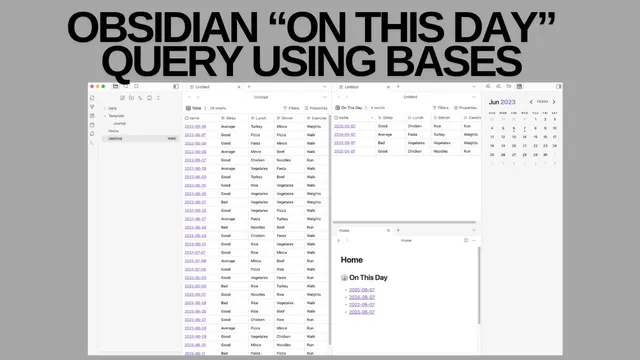
Obsidian - On This Day Query Using Obsidian Bases Feature
Based on Ed Nico's video on YouTube. If you like this content, support the original creators by watching, liking and subscribing to their content.
Bases can display Daily-note properties like sleep, lunch, dinner, and exercise directly in the table, avoiding hover-only visibility issues common in Data Views.
Briefing
Obsidian’s Bases feature can recreate an “On This Day” view for Daily notes—showing the same month/day across multiple years—while also surfacing custom frontmatter properties like sleep, lunch, dinner, and exercise more cleanly than Data Views. The key payoff is that the Bases-based table can update dynamically with the “current” date, so the list shifts automatically from June 7 to June 8 (or any other day) without manually editing the query each time.
The walkthrough starts by comparing two approaches. A Data Views setup can filter Daily notes by folder and date, pulling up entries from the same historical day in descending order. But getting the custom properties to appear is awkward: Data Views may only reveal those fields on hover, whereas Bases makes them readily visible in the table. Bases also feels simpler to wire up for property display, and it supports a more interactive workflow—pressing a command reveals the underlying text content tied to those properties.
The tradeoff is timing behavior. The Data Views version requires manual updates to keep “today” aligned with the real calendar date, because the query logic doesn’t automatically track the current day in the same way. Bases, by contrast, can be made dynamic: it reads the month and day from “now,” compares them to the month and day encoded in each Daily note’s filename, and filters to only the matching historical entries.
From there, the tutorial builds the setup step by step. First, it creates a Base that indexes all files in the vault, then filters it down to the Daily folder. Next, it ensures the relevant properties (sleep, lunch, dinner, exercise, plus any text fields) are included so they populate as new daily notes are added.
With the Base in place, the next step is creating a specialized view—duplicating the table layout into an “On This Day” table. A new property, “on this day formula,” is added. That formula extracts the current month and day using date functions (e.g., month and day from “now”), extracts the month and day from the file name (e.g., the numeric month/day segments in names like 67, 68, 69, or similar), and then uses nested IF conditions to return true only when both month and day match. A filter then keeps only rows where the formula evaluates to true.
The result is a table that automatically aggregates every Daily note matching the selected month/day across years—turning a scattered set of daily logs into a consistent “same day, different year” dashboard. The walkthrough demonstrates this by changing the simulated current date to the 8th and showing that the view immediately switches from June 7 entries to June 8 entries. Finally, it notes that the finished query can be copied from the description, and that additional properties can be added or hidden to tidy the layout.
Cornell Notes
The Bases feature in Obsidian can recreate an “On This Day” dashboard for Daily notes by filtering files whose filename month/day match the current month/day. The setup starts with a Base filtered to the Daily folder and configured to display properties like sleep, lunch, dinner, and exercise. A duplicated table view then adds an “on this day formula” property that compares month and day from “now” against month and day parsed from each file name. A filter keeps only rows where the formula is true, producing a dynamic list across multiple years. This approach is especially useful because Bases can display custom properties directly in the table, while Data Views may require hover/extra steps and often needs manual date updates.
How does the “On This Day” logic decide which Daily notes to show?
Why does Bases feel easier than Data Views for this use case?
What’s the role of the Base filter to the Daily folder?
How are month and day extracted from filenames in the formula?
How does the view update when the date changes?
Review Questions
- What two conditions must both be true for a Daily note to appear in the “On This Day” table?
- How does the workflow differ between creating a general Base of Daily notes and creating the specialized “On This Day” view?
- Why might a Data Views-based “On This Day” setup require manual updates compared with the Bases formula approach?
Key Points
- 1
Bases can display Daily-note properties like sleep, lunch, dinner, and exercise directly in the table, avoiding hover-only visibility issues common in Data Views.
- 2
An “On This Day” view is built by filtering files whose filename month/day match the month/day extracted from “now.”
- 3
Create a Base first: filter it to the Daily folder and include the properties you want to see across years.
- 4
Duplicate the table layout into a dedicated “On This Day” view, then add an “on this day formula” property with nested IF checks for month and day.
- 5
Apply a filter that keeps only rows where the formula evaluates to true, producing a cross-year list for the same calendar day.
- 6
Because the formula depends on “now,” the view updates automatically when the current date changes, unlike setups that require manual query edits.
- 7
Additional properties can be shown or hidden in the table to keep the “On This Day” dashboard readable.