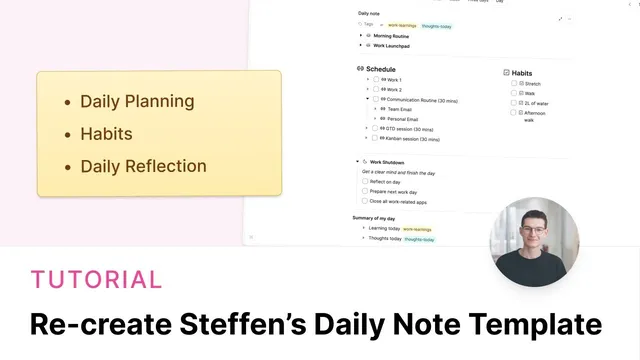
Recreating Steffen's Daily Note Template
Based on Capacities's video on YouTube. If you like this content, support the original creators by watching, liking and subscribing to their content.
Create a daily note template in Capacities using headings, dividers, and icons to mirror a repeatable morning-to-shutdown workflow.
Briefing
A practical daily note template built around Stefan’s workflow turns a blank daily page into a repeatable system for morning setup, work execution, shutdown, and reflection—then adds searchable “learning” archives via tags. The core payoff is consistency: the same structure appears every day, while only the day-specific content needs to be filled in.
The setup starts by creating a new template from Capacities Central calendar’s template menu. The template is organized into four main sections: a morning routine, a schedule with habits, a work shutdown routine, and a final summary. Each section uses headings, dividers, and icons to make the page scannable. Morning routine items are entered as lists and checkable tasks, using Capacities’ to-do blocks (created by typing square brackets) and optional icons that persist when new blocks are added.
For interactivity, the template relies heavily on collapsible toggles. Morning tasks can be grouped so they collapse once completed, and later sections use toggles again to keep the interface tidy. A key detail is how toggles behave with nested blocks: if toggles are added to only part of an indented section, only that portion collapses. To make an entire routine collapsible, the toggle must be applied at the correct top-level block.
The schedule section is designed with columns. The schedule occupies a wider column, while habits sit in a narrower area to the side. The template then uses toggles and checkboxes under the schedule and habits so the day’s structure stays visible without forcing constant scrolling. The workflow also supports editing templates over time: templates can be renamed and modified in the manage template settings, and updates apply to newly created daily notes without rewriting past entries.
The shutdown routine mirrors the morning structure with reminders and tasks, again grouped under a toggle for easy completion. The final section is where the system becomes more than a checklist: Stefan’s daily summary captures “everything learned today” inside a toggle tagged with “work learnings,” with another tagged area for “thoughts today.” Those tags matter because they create a filtered archive. Clicking a tag shows only the tagged toggle content across days—so reflections become searchable knowledge rather than buried text.
To make the template automatic, it’s marked as the default in daily note settings (the filled star). After that, each new daily note automatically inherits the structure. The result is a loop: the template prompts daily reflection, tags turn reflections into a growing personal knowledge base, and future edits to the template can evolve the routine as needs change.
Cornell Notes
Stefan’s daily note template for Capacities builds a consistent day structure: morning routine, schedule plus habits, work shutdown, and a closing reflection. It uses headings, dividers, icons, to-do blocks, checkboxes, and collapsible toggles to keep tasks manageable and the page readable. A key feature is tagging the reflection toggle (notably “work learnings” and “thoughts today”), which turns daily notes into a searchable archive of insights. Marking the template as default (filled star) makes it apply automatically to new daily notes, while edits to the template affect future notes without changing past entries.
How does the template keep daily tasks organized without turning the page into a wall of text?
What’s the practical difference between adding a toggle to part of an indented section versus the whole section?
How are to-do items created in the template, and what’s the benefit of using them?
Why does the schedule section use columns, and how are habits placed relative to it?
How do tags turn daily reflections into something reusable later?
What happens when the template is edited after it’s been created?
Review Questions
- When adding toggles to a routine with indented blocks, what selection level determines whether the whole section collapses?
- How do tags in Capacities change the way “work learnings” can be reviewed compared with reading full daily notes?
- What steps make a daily note template apply automatically to every new daily note?
Key Points
- 1
Create a daily note template in Capacities using headings, dividers, and icons to mirror a repeatable morning-to-shutdown workflow.
- 2
Use to-do blocks (square brackets) and checkboxes to standardize task entry across the day.
- 3
Group tasks with collapsible toggles, and apply toggles at the correct block level so entire routines collapse as intended.
- 4
Structure the schedule with columns—wide for schedule items and narrow for habits—then use indentation to keep habits aligned.
- 5
Edit templates in the manage template settings to evolve routines; updates affect future daily notes but not past ones.
- 6
Use tagged reflection toggles (e.g., “work learnings”) so daily insights become a searchable archive rather than scattered text.
- 7
Mark the template as default (filled star) so new daily notes automatically inherit the setup.