The Best Way to Manage Tasks and Projects in Notion
Based on Thomas Frank Explains's video on YouTube. If you like this content, support the original creators by watching, liking and subscribing to their content.
Use the inbox checkbox as a capture buffer: tasks remain in Inbox until the checkbox is unchecked, then filters move them into the rest of the system.
Briefing
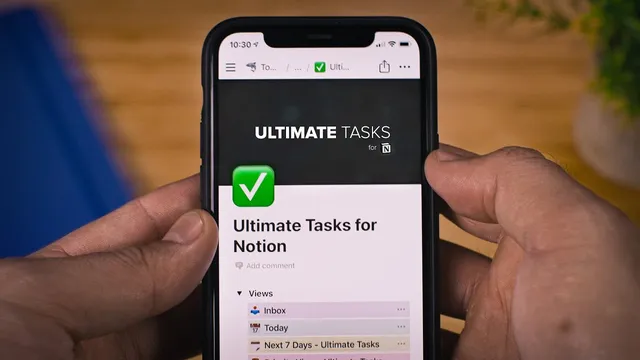
Notion’s task management setup can feel like a “white whale,” but the Ultimate Tasks template offers a structured system that makes recurring work, sub-tasks, inbox triage, and project tracking work together instead of fighting each other. The core idea is a single master task database (“all tasks”) that powers multiple filtered views—so tasks can be created quickly, then automatically appear in the right places based on due dates, status, priority, and project relationships.
The workflow starts with an inbox designed for capture. Tasks sit in the inbox until the “inbox” checkbox is unchecked, allowing users to dump items first, then fill in due dates, projects, and priority without losing track. A color-coded “state” field provides at-a-glance timing: red for overdue, green for due today, and blue for future tasks. For recurring tasks, the template uses a practical workaround: instead of relying on Notion’s native recurring behavior, it sets each task’s due date to the “next due date,” so completing a recurring item effectively advances it. This keeps the system compatible with Notion’s limitations while still producing a predictable cadence.
Sub-tasks are handled through a template-driven pattern. When creating a task “with sub tasks,” the task contains its own embedded sub-task database. Any sub-task created inside that embedded table automatically links back to its parent task, and small arrow markers in the state column reveal the hierarchy at a glance across views. The template also emphasizes responsiveness: list views are positioned as mobile-friendly, while table and Kanban views support richer desktop planning.
Daily planning is built into nearly every view via “daily tasks” notes that act like a scratch pad or whiteboard replacement. Users can plan the day or temporarily park items, then archive completed notes with an “archive” checkbox so they disappear from the system. Filtering then drives the next layer: the Today view shows tasks due today or earlier, while the Next seven days view expands the window to include everything due within a week.
For prioritization, a dedicated Kanban-style “priority view” assigns new tasks a default priority (medium) using a filter-based creation rule. Ordering on the board can be rearranged without breaking the underlying priority assignment, letting users sort high/medium/low while keeping new items consistent.
The most powerful piece is project management through a separate “projects” database linked to “all tasks.” Each task can relate to a project, so tasks automatically appear in both the project board and the personal planning views. Project boards support both classic state-based Kanban (to do/doing/done) and a tag-based board view that breaks large work into categories like design, copy, speed, and security. Creating a project uses a project template that auto-fills structure, icons, and linked databases—so new initiatives immediately slot into the system. The result is a unified Notion setup that replaces multiple task apps with one consistent set of views, rules, and relationships.
Cornell Notes
Ultimate Tasks is a Notion template built around one master database (“all tasks”) and many filtered views that keep task capture, planning, and project execution aligned. An inbox checkbox holds new items until they’re ready to move on, while a color-coded state field (overdue/today/future) gives quick timing signals. Recurring tasks are managed by updating due dates to a “next due date,” using a workaround that fits Notion’s constraints. Sub-tasks are created via a task template that embeds a sub-task database inside each parent task, with arrow markers showing the hierarchy. Projects live in a separate database linked to tasks, enabling project Kanban/tag boards while tasks still flow into Today and Next seven days planning.
How does the template prevent “inbox dumping” from turning into permanent clutter?
What’s the template’s approach to recurring tasks in Notion?
How are sub-tasks implemented so they behave like real nested tasks across views?
What role do “daily tasks” notes play, and how do they avoid polluting the system?
How does the template ensure new tasks get a consistent priority automatically?
How do projects connect to tasks without duplicating effort?
Review Questions
- If a task is checked in the inbox view, what exact mechanism removes it from the inbox, and what additional condition must be satisfied for it to leave?
- Describe the template’s workaround for recurring tasks and explain how “next due” functions compared with one-time tasks.
- How does the template’s project relation model ensure a task appears in both project boards and day-planning views?
Key Points
- 1
Use the inbox checkbox as a capture buffer: tasks remain in Inbox until the checkbox is unchecked, then filters move them into the rest of the system.
- 2
Recurring tasks are handled by shifting due dates to a “next due date,” providing predictable recurrence despite Notion limitations.
- 3
Sub-tasks are implemented via a parent-task template that embeds a sub-task database inside each task, with arrow markers signaling the hierarchy.
- 4
Daily planning is integrated through “daily tasks” notes that appear across most views and can be hidden using an archive checkbox.
- 5
Today and Next seven days views rely on due-date filters to control which tasks appear (today-or-earlier vs. within a week).
- 6
A priority Kanban view assigns new tasks a default priority (medium) using filter-driven creation behavior.
- 7
Projects are managed in a separate database linked to tasks, enabling project Kanban/tag boards while tasks still surface in daily planning views.