The Notion task manager you'll actually use (full build)
Based on Thomas Frank Explains's video on YouTube. If you like this content, support the original creators by watching, liking and subscribing to their content.
Build the system around three databases (Tasks, Projects, Task Journal) and connect them with a one-to-many Relation from Projects to Tasks.
Briefing
A complete, usable task manager in Notion can be built from a blank page by treating Notion databases like the underlying “app engine,” then layering purpose-built views on top—an inbox, daily and weekly planning, scheduled lists, and project dashboards—so everything you need lives behind one homepage.
The build starts by creating an “ultimate tasks” homepage set up like an app canvas (full width, minimal distractions). From there, three inline databases power the system: a tasks database, a projects database, and a task Journal database for daily planning. The tasks database is converted into a Notion “task database” schema by adding core properties such as Status and Due date, then expanded with practical fields: Priority (implemented as a status-style property with defaults), Smart list for “someday” tasks, Description, Created/Edited timestamps, and—critically—a Relation to Projects. That relation is configured as one project to many tasks, with a two-way link so projects can show their tasks.
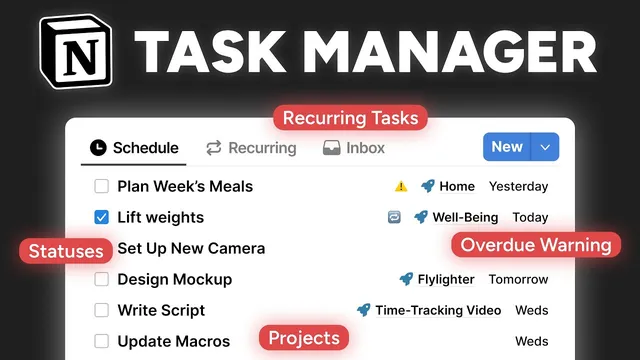
To make task pages feel fast and readable, the layout for each task page is customized: frequently used properties (Status, Due date, Project) are pinned under the title, while helper properties move into a side panel. A key helper property is Meta labels, a formula that outputs icons for overdue tasks and recurring tasks. This formula is designed to work across all list views so the same visual cues appear everywhere without rework.
Next comes the daily workflow layer: views duplicated from a source “active tasks” database. The system creates an Inbox view that automatically clears when tasks are completed, assigned to a project, or moved out of Smart list “someday.” It then duplicates into Today (tasks due today), a Week calendar view, a Scheduled view that groups tasks by due-date ranges, and a No due view for tasks waiting on dates. Additional views provide “By project” grouping and consolidated lists for All unfinished tasks and Done tasks.
Projects receive the same treatment. The projects database adds a richer Status set (planned, on hold, doing, ongoing, done), an Archived checkbox, Created/Edited timestamps, and a Progress formula that renders a progress bar based on completed tasks. A project page template is created so every new project automatically spawns embedded task views filtered to tasks that belong to that project—using a self-referential filter so the template always points to the correct project page. This turns each project into a mini dashboard with list, board, and calendar views of its tasks.
Advanced features are then layered in. Recurring tasks are implemented with recur interval and recur unit properties plus a Next due formula (using dateAdd). On paid plans, an automation can update Due date when tasks are checked off; a dedicated recurring-tasks view makes manual processing possible when automations aren’t available. Subtasks are enabled via Notion’s built-in subtasks feature, but the build warns about a common pitfall: subtasks don’t automatically inherit the parent’s project relation, so filtered project views may “lose” subtasks unless views are configured carefully (e.g., showing parents only in inbox-style views and using flattened lists for date-based views).
Finally, the system adds usability polish: a mobile-friendly button on the homepage to create new tasks and projects, and database locking to prevent accidental edits. The result is a single-page task manager that behaves like software—complete with inbox capture, scheduling, project execution pages, recurring logic, subtasks, and a daily journal—while remaining customizable for individual workflows and future upgrades like task history, time tracking, and richer project home bases.
Cornell Notes
The build turns Notion into a full task-management app by combining three databases—Tasks, Projects, and Task Journal—with a homepage that links to specialized views. Tasks get a Status and Due date schema, plus Priority, Smart list (“someday”), Description, timestamps, and a one-to-many Relation to Projects. Layout customization pins the most-used fields and uses a Meta labels formula to show overdue and recurring icons across views. The system then creates workflow views (Inbox, Today, Week calendar, Scheduled, No due, By project, All, Done) and project dashboards using a project page template with self-referential filters. Advanced features add recurring tasks (Next due formula + optional automation) and subtasks (with cautions about relation/filter pitfalls).
Why does the build start with three databases instead of one, and what does each database do?
How does the system ensure tasks flow out of the Inbox automatically?
What is the Meta labels formula for, and why is it placed in helper properties?
How do project pages automatically show the right tasks without manual filtering each time?
How are recurring tasks implemented, and what does the automation change on paid plans?
What pitfall can break subtasks inside this setup, and how does the build recommend avoiding it?
Review Questions
- If a task is checked off but still appears in the Inbox, which Inbox filter rule is most likely misconfigured (Status, Project empty, or Smart list empty)?
- What does the project page template’s self-referential filter accomplish, and what would happen if it pointed to the template rather than the applied project page?
- In the recurring-task system, which property is used to compute the next due date, and how is it calculated from Due date plus recur interval/unit?
Key Points
- 1
Build the system around three databases (Tasks, Projects, Task Journal) and connect them with a one-to-many Relation from Projects to Tasks.
- 2
Use a task-friendly Status schema with defaults so new tasks never start with empty status values.
- 3
Create workflow views (Inbox, Today, Week, Scheduled, No due, By project, All, Done) by duplicating a source view and changing filters/sorts rather than rebuilding from scratch.
- 4
Pin frequently edited properties on task pages and use a Meta labels formula to surface overdue/recurring cues across all list views.
- 5
Turn each project into a mini dashboard using a project page template with a self-referential filter so embedded task views always stay scoped to the correct project.
- 6
Implement recurring tasks with recur interval/unit plus a Next due formula; optionally use automations to advance Due date and reset Status when tasks are completed.
- 7
Enable subtasks with care: subtasks may not inherit Project relations, so view filters must be configured to prevent “missing” subtasks in project dashboards.