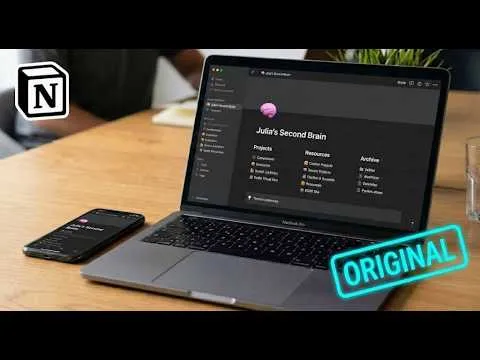
The OFFICIAL Notion Second Brain Setup
Based on Tiago Forte's video on YouTube. If you like this content, support the original creators by watching, liking and subscribing to their content.
Capture must be optimized for speed—mobile quick capture and a web clipper route items into the system before they get forgotten.
Briefing
A Notion “second brain” can stay useful only if capturing ideas is fast enough that they actually get recorded—then everything else (tasks, notes, and read-later items) can be organized and revisited without clutter. The setup presented centers on eliminating capture friction, routing every incoming thought into the right place, and maintaining the system with a short weekly reset.
The homepage in Notion is organized into quick capture and review on the left, plus daily execution on the right. Quick capture buttons sit alongside “priorities for this month,” reference pages, a notes area, a read-later area, and a weekly review checklist. Daily pages are created automatically via recurring templates and include a startup checklist, a habit-tracking layer (including sleep), and a shutdown checklist to end the day cleanly. The workflow also uses a strict 2-minute rule: anything that takes two minutes or less gets handled immediately; longer items are added to the task list. To keep the system from becoming a graveyard of forgotten entries, the daily page includes a “today” task view (with options to see this week, waiting-on items, and active projects) plus a scratchpad space for notes that can be revisited during the day.
Speed is treated as the make-or-break feature. For mobile, a dedicated favorites page is optimized into a single column so tasks can be captured in seconds—complete with reminders and deadlines. For web capture, a recommended “save to notion” web clipper stores either a note or a read-later item, with the option to open the saved content in Notion immediately. This split matters because read-later content is intentionally not consumed yet, while notes are for ideas already processed and ready to connect to projects.
Organization is handled through PARA: Projects, Areas, Resources, and Archives. Projects represent short-term efforts; Areas are long-term responsibilities; Resources are topics or interests; Archives store inactive items. Tasks, notes, and read-later entries each link back to one of these categories, and items can move fluidly as life changes—for example, something can shift from Project to Area when it becomes ongoing maintenance (like an apartment). Projects also include status controls (not started, inactive, done, archived) and checklists for kickoff and completion, including steps like capturing current thinking, linking existing notes, building an outline, and recording learnings at the end.
Execution relies on three connected databases. The task manager includes an inbox for unprocessed tasks, a “today” view driven by a “do on” date (when work should happen) and a separate “deadline” (latest due date), plus views for waiting-on items, grouping by status, project/area, tags, and calendar/timeline layouts. Recurring tasks are implemented as page templates that reappear on schedule.
Notes are stored in a notes database with statuses such as raw and polished, and they’re tied to the PARA categories so ideas don’t float unconnected. Read-later is a separate database for podcasts, YouTube videos, articles, books, TV series, and other content not yet consumed; it tracks content type, status, links, recommendation source, and completion details, and can link back to notes and tasks.
Finally, maintenance is built in: a weekly review checklist (about 30 minutes or less) clears inboxes, processes captured items, and prepares next actions so the system stays trustworthy rather than messy. The pitch is straightforward—either build the relationships and views manually or use the official Notion template and mini course to get the methodology running quickly.
Cornell Notes
The system’s core principle is that a second brain only works if capturing is frictionless, so tasks, notes, and read-later items reliably enter the system. It pairs fast capture (mobile quick-capture page and a “save to notion” web clipper) with a daily execution page built from recurring templates and a 2-minute rule. Organization follows PARA—Projects, Areas, Resources, and Archives—so every item links to the right category and can move as circumstances change. Three connected databases (tasks, notes, and read-later) provide inboxes, processing statuses, and views like “today,” “waiting on,” and recurring tasks. A weekly review (30 minutes or less) resets inboxes and turns stored information into next actions, preventing clutter.
Why does the setup treat capture speed as the first requirement for a second brain?
How does the system use PARA to keep tasks, notes, and content from becoming disconnected?
What’s the difference between “do on” dates and deadlines, and why does it matter?
How does the daily page turn captured information into action?
How do notes and read-later differ in purpose and structure?
What does the weekly review accomplish, and why is it positioned as maintenance?
Review Questions
- What specific mechanisms in the setup reduce capture friction on mobile and the web?
- How do PARA categories influence where tasks, notes, and read-later items are stored and how they can change over time?
- Why does the task system use both “do on” dates and deadlines, and how does that affect the “today” view?
Key Points
- 1
Capture must be optimized for speed—mobile quick capture and a web clipper route items into the system before they get forgotten.
- 2
A daily page created from recurring templates anchors execution with a startup checklist, habit tracking (including sleep), and a shutdown checklist.
- 3
The 2-minute rule prevents backlog: tasks taking two minutes or less are handled immediately; longer items go into the task list.
- 4
PARA (Projects, Areas, Resources, Archives) provides the organizing backbone so tasks, notes, and read-later entries stay connected and can move as life changes.
- 5
Tasks rely on both “do on” dates and deadlines to ensure work starts early enough, not just when due.
- 6
Notes and read-later are separate by intent: notes are processed knowledge (raw/polished), while read-later is unconsumed content with consumption status.
- 7
A weekly review (30 minutes or less) clears inboxes and converts stored inputs into next actions to prevent clutter.