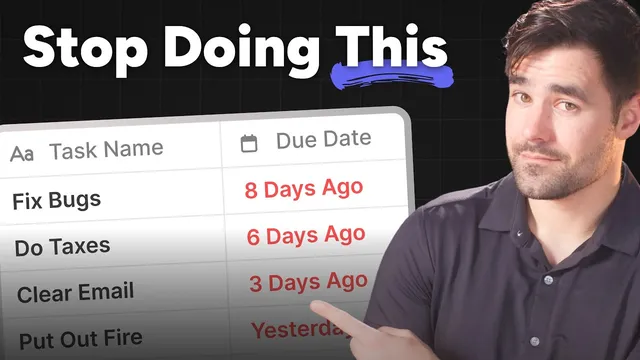
This is why your task manager overwhelms you.
Based on Thomas Frank Explains's video on YouTube. If you like this content, support the original creators by watching, liking and subscribing to their content.
Apply due dates only to tasks with real deadlines; treat everything else as non-deadline work to avoid fake urgency.
Briefing
Daily planning breaks down when task managers push people to assign due dates to everything—creating a “due today” list packed with tasks that were never truly meant to be deadlines. The result is a planning screen that looks tidy but becomes unusable: overdue items pile up, urgency becomes indistinguishable from actual deadlines, and the day starts with commitments that may be impossible to finish.
A better approach starts with a simple rule: keep deadlines sacred. Only tasks that genuinely must be completed by a specific date—like work assigned “by Friday or else”—should carry due dates. Everything else should live in the system without deadlines, organized through projects, an inbox, or other non-date structures. This separation restores clarity when planning begins, because the “due today” view becomes meaningful rather than cluttered with fake urgency.
To make that work in practice, the system described uses a three-part daily page in Notion called “My Day.” It includes a Plan area (a conventional task manager view with due today and overdue), an Execute area (a deliberately chosen list of tasks the person will actually work on), and a Wrap-up area that resets the system at day’s end. The key behavior change is operational: instead of staring at a messy list, the person selects tasks for today by checking a “My Day” box on individual tasks. Those checked tasks automatically populate the Execute list, which becomes the only list used during the workday.
Planning isn’t limited to the due-today slice. During the morning planning sprint, the system also checks other task views—like active projects that may not have deadlines but still need attention soon, or items sitting in an inbox that have been “brain dumped” and not processed yet. The Execute list is then ordered manually by dragging tasks into a rough sequence, so the next action is always obvious without sorting chaos.
Unexpected work doesn’t derail the plan. If something urgent appears—such as a new GitHub issue related to an automation—the task can be added directly into the Execute list. The system then handles the consequence: whatever isn’t finished gets processed later rather than being silently carried over as tomorrow’s plan.
That’s where the Wrap-up section matters most. A “Clear My Day” button unchecks the “My Day” boxes for all tasks that were selected, forcing a blank slate every morning—even if some tasks remain incomplete. To prevent anxiety from losing track, the Wrap-up area includes supporting views: a calendar-style review of tasks with real due dates, and a “Plan tomorrow” view that surfaces tasks that were just cleared (because the act of clearing counts as an edit). This lets unfinished work be re-queued intentionally rather than left to linger as vague, looming pressure.
Two optional upgrades refine the system further. Context tags help batch and order tasks by location, energy, and a “PI” category split into process and immersive work (inspired by Work Clean / mise en place). Process tasks are the setup steps that can run in the background (like heating a pan), while immersive tasks demand full attention (like chopping an onion). Finally, a more complex native time-tracking setup supports multiple work sessions per task, enabling accurate totals across breaks.
The core takeaway is behavioral, not tool-specific: stop treating due dates as a universal proxy for urgency, choose a small set of tasks you can realistically execute, and reset daily so tomorrow begins with deliberate commitments—not leftover noise.
Cornell Notes
The system targets a common failure mode in task management: due dates get applied to every task, so “due today” becomes a mix of real deadlines and fake urgency. The fix is to apply due dates only to tasks with actual deadlines, while other work is organized via projects, inbox, or tags. Daily planning then becomes a deliberate selection process: tasks are added to an “Execute” list by checking a “My Day” box, manually ordered by drag-and-drop, and used as the only focus list during the day. A “Clear My Day” action at day’s end unchecks those tasks to force a blank slate each morning, with extra views to reduce anxiety and help re-queue unfinished items intentionally. Optional upgrades add context tags (including process vs immersive) and multi-session time tracking.
Why do “due today” lists become overwhelming, even when tasks have due dates?
What does “keep deadlines sacred” mean in this workflow?
How does the system decide what to work on each day?
What happens when an urgent task appears mid-day?
Why is clearing the Execute list at day’s end so important?
How do context tags and PI (process/immersive) change task ordering?
Review Questions
- What specific mechanism causes “due today” lists to become unreliable in systems that assign due dates to every task?
- How does the workflow ensure daily plans are both deliberate and resilient to unexpected tasks?
- What is the difference between process and immersive tasks, and why does that distinction affect the order of work?
Key Points
- 1
Apply due dates only to tasks with real deadlines; treat everything else as non-deadline work to avoid fake urgency.
- 2
Use a separate “Execute” list that contains only tasks selected for today, rather than relying on a full task manager view.
- 3
Select tasks by checking a dedicated flag (e.g., “My Day”) so the day’s plan is a curated set, not an accidental dump.
- 4
Manually order today’s Execute list by dragging tasks into sequence, so the next action is always clear without sorting clutter.
- 5
Handle mid-day surprises by adding new tasks into the Execute list, then process leftovers after the daily reset rather than carrying them silently.
- 6
Clear the Execute list at day’s end to force a blank slate every morning, supported by views that surface real deadlines and recently cleared tasks.
- 7
Use context tags and PI (process vs immersive) to batch work and order tasks so setup steps can run while focused work happens.