Turn Your Phone into a Productivity Machine
Based on Mariana Vieira's video on YouTube. If you like this content, support the original creators by watching, liking and subscribing to their content.
Create multiple Focus profiles (work, leisure, studying, exercising, family) and automate switching to match the day’s context.
Briefing
Smartphones are engineered to keep attention locked to the screen, but a set of built-in settings can flip that dynamic—turning a phone into a controlled productivity tool instead of a distraction machine. The core strategy is to reduce interruptions, hide “missing out” cues, and reshape the home screen and workflows so the most useful actions happen quickly while the rest stays out of the way.
A major lever is Focus profiles. Rather than relying on a single work mode, the approach recommends creating multiple profiles—work, studying, exercising, leisure, and family time—and automating how they switch. Each profile can be tuned to allow only specific people and apps to send notifications and calls, including time-sensitive items. That selectivity can extend beyond work: a leisure focus mode can block work notifications too, so downtime doesn’t get hijacked.
Focus profiles also connect to home screen organization. One suggested setup is to create dedicated home screen pages aligned with each focus mode—for example, a work page that only shows productivity apps like email, notes (including Notion), office tools, and Dropbox—then configure the work focus mode to display that page exclusively. The goal is simple: fewer visible apps means fewer accidental taps.
The transcript also targets anxiety triggers and reflexive checking. Disabling notification badges (the small red dots on app icons) removes a constant “something new” signal. Another high-impact setting is turning off “raise to wake” so simply lifting the phone doesn’t automatically show the lock screen and tempt immediate checking.
For notification overload, iOS 15’s scheduled notification summary is positioned as a way to batch information at predetermined times—after a morning routine, after lunch, and before unwinding at night—while excluding phone calls and personal emails from the summary. That shifts the phone from interrupting the day to delivering information on the user’s schedule.
Reading and writing tweaks round out the productivity theme. Safari’s Reader mode can be set to automatically apply to most pages, cutting out distracting images and ads for cleaner text consumption. App Store in-app ratings and reviews prompts can be disabled to reduce friction when installing or updating apps.
The transcript then leans into iPhone customization and workflow automation: widgets for a “today” dashboard (calendar, email, to-do, weather, and sticky-note style widgets), text replacement for repetitive info like email and addresses, and a template workflow using the Notes app to avoid re-typing email drafts. Screen Time app limits add guardrails by category or individual apps.
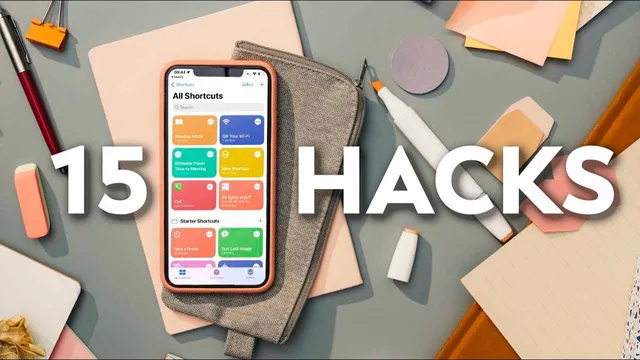
Shortcuts provide the most hands-on automation examples, including calculating travel time to any address via Maps, sharing Wi‑Fi through a QR code without exposing the password directly, and a one-click reading mode that sets a timer, enables Do Not Disturb, and plays music. Notion is highlighted as a mobile workspace that can be made easier with widgets that jump directly to frequently used pages.
Finally, the transcript recommends using iPhone keyboard trackpad mode for precise cursor control and Safari extensions to streamline research and browsing—examples include Pocket for saving references, Bring for recipe bookmarking and shopping lists, and Momentum for an inspiring start page. All these tweaks are compiled into a free Notion checklist for duplication and experimentation, with Notion also promoted as a free plan for organizing personal and collaborative life systems.
Cornell Notes
The transcript argues that phones can be reconfigured to reduce distraction and make daily tasks faster and calmer. It centers on Focus profiles (multiple modes like work, leisure, studying, and family) that restrict which people and apps can interrupt, and it links those profiles to home screen pages so only relevant apps appear during each mode. It also targets “compulsion cues” such as notification badges and “raise to wake,” plus notification batching via iOS 15’s scheduled notification summary. Additional productivity gains come from Safari Reader mode defaults, disabling App Store review prompts, widgets, text replacement, Screen Time limits, and automation through Shortcuts (QR Wi‑Fi sharing, travel-time lookups, and a one-click reading mode).
How do Focus profiles change phone behavior beyond simply silencing notifications?
Why are notification badges and “raise to wake” treated as productivity threats?
What does scheduled notification summary do, and how is it meant to be used?
How can Safari settings reduce distraction during reading?
What kinds of automation can Shortcuts deliver for everyday tasks?
How does the transcript suggest using Notion on a phone without getting lost in the app?
Review Questions
- Which two settings are presented as ways to reduce compulsive checking behavior, and what specific behavior does each one prevent?
- How do Focus profiles and home screen pages work together to limit distractions during different parts of the day?
- Pick one Shortcuts example from the transcript and describe the automation trigger and the outcome it produces.
Key Points
- 1
Create multiple Focus profiles (work, leisure, studying, exercising, family) and automate switching to match the day’s context.
- 2
Whitelist only the people and apps allowed to interrupt inside each Focus profile, including time-sensitive exceptions.
- 3
Organize home screen pages around Focus modes so work focus can show only productivity apps and hide everything else.
- 4
Disable notification badges and turn off “raise to wake” to reduce fear-of-missing-out cues and reflexive lock-screen checks.
- 5
Use iOS 15 scheduled notification summary to batch non-urgent notifications at set times instead of receiving them continuously.
- 6
Set Safari Reader mode to apply automatically for most pages to cut ads and visual noise during reading.
- 7
Build guardrails with Screen Time app limits and accelerate workflows with widgets, text replacement, and Shortcuts automations (QR Wi‑Fi sharing, travel-time lookups, one-click reading mode).