Ultimate Project & Task Management with Notion? | Template Tour + Easy Guide
Based on The Organized Notebook's video on YouTube. If you like this content, support the original creators by watching, liking and subscribing to their content.
Use the Projects page to create project records with owner, priority, status, start/end dates, blockers, and both estimated and actual hours so reporting stays consistent.
Briefing
A Notion template built for managing projects and tasks is organized around two operating modes: an “Advanced” system that adds sprint mechanics, and a “Standard” system that omits sprints while keeping core task tracking, boards, and analytics. The practical payoff is a single workspace where projects, task backlogs, sprint execution, team planning, and performance metrics stay connected—so estimated effort, actual hours, deadlines, and workload distribution can be tracked without rebuilding spreadsheets.
The Advanced version starts with a navigation hub that links to projects, sprint planning, a sprint board, tasks, metrics and statistics, calendars, team planning and review, and resources. Projects can be viewed as active items with a timeline that shows how one project leads into another. Each project record supports fields such as owner, priority (low/medium/high), status, start and end dates, completion, blockers, estimated hours, and actual hours—along with a description and planning notes. Tasks live inside project planning: each task can include due dates, assignees, priority, tags, estimated and actual hours, sprint assignment, sprint status, reporter, files/media, descriptions, and subtasks. Progress updates automatically: completing subtasks shifts the completion bar and marks top tasks as done when requirements are met.
From there, the template formalizes sprint execution in two-week increments. Users can complete the current sprint and roll the next sprint into the active slot, or create a new sprint by setting a start and end date and ensuring the “next” sprint flows forward. Sprint planning pulls tasks from a backlog so teams can assign work to the current sprint. A sprint review step acts as a checkpoint: tasks are reviewed under a dedicated sprint review view, then the workflow encourages completing and starting the next sprint only after the next sprint is prepared.
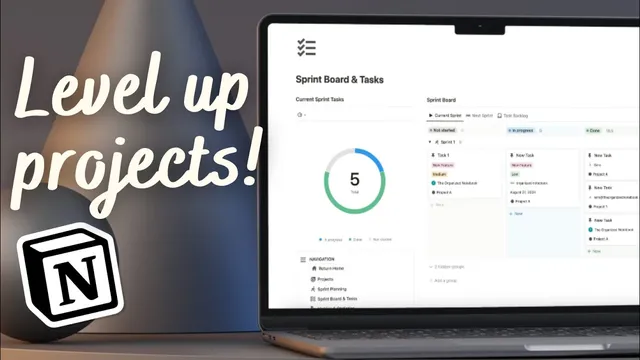
A sprint board provides the operational view: tasks are grouped by current sprint status (in progress vs. not started), by project, and by assignee. Tasks can be moved if they’re not assigned to a sprint or project, and there are multiple ways to filter and inspect incomplete work.
Metrics and statistics add the management layer. Time distribution compares estimated hours versus actual hours within a sprint, helping identify estimation gaps and workload imbalances by assignee. Daily task completion charts track how many tasks get finished by completed date, and additional dashboards slice future and current sprint tasks by status, project, assignee, and priority. Calendar and team planning features extend the system beyond tasks: team availability (including vacation), task deadlines, and project timelines can be viewed together, while a team directory stores member details, working hours, URLs, meetings, and availability.
The Standard version mirrors the Advanced template’s structure but removes sprint functionality. Instead of sprint boards, it uses a current board of tasks by project plus a task backlog, and it presents metrics differently—adding project overview for in-progress work and all-time task breakdowns by tag and by assignee, alongside daily task completion. Both versions aim to keep planning, execution, and reporting in one place, with the Advanced version offering the extra discipline of sprint-based accountability.
Cornell Notes
The template organizes project and task management in Notion using connected databases and views. The “Advanced” version adds sprint functionality, letting teams run work in fixed increments (e.g., two weeks) with sprint planning, a sprint board, and a sprint review checkpoint. Tasks include assignees, priorities, tags, estimated vs. actual hours, and subtasks; completion status updates progress automatically. Metrics track estimation accuracy and daily completion, while calendars and team planning manage availability, deadlines, and meetings. The “Standard” version keeps the core project/task boards and analytics but removes sprints, replacing them with a current task board and all-time breakdowns by tag and assignee.
How does the template keep project progress accurate as tasks and subtasks change?
What’s the workflow for running sprints in the Advanced version?
How do sprint planning and the backlog interact?
What metrics help teams evaluate performance beyond just task counts?
How does team planning connect availability and meetings to the task system?
What changes between the Advanced and Standard versions?
Review Questions
- Which task fields and structures (e.g., subtasks, estimated vs. actual hours) drive the template’s progress and completion behavior?
- Describe the steps to roll from one sprint to the next in the Advanced version, including where tasks are assigned.
- What specific metrics would you check to evaluate estimation accuracy and workload distribution?
Key Points
- 1
Use the Projects page to create project records with owner, priority, status, start/end dates, blockers, and both estimated and actual hours so reporting stays consistent.
- 2
In the Advanced version, run work in time-boxed sprints by completing the current sprint and promoting the next sprint into the current slot.
- 3
Assign tasks from the backlog into the current sprint during sprint planning, then use sprint review as a checkpoint before moving forward.
- 4
Track progress through subtasks: completing subtasks updates parent task completion and shifts project progress indicators.
- 5
Use metrics to compare estimated versus actual hours and to identify workload imbalances by assignee, not just to count completed tasks.
- 6
Leverage calendar and team directory features to manage availability (e.g., vacation), deadlines, and meeting links in one place.
- 7
Choose Advanced for sprint discipline or Standard for a simpler board-and-backlog workflow with all-time analytics by tag and assignee.