USING THE NEW IPAD 2018 FOR UNI/COLLEGE || organization and notes
Based on Mariana Vieira's video on YouTube. If you like this content, support the original creators by watching, liking and subscribing to their content.
Pairing a 2018 9.7-inch iPad with an Apple Pencil enables comfortable, couch-based reading and markup using pinch-to-zoom and pencil highlighting.
Briefing
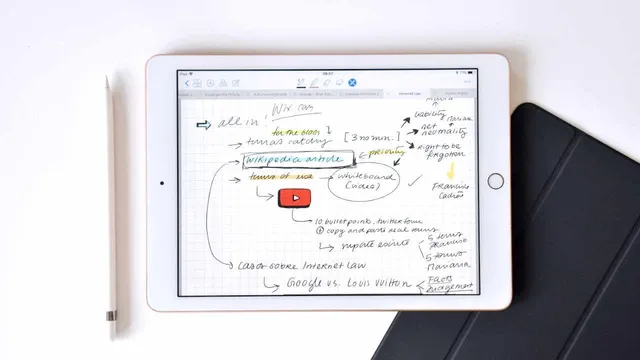
A 9.7-inch iPad (2018) paired with an Apple Pencil is being used as a lightweight, couch-friendly study and organization system—replacing much of the printing and desk-bound reading that previously came with college work. The biggest payoff is comfort and workflow: reading on the iPad at home feels easier than working at a heavy laptop, and the combination of pinch-to-zoom plus pencil highlighting makes marking up materials feel fast and intuitive. That shift has also helped reduce paper use, since course materials are saved digitally instead of printed, cutting down on spending for paper and toner.
Organization and note management are built around a simple app structure and a note-taking workflow that stays flexible. Apps are grouped into four categories—productivity, creativity, social, and an “other” folder—so the user can find tools by function rather than swiping through screens. In productivity, the setup includes Word, Goodnotes, Excel, YouTube Studio, iMovie, Google Sheets, Adobe, and Pocket. Creativity apps include Procreate, Photos, YouTube, VideoScribe, Spotify, Goodreads, and videos. Social is handled through Messages, “wzpad” for WhatsApp, Clips, Contacts, Podcasts, and Pinterest, while the remaining folder holds Settings, Tips, App Store, Clock, Find iPhone, Calculator Pro, Camera, and banking apps.
For reading and studying, the workflow emphasizes color-coded highlighting and margin notes, then exporting or syncing those materials to a Mac through iCloud. Different highlighter colors and the ability to write in the margins are used to keep study notes organized, and the export/sync step ties the iPad’s markup work to a larger computer workflow. The iPad is also used more like an on-the-go personal assistant: planning happens in iCalendar, to-do lists expand in more detail, and meal-prep preparation is handled directly from the tablet.
Goodnotes is the core note-taking app in this setup, chosen for its pencil-first simplicity. The user creates separate notebooks for subjects or topics, customizes covers, and uses Apple Pencil pressure and angle sensitivity for precise writing that feels close to paper after an initial adjustment period. Key advantages include easy exporting, quick zooming, reorganizing notes with taps, and the ability to erase and rewrite without the “permanent” feel of a traditional notebook. iCloud syncing keeps progress color coordination consistent between the iPad and a laptop.
Evernote is used to keep recipes, snippets, and mobile to-do items accessible across iPad, Mac, and Android—though the plus version is required for synchronization across three devices. Split View is also highlighted as a productivity booster for referencing documents while taking notes, even if the smaller 9.7-inch screen can make writing space tighter. The overall conclusion: the device is seen as a strong complementary study tool, or a solo study option when paired with a Bluetooth keyboard, with responsive performance and solid battery life. The price point—about $300 plus the Apple Pencil—is framed as reasonable for the benefits gained, with an upcoming deeper dive promised on Apple Pencil and Goodnotes capabilities.
Cornell Notes
The 2018 9.7-inch iPad with an Apple Pencil is used to streamline college reading, highlighting, and note-taking while cutting down on printing. The setup relies on Goodnotes for pencil-first notebooks, margin notes, and color-coded organization, with iCloud syncing to keep work consistent across devices. Reading becomes more comfortable at home, supported by pinch-to-zoom and precise pencil highlighting. App organization is handled through four folders (productivity, creativity, social, other) to reduce time spent searching. Split View and Evernote add workflow support for referencing documents and syncing recipes/snippets across iPad, Mac, and Android.
What changes in reading and studying make the iPad feel more practical than a laptop for college work?
How does the app organization system reduce friction during study sessions?
Why is Goodnotes positioned as the central note-taking app in this workflow?
What role do color coordination and exporting/syncing play in staying organized across devices?
Which additional tools support planning and cross-device access beyond note-taking?
What limitations come with the 9.7-inch screen, and what upgrade path is suggested?
Review Questions
- How does the combination of pinch-to-zoom and Apple Pencil highlighting change the experience of reading and studying?
- What specific features of Goodnotes make it easier to revise notes compared with traditional paper notebooks?
- Why might a larger iPad Pro be preferable for heavy Split View use or long writing sessions?
Key Points
- 1
Pairing a 2018 9.7-inch iPad with an Apple Pencil enables comfortable, couch-based reading and markup using pinch-to-zoom and pencil highlighting.
- 2
A four-folder app system (productivity, creativity, social, other) helps users find tools by function instead of swiping.
- 3
Goodnotes is used as the primary note app because it supports pencil-first notebooks, precise writing, easy reorganization, and non-permanent editing.
- 4
Color-coded highlighting and margin notes are paired with iCloud export/sync to keep study materials organized across iPad and Mac.
- 5
iCalendar and more detailed to-do lists turn the iPad into an on-the-go planning assistant, including meal-prep preparation.
- 6
Evernote (plus version) is used to synchronize recipes/snippets/to-dos across iPad, Mac, and Android.
- 7
Split View supports referencing documents while taking notes, but the 9.7-inch screen can limit writing space and split-screen usability.