AI Based Generative Fill makes Photoshop 10x Better
Based on MattVidPro's video on YouTube. If you like this content, support the original creators by watching, liking and subscribing to their content.
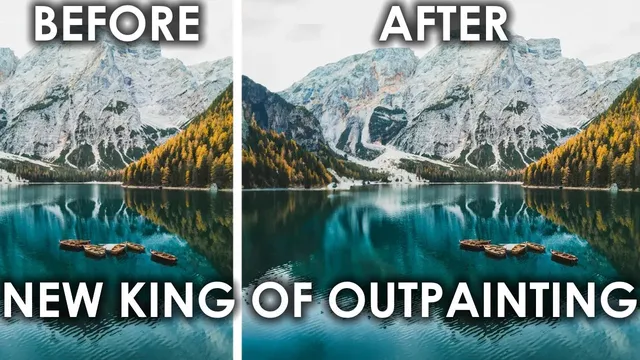
Generative Fill in Photoshop is powered by Adobe Firefly and can outpaint beyond image edges to extend scenes coherently.
Briefing
Adobe is rolling generative AI directly into Photoshop workflows with tools that can expand images, remove unwanted objects, and recommend next steps—turning editing from a manual, click-heavy process into something closer to guided creation. The centerpiece is Generative Fill, powered by Adobe Firefly, which can “outpaint” beyond the edges of an image so convincingly that the added areas can be hard to distinguish from the original when the source photo is already high quality.
Early demos show Generative Fill expanding a blurry-looking border area into coherent surroundings, with reflections, lighting, and added elements that match the existing scene. Adobe also pairs this with a Remove tool that works like Magic Eraser: brush over an object, and the system attempts to seamlessly reconstruct the background. In the walkthrough, the removal sometimes shows minor artifacts (like slight bowing), but it still handles complex areas surprisingly well—especially compared with prior attempts at inpainting.
Beyond raw image synthesis, Adobe adds a contextual bar that surfaces the most relevant next actions based on what the user is doing. Instead of hunting through menus, the interface suggests options such as selecting the subject or removing the background after an image is loaded, then updates the suggestions as selections change. The goal is fewer clicks and a faster loop from intent to result.
In practice, the workflow feels tightly integrated: the user drags the AI “co-pilot” controls into place, lasso-selects a region, and triggers Generative Fill with either a blank prompt (for background/object replacement) or a short instruction (like “bright red top hat”). The system generates multiple iterations, and each generated result appears as its own layer—meaning edits can be refined, removed, or swapped without destroying the original work. Cloud processing is implied by the quick turnaround, with generation happening without noticeable heavy local computation.
The creator’s hands-on tests push beyond simple expansions: adding a top hat to a cat, inserting a puppy into a scene, expanding a crop area, and placing a tortoise into grass. The results blend well from a distance, though close inspection reveals resolution limits—especially on a high-megapixel source where the synthesized regions don’t match the native sharpness. Even so, the generated content is often “good enough” for typical creative uses like thumbnails and social images.
Adobe’s official examples reinforce the same theme: start with a photo, outpaint to add new environmental elements (like a pool with accurate reflections and clouds), insert additional subjects (elephants), and finish with small adjustments—all using Adobe Firefly. Access is currently tied to Photoshop subscribers, with the feature available through a separate Adobe Photoshop Beta app in addition to paid Photoshop.
Overall, the combination of Generative Fill, object removal, and contextual guidance is positioned as a workflow shift: less time spent on selection and cleanup, more time iterating on creative intent. The remaining friction is cost and the fact that generative output can drop in detail fidelity at close range, but the speed, layer-based control, and “edit on edit” capability make the case that Photoshop’s role in image creation is expanding rather than shrinking.
Cornell Notes
Adobe is integrating Adobe Firefly–powered generative tools into Photoshop to speed up common editing tasks. Generative Fill can outpaint beyond image borders and add new objects or styles, while a Remove tool can brush away unwanted elements and reconstruct the background. A contextual bar recommends the next most relevant action based on what’s selected, reducing menu hunting and clicks. Hands-on tests show fast cloud-based generation, multiple iteration previews, and layer-based outputs that can be removed or refined. The synthesized areas may show lower resolution on close inspection, but they blend well from a distance and can be good enough for many real-world uses.
What makes Generative Fill different from earlier outpainting or inpainting tools?
How does object removal work, and how does it compare to Magic Eraser?
What role does the contextual bar play in changing the editing workflow?
Why do layer-based generative outputs matter for real editing?
What are the practical limitations observed in the hands-on tests?
How does prompting affect results in Generative Fill?
Review Questions
- When would leaving the Generative Fill prompt blank be preferable to writing a specific instruction?
- How does layer-based generation change the way you iterate on an edit compared with destructive editing?
- What resolution or quality trade-offs appear when zooming in on generated regions, and how might that affect professional use?
Key Points
- 1
Generative Fill in Photoshop is powered by Adobe Firefly and can outpaint beyond image edges to extend scenes coherently.
- 2
A Remove tool enables brush-based object removal similar in spirit to Magic Eraser, aiming for seamless background reconstruction.
- 3
A contextual bar recommends relevant next actions (like selecting the subject or removing the background) to reduce clicks and speed up editing.
- 4
Generated results appear as separate layers, allowing users to remove, replace, or refine iterations without starting over.
- 5
Hands-on tests suggest generation happens quickly via cloud processing, with multiple iteration previews per request.
- 6
Synthesized regions may look convincing from a distance but can show lower resolution or artifacts when zoomed in on high-megapixel images.
- 7
Access is tied to Photoshop subscriptions, with the feature available through a separate Adobe Photoshop Beta app in addition to paid Photoshop.