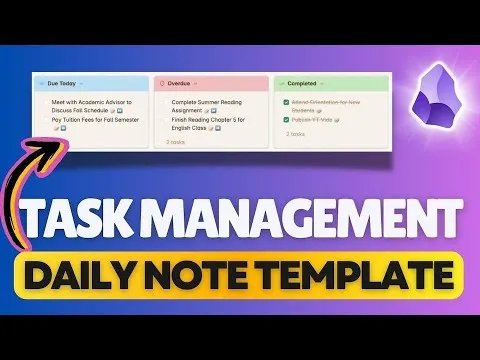
Daily Note Template For Task Management in Obsidian
Based on Prakash Joshi Pax's video on YouTube. If you like this content, support the original creators by watching, liking and subscribing to their content.
Use Journals (by Shy) to generate calendar-based daily notes and keep date structure consistent for task queries.
Briefing
A practical Obsidian setup turns personal notes into a task dashboard by combining three custom views—daily task lists, a calendar, and a sidebar timeline—so tasks due today, overdue, and completed appear automatically inside each daily note. The core payoff is speed: tasks can be added from a timeline without opening the day’s note, while the daily note template stays clean and consistent across dates.
The workflow starts with the Journals plugin (by Shy), which replaces the Daily Notes/Periodic Notes approach and adds a calendar-driven way to generate daily, weekly, monthly, quarterly, and yearly notes. The setup uses a specific date-format choice because quick task entry depends on the default format; switching to year/month subfolders breaks the quick capture behavior. A dedicated folder structure is created for daily notes and a separate template note (daily note template), and the plugin is configured to optionally auto-create daily notes on startup.
Task tracking is handled by the Tasks plugin (over 1.4 million downloads). Tasks can be inferred from checkbox items across the vault, controlled by a “global task filter.” Leaving it empty treats all checklist items as tasks; using a tag-based filter (for example, a task tag) limits task recognition to checkboxes marked with that tag. This choice determines which checkboxes become queryable tasks.
The daily note template is then built using the Templater plugin to make task queries date-aware. Links to yesterday and tomorrow are generated by templater variables that read the note title and add or subtract one day. Three Tasks queries populate the daily note: tasks not done due today, tasks not done overdue (due before the note date), and tasks done today. Because templater placeholders aren’t understood inside the template preview, the template works correctly once a daily note is created for a specific date (e.g., 7th August), at which point the placeholders resolve to that date.
To make the daily note readable, the template uses a modular CSS multicolumn layout (via an MCL snippet) to display the three task categories side-by-side in callouts. Backlinks can be hidden for a cleaner view.
Finally, two custom DataView-based views add richer navigation. “Obsidian Task Calendar” provides a monthly/weekly calendar view of tasks pulled from Obsidian Tasks and daily notes, with styling and layout options. “Obsidian Tasks Timeline” adds a sidebar timeline that filters to a “today focus” view and writes new tasks directly into the correct daily note section. With these pieces in place, the system supports both at-a-glance planning (calendar), day-level execution (multicolumn task lists), and quick capture (timeline), without forcing a cluttered daily note.
Cornell Notes
The setup builds a personal task management system inside Obsidian by generating date-based daily notes and auto-populating them with task queries. Journals (by Shy) creates daily/weekly/monthly notes from a calendar and supports the date-driven structure needed for task filtering. The Tasks plugin powers checkbox-based task tracking, while Templater injects the daily note’s date into task queries so “due today,” “overdue,” and “completed” sections update per day. Modular CSS multicolumn layout makes the daily note readable, and DataView-based custom views add a calendar and a sidebar timeline for quick task capture. Together, it enables fast adding of tasks without opening each daily note.
Why does the Journals plugin matter for a daily-note task workflow?
How does the system decide which checkboxes become tasks?
What makes the daily note template show the correct day’s tasks?
How are yesterday/tomorrow navigation links generated?
What do the calendar and timeline views add beyond the daily note template?
Why is modular CSS multicolumn layout used in the daily note?
Review Questions
- How would changing the Tasks plugin “global task filter” affect what appears in the daily note’s due today and overdue sections?
- What role does TP file title play in making the daily note template date-specific, and why might preview mode show zero tasks or errors?
- Which components enable quick task capture without opening the daily note, and how do they route tasks into the correct daily note section?
Key Points
- 1
Use Journals (by Shy) to generate calendar-based daily notes and keep date structure consistent for task queries.
- 2
Configure the Tasks plugin “global task filter” so only the intended checkboxes are treated as tasks (either all checklists or only tagged ones).
- 3
Rely on Templater’s TP file title to make “due today,” “overdue,” and “completed” queries automatically match the daily note’s date.
- 4
Add modular CSS multicolumn layout to present due today, overdue, and completed tasks in a clean, scannable format.
- 5
Install and configure Obsidian Task Calendar (DataView custom view) to browse tasks in monthly/weekly calendar layouts.
- 6
Install and configure Obsidian Tasks Timeline (DataView custom view) to filter tasks for today and add new tasks directly into the daily note via the sidebar.