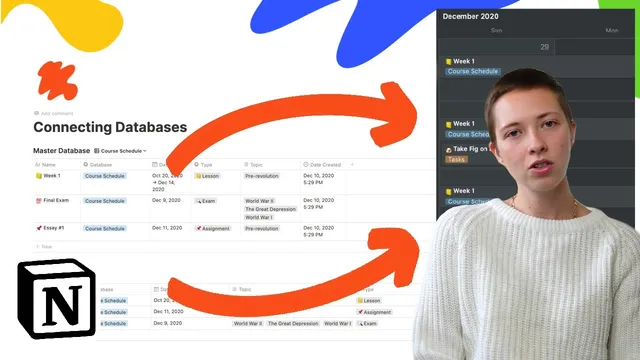
How I Merge Notion Databases: A Master Calendar Use-Case
Based on Red Gregory's video on YouTube. If you like this content, support the original creators by watching, liking and subscribing to their content.
Create an empty master database first, then merge into it so the schema alignment is easier to manage.
Briefing
Merging multiple Notion databases into a single “master” calendar can simplify a cluttered workspace—if the consolidation is done with one shared date property and consistent property types. The core idea is to avoid stacking separate date fields from each source database, which would fracture calendar views and create extra friction. Instead, every incoming database’s date-related property is renamed and aligned so all entries land in the master under the same “date” property, enabling one unified calendar across the whole workspace.
The workflow starts with creating an empty master database (using a blank page for clarity). When rows are dragged into the master, Notion automatically brings over properties from each source database, but that can quickly become messy as more databases are merged. To prevent the property explosion from breaking the calendar, the consolidation process focuses on standardizing property names and types before merging. For example, the master database adds a date property called exactly “date,” and the incoming databases’ date fields are renamed to match that same “date” label. The same alignment is applied to categorical fields: “type” is handled carefully by keeping it as text during the merge (so properties map cleanly), then converting it back to select or multi-select afterward.
A practical way to manage this is to create separate filtered views for each source database inside the master. The creator builds a view for “course schedule,” then sets a filter so any new entries added through that view automatically tag themselves as coming from that database. The same pattern repeats for “simple notebook,” “expenses,” and “tasks.” Before each merge, the source database’s property names and types are temporarily adjusted to match the master’s schema—for instance, changing a “created” date field to the same “date” property name, converting tags to text, and ensuring categories and amounts use compatible types (like number for dollar amounts). After everything is aligned and merged, properties can be converted back to their preferred types (select, multi-select, board grouping) and colors can be re-customized.
Once the master calendar shows dates from all merged sources, the next step is cleanup. Properties that aren’t needed can be hidden (including using “hide when empty”), and the redundant properties from the original databases can be removed from the master page view. To keep the workspace usable, the master database can also be re-exposed via linked databases: linked views for “course schedule,” filtered by a “database tag” property. This preserves the simplified master schema while still letting users interact with each category as its own database. Linked databases inherit the master’s property settings, so the consolidation effort doesn’t have to be repeated.
The result is a single dashboard-ready master calendar that pulls together course schedules, notes, expenses, and tasks—without the usual calendar chaos caused by multiple competing date properties.
Cornell Notes
A clean Notion workspace merge hinges on one shared “date” property across all source databases. The process creates an empty master database, then aligns every incoming database’s date field to be named “date” and uses temporary type normalization (often text) so properties map correctly during the merge. Separate filtered views (e.g., course schedule, simple notebook, expenses, tasks) ensure new entries automatically tag themselves to the right origin database. After consolidation, properties can be converted back to select/multi-select and grouped views can be restored. Linked databases then re-create the original databases as focused interfaces, while inheriting the master’s cleaned-up schema and calendar behavior.
Why does the merge need a single shared “date” property instead of keeping each database’s original date fields?
What problem does property-type mismatch create during merging, and how is it handled?
How do filtered views prevent manual tagging when adding new items after the merge?
What’s the role of temporarily renaming properties like “created” to “date” in the source databases?
How does the workflow keep the master database usable without exposing every merged property everywhere?
How do linked databases help maintain separate “database-like” experiences after merging?
Review Questions
- If a merged master database ends up with multiple date properties, what specific calendar problem will appear, and what renaming step prevents it?
- Why might the workflow keep tags or “type” as text during the merge, and what conversion happens afterward?
- How do filtered views inside the master reduce the need for manual tagging when adding new entries?
Key Points
- 1
Create an empty master database first, then merge into it so the schema alignment is easier to manage.
- 2
Standardize every incoming date field to a single master property named “date” to enable one coherent calendar view.
- 3
Normalize property types (often using text for tags/type) before merging, then convert back to select/multi-select after consolidation.
- 4
Use filtered views in the master (e.g., database is course schedule) so new entries automatically carry the correct origin tag.
- 5
Hide or remove unnecessary properties in the master to keep the merged workspace readable.
- 6
Use linked databases with filters to recreate separate, focused database experiences while inheriting the master’s cleaned schema.
- 7
Re-customize select/multi-select colors after converting types back from text, since color settings may not carry through the normalization steps.