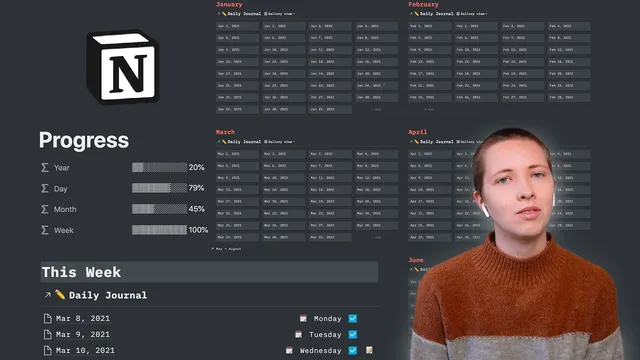
How I Prefilled A 2021 Notion Dashboard With Week, Month & Year View (Free Template)
Based on Red Gregory's video on YouTube. If you like this content, support the original creators by watching, liking and subscribing to their content.
Pre-fill a daily journal database with one record per date in the year to avoid creating daily pages manually.
Briefing
A Notion dashboard can automatically show a Monday-to-Sunday week (and a “today” daily entry) without manually updating date filters every week—by pre-filling a daily journal database for every date in the year and then using formulas to drive the views. The payoff is a dashboard where “today” always lands in the right place, weekly checkboxes progress through the days, and month/year navigation stays manageable even with a full-year dataset.
The setup starts with a linked “daily journal” database that contains one record per day of the year. Instead of creating daily pages manually, the workflow imports dates in bulk: a Google Sheets/Excel column is filled from the start of the year (e.g., 1/1/21 through 365), pasted into Notion as a date property, then sorted ascending. Record names are formatted to match the date style (month/day/year), and the database is pre-filled so the dashboard can reference any day instantly.
On the dashboard, a “Today” section is a linked database view filtered to show only the item where the date equals today. A “Weekday” field is generated with a formula that formats the date into the weekday name, optionally prefixed with an emoji. This weekday formula is then surfaced in a daily list view so the current day’s entry is always the one that appears.
The weekly view is where the automation matters most. Date filters in Notion are limited for “this week” ranges, so the workaround uses a formula-driven checkbox. A “current week” formula compares the week number of now to the week number of each record’s date, while adjusting by subtracting a day so weeks start on Monday rather than Sunday. A second checkbox formula marks which days are in the past relative to now (optionally excluding today by adding one day). The weekly linked view then filters to only records where “current week” is checked, and the past-days checkbox drives the visual progress across Monday through Sunday.
For month and year views, the approach shifts to simpler, scalable patterns. A month formula extracts the month name from each record’s date, letting the monthly view filter by “month contains January,” “February,” etc., instead of relying on brittle date-range filters. For the year view, the dashboard uses a calendar-style layout but splits the year into multiple toggle sections (January–April, May–August, September–December) to avoid lag from loading all days at once.
Finally, small UI details—like “stickers” that appear only on certain weekdays—are handled with conditional formulas using day-of-week numbers (e.g., Wednesday equals 3, Sunday equals 0). The result is a full daily documents dashboard with linked views, formula-based automation, and reusable templates, plus separate template links for the dashboard and the day/week/month/year progress bars.
Cornell Notes
The dashboard relies on a pre-filled daily journal database containing every date in the year, then uses formulas to make linked views automatically stay in sync with the current date. “Today” is a linked database filtered to date equals today, while the daily list view derives the weekday name from the date property. The weekly Monday-to-Sunday view avoids manual date-range filters by computing a “current week” checkbox from week numbers (with a one-day adjustment so weeks start on Monday) and filtering the weekly view to only checked records. Additional formulas mark past days (so checkboxes progress through the week) and extract the month name for month filtering. This matters because it turns a static database into a self-updating dashboard without weekly reconfiguration.
Why does a simple “date is on or after Monday and on or before Sunday” filter become a problem in Notion?
How does the dashboard make weeks start on Monday instead of Sunday?
What’s the role of the “current week” checkbox in the weekly list view?
How does the dashboard create a visual “progress through the week” effect?
How are month views handled without complex date-range filters?
Why split the year view into multiple toggles?
Review Questions
- What formula components are needed to compute a Monday-to-Sunday “current week” for each daily record?
- How do the “past date” and “current week” checkboxes interact to produce weekly progress behavior?
- What tradeoff does the dashboard manage by using toggle sections for the year view, and how does it reduce lag?
Key Points
- 1
Pre-fill a daily journal database with one record per date in the year to avoid creating daily pages manually.
- 2
Use a linked database filtered to date equals today to keep the “Today” section always accurate.
- 3
Generate weekday labels from the date property using a weekday-format formula, optionally adding emojis.
- 4
Build an automatic Monday-to-Sunday weekly view using a “current week” formula checkbox based on week numbers, with a one-day subtraction to shift week start to Monday.
- 5
Drive weekly progress with a separate “past date” formula checkbox that compares each record’s date to now (and can exclude today by adding one day).
- 6
Use a month-extraction formula and filter by “month contains <Month>” for simpler month views.
- 7
Split the year view into multiple toggle sections to reduce Notion page lag from rendering all days at once.