How To Get Things Done With The Microsoft ToDo App
Based on Duddhawork's video on YouTube. If you like this content, support the original creators by watching, liking and subscribing to their content.
Use Microsoft To Do’s cross-device syncing and widgets to capture tasks quickly from desktop and mobile.
Briefing
Microsoft To Do fits neatly into a minimalist, daily-reset productivity system: plan a small set of high-impact tasks each morning, let “My Day” start fresh every day, and use smart suggestions plus structured task breakdowns to keep work actionable. The payoff is psychological and practical—each day begins at zero, so the task list never becomes a cluttered backlog, and checking items off provides momentum.
The setup starts with cross-device syncing. To Do runs on desktop and mobile (Android and iOS), and the workflow relies on quick capture. On desktop, the app is pinned to the taskbar for fast additions. On a phone, a widget shows “My Day,” letting tasks be added with a tap on the plus button. The widget can also display and manage shared lists—most notably groceries—where items can be checked off during shopping and synced with a partner.
Task entry is designed to be frictionless. Quick notes can be created via a home-screen widget or a swipe-down quick-add menu, and tasks can be assigned to lists or left in “My Day” with optional due dates and repeating schedules (for example, weekly reminders). “My Day” then becomes the daily planning surface: it includes smart suggestions (highlighted with a lightbulb) that surface repeating or recently due items, plus a “Planned” view for tasks organized by date.
Beyond daily capture and planning, the system uses lists and groups to reflect real life. Default lists hold general tasks, while custom lists organize areas like work and home. Groups can include emojis for visual organization. The work side includes ongoing projects—such as a stats master’s co-op with the Carlton University basketball team—and separates ideas from production work (e.g., “ideas,” “production,” “edits”). Home lists cover practical categories like groceries and meals, and sharing lists with a girlfriend supports coordinated errands.
The productivity philosophy centers on weekly planning and daily prioritization. Sundays are treated as a “sacred” organization day: planning the week in Google Calendar, reviewing the GTD system, and cleaning up so the week starts with intention rather than more work. During the week, the app’s daily reset reinforces a minimalist approach—only a few tasks are added to “My Day,” keeping attention on what matters.
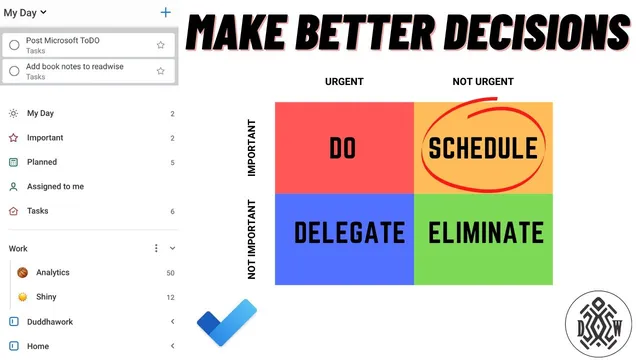
Prioritization follows the Eisenhower Matrix: urgent/important tasks get done, important/non-urgent tasks get planned, urgent/non-important tasks get delegated or automated, and non-urgent/non-important tasks get eliminated. In practice, the morning focus becomes “one important thing a day.” When adding tasks, vague items are broken into steps—like turning “prep analytics presentation” into a multi-step plan—so progress is measurable and the afternoon remains open for other work. The day’s success is judged using Tim Ferriss-style questions: whether finishing the task would make the day satisfying, and whether it makes other tasks easier later. The result is a tight loop of planning, execution, and satisfaction without needing a complex setup.
Cornell Notes
Microsoft To Do supports a minimalist productivity routine built around daily planning and quick capture. “My Day” resets each day, so the list doesn’t accumulate into overwhelm; smart suggestions help surface repeating or recently due tasks. Tasks are organized into lists and groups (including shared grocery lists) and prioritized using the Eisenhower Matrix: do urgent+important, plan important+not urgent, delegate urgent+not important, and eliminate not urgent+not important. The system also emphasizes breaking large goals into concrete steps so work becomes immediately actionable. Success is measured with Tim Ferriss-style questions about satisfaction and downstream impact.
How does the workflow reduce friction when capturing tasks and notes?
What role does “My Day” play in staying minimalist and avoiding backlog clutter?
How are tasks prioritized using the Eisenhower Matrix, and what does each quadrant mean in practice?
Why does breaking tasks into steps matter for execution?
How does the system decide whether a chosen task is the right focus for the day?
How do lists, groups, and sharing features support real-life coordination?
Review Questions
- What specific mechanisms in Microsoft To Do help prevent daily task overload (capture, “My Day” reset, smart suggestions)?
- Map one example task to each Eisenhower Matrix quadrant and explain what the system would do with it.
- Why does the system prefer step-by-step task breakdowns over vague task labels when planning a day?
Key Points
- 1
Use Microsoft To Do’s cross-device syncing and widgets to capture tasks quickly from desktop and mobile.
- 2
Rely on “My Day” as a daily execution list that resets to zero, supporting a minimalist approach.
- 3
Organize work and home responsibilities with custom lists and groups, and use shared lists (like groceries) for coordination.
- 4
Prioritize with the Eisenhower Matrix: do urgent+important, plan important+not urgent, delegate urgent+not important, and minimize not urgent+not important.
- 5
Break large tasks into concrete steps so they’re immediately actionable and easier to estimate and check off.
- 6
Choose the day’s main focus using Tim Ferriss-style satisfaction and downstream-impact questions.
- 7
Plan the week on Sundays (including Google Calendar scheduling and GTD review) so daily execution starts with clarity.