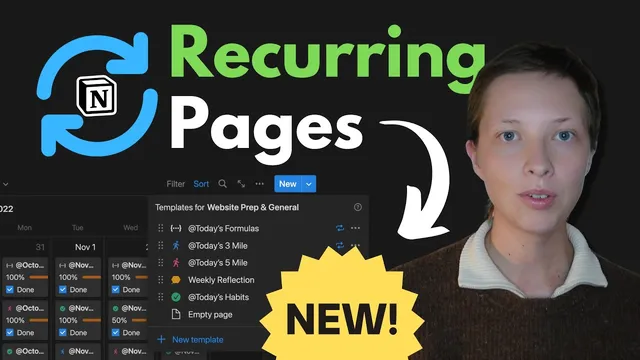
Huge NEW Notion Update! First Look at Recurring Tasks ✨ (calendar view tutorial)
Based on Red Gregory's video on YouTube. If you like this content, support the original creators by watching, liking and subscribing to their content.
Notion’s recurring tasks generate new pages from templates on a schedule, but they populate “created time” rather than a true “date” field.
Briefing
Notion’s long-awaited “recurring tasks” feature turns templates into automatically generated daily/weekly/monthly/yearly task pages inside a calendar view—so recurring checklists can appear on the correct day without manually creating them. The core workflow is built around a key limitation: recurring pages can’t populate a true “date” property. Instead, Notion fills a “created time” timestamp when the recurring template generates, and the calendar can only reliably display that timestamp unless users add a workaround.
The tutorial starts from a blank database configured with a calendar view. A new database is created, a table view is added, and a “created time” property is included because it becomes the only dependable marker for when the recurring page was generated. A template (“new tasks for today”) is then built so each generated page contains a checklist (via a to-do block or a keyboard shortcut) plus an icon and title. When the template is set to repeat—daily, weekly, monthly, or yearly—Notion auto-populates the template on the specified cadence, but only for the day it’s generated. It does not pre-fill future occurrences into upcoming days.
In practice, the calendar view initially won’t show the recurring page on the expected date if the calendar is configured to display a date property, because recurring tasks don’t write to date fields. Switching the calendar layout to “show calendar by created time” makes the recurring entries appear on the correct day. The creator then highlights the annoyance: there’s no built-in way to populate a date property directly from the recurring template, and the “created time only” approach can be inconvenient.
To restore calendar behavior, a formula property is added. The formula checks whether a user-entered “date” property exists; if it does, the formula uses that date. If the date property is empty, the formula falls back to “created time.” With the calendar view switched to “show calendar by” this formula (configured to behave like a date), recurring tasks land on the right day while manually added tasks can also appear on user-chosen dates.
The workflow also includes practical usability tweaks. Entries can’t be created directly inside the calendar grid; new tasks must be added via the “new” button. To reduce friction, a “done” checkbox property is added and displayed through the calendar so tasks can be marked complete from the calendar view. The tutorial further demonstrates nesting: a separate task list database is connected to the calendar via a relation, and a linked database view inside each recurring day page filters tasks to only those tied to that specific day template. This creates a daily workspace where existing tasks can be pulled in, new tasks can be added, and the checklist grows over time.
Overall, recurring tasks provide the missing automation for daily planning, but the calendar/date limitation forces users to rely on “created time” plus a formula workaround if they want both recurring generation and manual date scheduling to coexist cleanly.
Cornell Notes
Notion’s recurring tasks feature generates new task pages from templates on a schedule (daily/weekly/monthly/yearly), and those pages appear in a calendar view. The catch is that recurring templates don’t populate a real “date” property; they only fill “created time” when the page is generated. By switching the calendar to use “created time,” recurring items show up on the correct day, but users who want manual date scheduling need a workaround. The tutorial builds a formula that uses a user-entered date when present, otherwise falling back to “created time,” then sets the calendar to display that formula as a date. This enables both automated recurring checklists and manually dated tasks in the same calendar.
How does Notion decide which day a recurring task page appears on in the calendar?
Why can’t recurring tasks pre-fill future occurrences, and what does that mean for planning?
What workaround restores manual calendar scheduling for tasks alongside recurring ones?
What’s the limitation around adding tasks directly in the calendar grid?
How can users mark tasks complete without opening each page?
How does the tutorial nest a task list inside each recurring day page?
Review Questions
- What property must be used for the calendar to reliably display recurring template pages, and why?
- How does the formula workaround decide between a manually set date and “created time”?
- What steps are required to show a “done” checkbox through the calendar view?
Key Points
- 1
Notion’s recurring tasks generate new pages from templates on a schedule, but they populate “created time” rather than a true “date” field.
- 2
Calendar views only show recurring entries correctly when configured to display “created time” (or a formula that uses it).
- 3
Recurring tasks don’t pre-fill future days; they appear only on the day they’re generated.
- 4
A formula property can combine manual scheduling and recurring generation by using a user-entered date when present and falling back to “created time” when empty.
- 5
Tasks can’t be created directly inside the calendar grid; creation happens via the database “new” flow.
- 6
A “done” checkbox can be surfaced in the calendar so completion can be toggled without opening each task page.
- 7
Daily pages can pull in related tasks by linking a task list database and filtering the linked view to the current recurring day template.