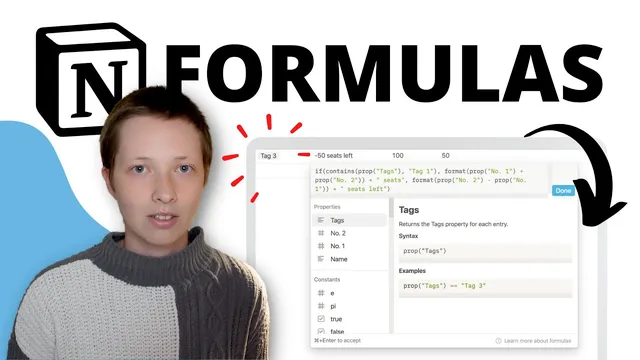
Notion Must-Know! How To Use The If Statement
Based on Red Gregory's video on YouTube. If you like this content, support the original creators by watching, liking and subscribing to their content.
Use prop("Property Name") to reference database fields inside Notion formulas.
Briefing
Notion formulas often come down to one tool: the if statement. It lets a database property return different results depending on conditions—turning raw fields like tags, text, numbers, and dates into useful outputs such as checkboxes, labels (true/false), or categorized time periods. The core payoff is practical: once the logic is mastered, most “formula confusion” in Notion becomes solvable by chaining conditions and matching data types.
The walkthrough starts by building a simple database with a formula property and a multi-select “tags” field. In Notion formulas, database properties are referenced with prop("Property Name"). For multi-select fields, the contains function checks whether a specific value exists inside the property, returning true when the second argument is found in the first. That boolean can directly drive a checkbox result, but if the goal is literal strings like "true" and "false", an if statement is used: if(condition, trueValue, falseValue). A key constraint appears immediately: the true and false branches must be the same data type. A checkbox can’t be paired with a string false without causing a type mismatch, so the transcript recommends using numbers (e.g., 1 and 0) or strings for both branches.
From there, the logic expands into “complicated” branches that perform calculations or formatting. When the true branch needs arithmetic, the formula can add number properties (e.g., number1 + number2). When the true/false branches must be numbers but source values are strings, the two number function converts inputs into numeric form. Conversely, if the output should be text, the format and format date functions ensure both branches produce strings in the same format. This matters for date comparisons: now includes a time stamp, while a date-only property does not, so equality checks fail unless both sides are formatted consistently.
The transcript then demonstrates multi-condition logic using boolean operators. A single if can combine checks such as: tags contains tag 1 AND name is not empty OR date is today. Empty detection uses the empty function, and not flips the result to mean “filled out.” Date “today” logic relies on format date with the same formatting pattern (capital L) applied to both the date property and now.
Finally, the lesson scales to multiple if statements nested together to create categories. For a date with time, the hour function extracts an hour (0–23), then chained if statements assign morning, afternoon, or evening based on thresholds (e.g., hour < 12, then hour < 17, otherwise evening). Order is crucial because earlier conditions override later ones. The same pattern is adapted for past, today, tomorrow, and future using comparisons against now and date add(now, 1 days), again with careful ordering so tomorrow doesn’t get swallowed by a broader “future” condition. Throughout, the transcript emphasizes testing with temporary “test” formulas and adding empty rows to verify each branch behaves as intended.
Cornell Notes
The if statement is the backbone of most Notion formulas, enabling different outputs based on conditions. The workflow starts with multi-select tags using prop("Tags") and contains(prop("Tags"), "tag 1"), then uses if(condition, trueValue, falseValue) to return explicit results like "true"/"false" or numbers such as 1/0. Notion requires the true and false branches to match data types, so checkbox outputs can’t be mixed with strings. Complex logic comes from combining conditions (e.g., tags contains tag 1 AND name is not empty) and from formatting conversions for reliable comparisons, especially dates (format date with the same pattern). Multiple if statements nested together categorize values like morning/afternoon/evening using hour thresholds or classify dates as past/today/tomorrow/future using now and date add.
How does Notion check whether a multi-select property contains a specific tag inside a formula?
When should an if statement be used instead of relying on a boolean condition directly?
Why do date equality checks often fail in Notion formulas, and how is it fixed?
How do multiple nested if statements categorize a date-time into morning/afternoon/evening?
How can a formula classify dates as past, today, tomorrow, or future?
Review Questions
- In an if statement in Notion, what happens if the true branch returns a checkbox but the false branch returns a string?
- How does format date help when comparing a date property to now?
- Why does the order of nested if conditions matter when categorizing hours into morning/afternoon/evening?
Key Points
- 1
Use prop("Property Name") to reference database fields inside Notion formulas.
- 2
Use contains(prop("tags"), "tag 1") to test whether a multi-select property includes a value.
- 3
Choose if(condition, trueValue, falseValue) when you need explicit outputs rather than a direct boolean/checkbox.
- 4
Keep the true and false branches the same data type (e.g., both numbers, both strings, or both checkboxes) to avoid type mismatch errors.
- 5
For date comparisons, format both sides consistently because now includes a time stamp; format date is the reliable approach.
- 6
Combine conditions with boolean logic (AND/OR) to build single formulas that depend on multiple fields.
- 7
When nesting multiple if statements for categories, order thresholds from lower to higher so earlier matches don’t get overridden incorrectly.