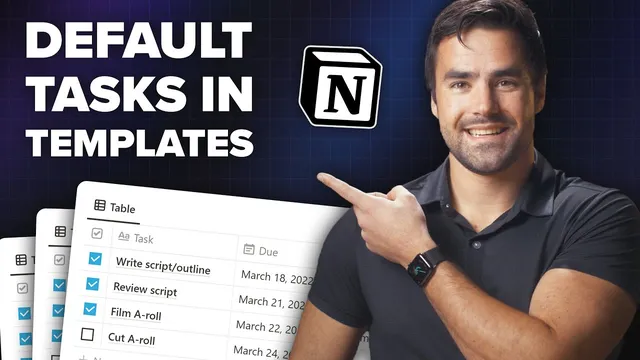
Notion Project Management: Add Default Tasks to a Project Template
Based on Thomas Frank Explains's video on YouTube. If you like this content, support the original creators by watching, liking and subscribing to their content.
Notion’s built-in template generation can’t automatically create new rows in a linked task database, so linked task views remain blank unless tasks are inserted/created separately.
Briefing
Notion can’t automatically populate a project’s linked task database with “default tasks” when a new project page is generated from a template—at least not using built-in template behavior. The workaround relies on synced blocks: create a reusable checklist of task blocks in a central place, then paste that synced block into the project template so tasks get associated with each new project via a filter.
The core problem shows up when editing a template inside the linked task database. Even if a “template version” of the task database includes a row like “sample task,” generating a new project page from a project template still produces a blank linked database view. That’s because Notion’s template generation can’t reach into another database and create additional rows automatically. Without an external API-style workaround, there’s no native mechanism for “template A creates rows in linked database B.”
The practical fix starts by accepting that the linked database rows must already exist somewhere else. Instead of trying to create them during template generation, the workflow manually inserts the task blocks after the project page is created. In the example project (“How To Manage Your To-Do List: The Ultimate Guide”), the tasks area is a linked database view filtered to tasks whose content contains the project name. When the tasks are deleted from the project, regenerating from the template yields an empty task view—confirming that template generation won’t create those linked rows.
To make default tasks fast to add, the method uses a synced block containing checkbox task blocks. The creator builds a “default tasks” synced block (for example: “write script,” “shoot A roll,” “edit B roll”) on a separate page. That synced block is then copied and pasted into the project template inside a toggle section (so the checklist can be hidden by default). Because synced blocks propagate changes, the same task checklist stays consistent across templates and teams.
Once the project page is generated, the user selects the synced-block tasks and drags them into the project’s task window (using an Alt/Option drag to duplicate). Notion automatically associates the inserted tasks with the current project through the existing filter logic (e.g., “content contains [project name]”). After that, due dates and assignees can be filled in as needed.
A key design recommendation is to store the synced block on a dedicated “default tasks” page rather than only inside the database template. That makes the checklist easy to reuse as a knowledge-base item or wiki checklist, not just a project template component. In the Creator’s Companion setup, a central “YouTube video tasks” page holds the synced block so the team can find and reuse it easily.
In short: Notion can’t truly “auto-create linked task rows” from templates, but synced blocks plus the project-name filter provide a repeatable, low-friction way to get default tasks into every new project page.
Cornell Notes
Notion templates can’t automatically create new rows in a linked task database when generating a project page. As a result, a project template can’t reliably “pre-fill” a linked task list with default tasks using only built-in template features. The workaround uses a synced block containing checkbox task blocks stored on a separate “default tasks” page. After generating a project from the template, the user duplicates (Alt/Option-drag) the synced-block tasks into the project’s task area, where the existing filter associates tasks to the new project by matching the project name. This keeps default checklists consistent across templates and teams while avoiding the linked-database blank problem.
Why do default tasks fail to appear when generating a project from a template?
How does the synced-block workaround make default tasks reusable?
What actually links the duplicated tasks to the correct project?
What steps are required after generating a new project page?
Why store the synced block on a separate “default tasks” page instead of only inside the template?
How does the self-referential filter help when using the project template?
Review Questions
- What limitation in Notion prevents a project template from automatically creating linked task rows in another database?
- Describe the role of a synced block in the default-tasks workflow and where it should be stored.
- How does the filter condition (e.g., matching project name) determine which tasks appear in a project’s linked task view?
Key Points
- 1
Notion’s built-in template generation can’t automatically create new rows in a linked task database, so linked task views remain blank unless tasks are inserted/created separately.
- 2
A synced block containing checkbox task blocks provides a reusable “default tasks” checklist that can be updated in one place and propagated everywhere.
- 3
Store the synced block on a dedicated page (e.g., “default tasks”) so it’s accessible as both a template component and a team knowledge-base checklist.
- 4
Insert default tasks after project creation by duplicating the synced-block tasks into the project’s task window (Alt/Option-drag).
- 5
Use an existing linked-database filter that associates tasks to the current project (such as tasks where content contains the project name).
- 6
After tasks are associated, fill in task properties like due dates and assignees as needed.
- 7
Tuck the default tasks checklist into a toggle in the project template to keep the project page clean while still enabling quick insertion.