Object Type Queries in Capacities
Based on Capacities's video on YouTube. If you like this content, support the original creators by watching, liking and subscribing to their content.
Object type queries in Capacities start with a chosen object type (e.g., Meetings) and then apply property-based filters and sorting.
Briefing
Object type queries in Capacities turn a one-off filter into a reusable, editable “collection” that can live on dashboards and embed inside other pages—then expand beyond a single object type.
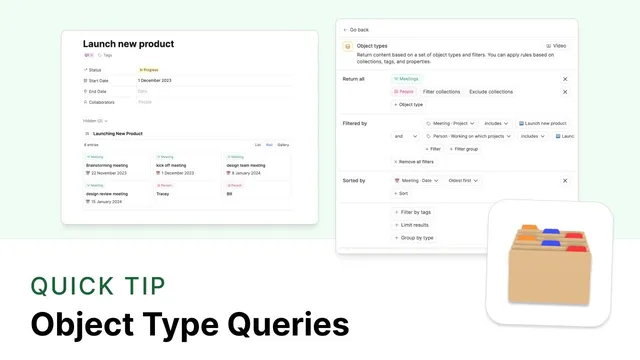
The workflow starts with a query Builder page where users choose the query type: object types. From there, the query begins with a specific object type—for example, Meetings. Users can apply familiar filter and sort controls inside that object type, such as narrowing meetings to those tied to a particular project (e.g., a project property set to “launch new product”). In the example, that filter reduces results to four meetings. Instead of keeping that view as a temporary filter, the user can save the search as a named query (for instance, “new product meetings”), which then gets pinned to the dashboard and appears in the left sidebar under the relevant object type.
The key upgrade is how that saved query behaves like a portable view. Rather than repeatedly returning to the sidebar and reapplying filters, users can jump to the project page and run the saved query there. The query can be embedded into the project page, and the view remains adjustable—users can change how results display, expand the view, and crucially edit the query later. When editing, the interface shows the original object type selection and the initial filter logic already filled in, making the query easier to refine over time.
The most important difference from basic filtering is that queries aren’t limited to one object type. While a filter inside an object type only affects that object’s results, a saved query can be extended with additional object types. In the example, the “new product meetings” query is edited to add an object type for People. The user adds a people-based filter using person properties (such as which projects a person is working on) and again targets “launch new product.” After updating, the query returns the same four meetings but also surfaces that two people are associated with the project through those people filters.
The result is a “working hub” view on the project page—customizable card layout included—that aggregates related meetings and people around a shared project property. Because queries are built from each user’s own object types and properties, the exact query experience will differ across workspaces, but the underlying pattern stays consistent: collect objects using property-based rules, save them, embed them where needed, and expand them across object types for richer context.
Cornell Notes
Object type queries in Capacities start with a single object type (like Meetings), then use property-based filters and sorting to narrow results (e.g., meetings where the project includes “launch new product”). Saving that search as a named query pins it to the dashboard and makes it reusable—users can embed it on a project page, adjust the display, and edit the query later without rebuilding filters from scratch. The biggest leap over basic filtering is that queries can span multiple object types. By adding People as an additional object type and filtering by which projects they work on, the same query can surface both meetings and the people tied to the project. This creates a customizable “working hub” view grounded in your workspace’s own object types and properties.
How does an object type query begin, and what makes it different from just filtering within an object type?
What does saving a search as a query enable in day-to-day workflow?
How can a query be embedded and customized on a project page?
What is the most important capability that object type queries add beyond single-object filtering?
Why does the exact look and behavior of queries vary between users?
Review Questions
- When building an object type query, what are the first two choices a user makes before applying filters?
- How does adding an additional object type (like People) change the results compared with filtering only within Meetings?
- What practical benefits come from saving a filtered search as a query and embedding it on a project page?
Key Points
- 1
Object type queries in Capacities start with a chosen object type (e.g., Meetings) and then apply property-based filters and sorting.
- 2
Saving a filtered search as a named query turns a temporary view into a reusable collection pinned to the dashboard and accessible from the sidebar.
- 3
Saved queries can be embedded on other pages (such as a project page), where the display can be expanded and customized.
- 4
Queries can be edited later, with the original object type and filter logic prefilled to speed up refinements.
- 5
Unlike basic filtering, object type queries can pull results across multiple object types by adding additional object types (e.g., People) to the same query.
- 6
Property-based rules determine the query’s output, so the experience and results vary depending on each workspace’s object types and properties.