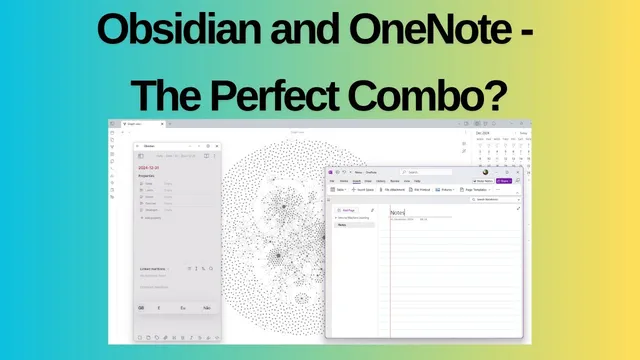
Obsidian & OneNote - The Perfect Personal / Work Combo?
Based on Ed Nico's video on YouTube. If you like this content, support the original creators by watching, liking and subscribing to their content.
Use Obsidian as the personal knowledge base and OneNote as the work capture system when work IT restrictions prevent installing other apps.
Briefing
A practical workflow emerges for people who can’t install their preferred note app on a work laptop: keep personal knowledge in Obsidian, run work notes in OneNote, then connect the two through phone-based access and lightweight linking. The core idea is to treat OneNote as the “meeting capture” tool—especially when handwriting on a Samsung tablet is faster than typing—while using Obsidian as the personal system for books, long-form notes, and structured knowledge.
For personal use, Obsidian acts as the main repository, organized into folders for books and personal material. Work notes live in OneNote because Microsoft products are required by the job and Obsidian can’t be installed on the work machine. OneNote’s advantage is speed and flexibility during meetings: on a Samsung tablet, handwriting with a pen is quicker than laptop typing and supports common actions like adding colored highlights, rearranging content, inserting shapes, and deleting or editing quickly. Notes sync rapidly across devices, and the same content can be accessed on a phone, making it easier to review or continue work away from the tablet.
The workflow tightens when meeting notes need to become searchable knowledge. After capturing content in OneNote, the user copies the handwritten text into a laptop workflow and relies on OneNote’s “ink to text” feature to convert handwriting into typed text. Accuracy is generally strong, but the process requires checking because handwriting can be lost or misaligned during conversion. Once cleaned up, the meeting notes can be turned into bullet points, supplemented with images, and shared via email.
To bridge the gap between systems, the notes are sometimes linked into Obsidian rather than duplicated wholesale. Obsidian’s strength—backlinking and networked connections—is limited on the work laptop, so the user uses Samsung’s “Phone Link” to open Obsidian on the phone while keeping the work laptop available. That workaround allows ongoing capture in an Obsidian-like way without installing it on the restricted device. When returning home, the user can hide the temporary setup and continue building the personal knowledge base.
The end result is a two-source approach: OneNote remains the single source of truth for work capture, while Obsidian remains the single source of truth for personal knowledge, with selective work details added to Obsidian for memory and retrieval. Instead of copying entire meeting transcripts, the user often stores key takeaways and metadata (like who attended) in Obsidian, then links back to the OneDrive/OneNote material for full context. The setup also supports task management via checkboxes in OneNote, with optional links to Outlook and—when useful—links back into Obsidian.
Overall, the system is less about choosing a single “perfect” app and more about designing around real constraints: tablet-first handwriting for work, Obsidian-first knowledge for personal life, and phone-based linking to keep the two connected without fighting IT restrictions.
Cornell Notes
The workflow pairs Obsidian for personal knowledge with OneNote for work notes when a work laptop blocks installing other apps. OneNote is used for fast meeting capture on a Samsung tablet, leveraging handwriting, highlighting, shapes, and quick syncing to phone and laptop. Handwritten content can be converted using OneNote’s ink-to-text, then cleaned into bullet points and shared or linked. Instead of duplicating everything, the user stores key takeaways and meeting metadata in Obsidian and links back to OneDrive/OneNote for full details. Phone-based access (Samsung Phone Link) helps approximate Obsidian’s networked linking even when installation isn’t allowed at work.
Why does OneNote become the default tool for work notes in this setup?
How does the workflow turn handwritten meeting notes into something usable in Obsidian?
What’s the strategy for connecting OneNote and Obsidian without duplicating everything?
How does the user handle Obsidian access when it can’t be installed on the work laptop?
What task-management features show up in OneNote, and how do they connect to other tools?
What usability limitation appears when using the phone-linked Obsidian experience?
Review Questions
- How does the workflow decide what belongs in OneNote versus Obsidian?
- What steps are used to convert handwritten notes into text, and what quality check is required?
- What workaround allows Obsidian-style capture on a work machine where installation is blocked?
Key Points
- 1
Use Obsidian as the personal knowledge base and OneNote as the work capture system when work IT restrictions prevent installing other apps.
- 2
Capture meetings in OneNote on a Samsung tablet to avoid slow laptop typing and to take advantage of handwriting, highlighting, and quick editing.
- 3
Convert handwriting to typed text with OneNote’s ink-to-text, then verify accuracy because handwriting can be lost or misaligned.
- 4
Link selectively into Obsidian by storing key takeaways and meeting metadata, while keeping full meeting details in OneDrive/OneNote.
- 5
Use Samsung Phone Link to access Obsidian from a phone when Obsidian can’t be installed on the work laptop.
- 6
Connect OneNote checkboxes to Outlook for tasks, and optionally link tasks back into Obsidian for long-term retrieval.
- 7
Design around device constraints: tablet-first for capture, laptop-first for organization, and phone-based linking to bridge the two systems.