Recurring Weekday Tasks & How I Solve Problems In Notion
Based on Red Gregory's video on YouTube. If you like this content, support the original creators by watching, liking and subscribing to their content.
Use a checkbox formula that compares each task’s weekday tag to today’s weekday so only due tasks appear on the planner page.
Briefing
A Notion planning setup can automatically tick off recurring weekday tasks—then surface only what’s due on the current day—using a single checkbox formula driven by the day-of-week and the task’s “repeat” pattern. Instead of duplicating the same task across a calendar view, the system places a compact “to-do for today” list at the top of a planner page, so Sunday shows Sunday tasks, Monday shows Monday tasks, and so on. The core mechanism is a formula that checks whether a task’s stored weekday tag matches today’s weekday (computed via Notion’s date formatting), turning the checkbox on when there’s a match.
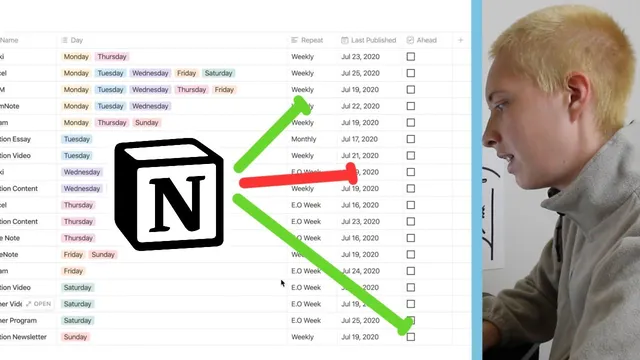
The workflow scales beyond simple weekly repetition. For tasks that run every other week, the setup adds two properties: a repeat selector (with options like “weekly” and “eo week”) and a “last published” date. The checkbox formula then ticks only when today’s weekday matches the task’s day tag AND the number of days since “last published” exceeds a threshold (greater than 7 for weekly logic, and greater than 7 days in combination with the every-other-week logic). To prevent edge cases where someone publishes early, an additional “ahead” control lets users manually mark tasks completed ahead of schedule; when “ahead” is checked, the formula forces the checkbox to remain unticked even if the “last published” date would otherwise trigger it.
Monthly repetition is handled with a similar “last published” approach, but the logic uses day counts rather than “one month” intervals. The formula checks whether the elapsed time since “last published” is greater than 29 days for monthly tasks, which avoids the common Notion pitfall where “greater than one month” effectively behaves like “greater than two months” for certain date ranges. This day-based method keeps the task active across the intended window—for example, it becomes due around the next target date rather than waiting until a much later month boundary.
The system also addresses practical onboarding problems. If “last published” is empty (such as when a new database is created), the formula treats that condition as due, ensuring tasks appear immediately rather than staying permanently unticked. Another safeguard clears the checkbox when the task was published on the current day: if “last published” contains today’s formatted month/day/year string, the checkbox is forced off.
Once the formula is in place, the planner page is built by linking to the tasks database and using a filter view that shows only items where the checkbox is checked. With additional views like a board by weekday (Monday through Sunday) and a “publish today” filtered list, the same underlying logic powers both a daily reminder strip and broader scheduling overviews. A template is provided for duplication and testing, with the creator inviting feedback on alternative formula strategies.
Cornell Notes
The setup creates a Notion “recurring tasks” system that shows only the tasks due on the current weekday at the top of a planner page. A checkbox property uses a formula that compares each task’s weekday tag to today’s weekday (via formatted date parts) and ticks when they match. For non-weekly patterns, tasks add a repeat property (e.g., “weekly” vs “eo week”) and a “last published” date so the checkbox ticks only after enough time has passed. Monthly tasks use an elapsed-days threshold (greater than 29 days) to avoid month-boundary quirks. Extra controls handle early publishing (“ahead”), empty “last published” on new databases, and turning the checkbox off when the task was already published today.
How does the system decide whether a recurring weekday task should be checked for “today”?
What changes when a task repeats every other week instead of every week?
Why does the monthly logic use “greater than 29 days” instead of “greater than one month”?
How does the system handle tasks completed early?
What happens when last published is empty or when the task was published today?
How are the formulas turned into a usable daily planner view?
Review Questions
- If today matches a task’s weekday tag but last published is empty, what should the checkbox do and why?
- How would you modify the logic if you needed a “repeat every 3 weeks” pattern instead of weekly or every other week?
- What specific failure mode does the “greater than 29 days” approach avoid compared with “greater than one month,” according to the walkthrough?
Key Points
- 1
Use a checkbox formula that compares each task’s weekday tag to today’s weekday so only due tasks appear on the planner page.
- 2
Add a repeat property and a last published date to support every-other-week scheduling without duplicating tasks across calendar entries.
- 3
Implement early completion handling with an “ahead” checkbox that forces the due checkbox to stay unticked.
- 4
For monthly tasks, use an elapsed-days threshold (greater than 29 days) to avoid month-boundary quirks from “one month” comparisons.
- 5
Treat empty last published dates as due so new databases immediately populate the checklist.
- 6
Force the checkbox off when last published matches today’s formatted month/day/year, preventing tasks from staying checked after completion.
- 7
Build the daily planner by linking the tasks database and filtering to-do items where the checkbox is checked.