The ULTIMATE Second Brain Setup in Notion
Based on Thomas Frank Explains's video on YouTube. If you like this content, support the original creators by watching, liking and subscribing to their content.
Use separate task and note inboxes for low-friction capture, then assign tasks to projects and notes to areas/resources to stop inbox clutter.
Briefing
Notion can be turned into a single “second brain” that handles capture, task execution, life organization, and reference—without forcing everything into rigid folders. The core idea behind “Ultimate Brain” is an all-in-one system where new tasks and notes land in inboxes, get processed through a GTD-style workflow, and then flow into a PARA-based structure (Projects, Areas, Resources, Archive) for long-term organization. The payoff is less app-juggling and fewer forgotten items, because every piece—web clips, highlights, notes, goals, and recurring work—has a defined home and a clear path to action.
The system starts with quick capture. A dedicated “quick capture” page provides separate task and note inboxes, designed to stay tidy by automatically removing items from the quick-capture view after 24 hours. Crucially, inboxes act as default holding areas until something is assigned—tasks wait until a project is chosen, while notes wait until an area/resource is selected. For research and reading, the workflow extends to browser clipping: the Saved to Notion extension can send a web clip either straight into the note inbox or bypass it entirely by routing the capture into a specific resource (like fitness). Web clips then appear in resource-specific sections, including a “by site” grouping that organizes highlights by base URL.
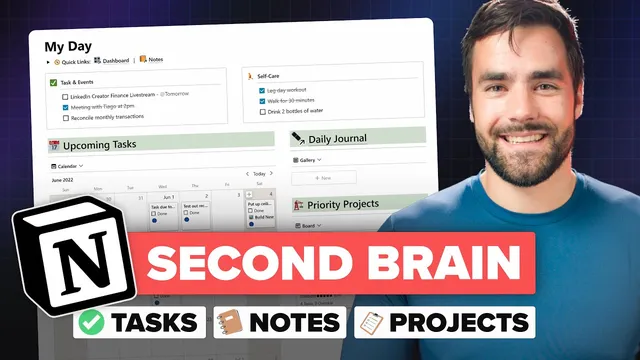
Planning your day happens on a “my day” whiteboard-style page that shows only what matters for the current planning session. It pulls in upcoming tasks from a due-date calendar and also supports GTD’s “do next” concept—high-priority actions that don’t have a specific deadline, grouped by context such as high energy, errand, or home. The page also includes self-care items so health habits don’t get crowded out by visible work tasks, plus a daily journal option and a priority-project filter that surfaces only projects marked as priority.
For life organization, the template uses Tiago Forte’s PARA method as a starting point, but adapts it to Notion’s database flexibility. PARA defines projects as ongoing task series with an end goal, areas as life “buckets” maintained over time, resources as topics of ongoing interest, and archive as a holding zone for what’s no longer relevant. In “Ultimate Brain,” relationships are optional rather than mandatory: areas can contain goals, projects, and resources; projects can contain tasks and notes; and notes can be pulled into project dashboards via relation properties (“pulled resources” and “pulled notes”). That means a project can become a one-stop context hub even when the underlying information lives elsewhere.
Task management combines calendar views, inbox dumping, and time-based lists (today, next seven days, next month). It also introduces “cold tasks,” a filter that automatically moves tasks more than two weeks overdue and not marked high priority out of the main planning views, preventing backlog clutter. A full GTD processing dashboard (“process”) provides the decision tree for handling incoming items: confirm actionability, clarify the next action, do it if under two minutes, delegate if possible, schedule if there’s a hard deadline, or place it into do-next/next-actions lists. Notes management mirrors this philosophy with inboxes, favorites, recents, and “fleeting notes” that auto-archive after a month of inactivity.
Finally, the system supports future planning through a goals database with milestone tracking (e.g., strength milestones) and a dynamic “plan” view that updates by quarter. Special databases like a book tracker and recipe book reuse the same underlying notes database by applying note “types” and templates. The result is a structured but flexible Notion workspace where capture leads to processing, processing leads to action, and action connects back to long-term organization—ready to be used as a template called “Ultimate Brain.”
Cornell Notes
“Ultimate Brain” turns Notion into an end-to-end second brain: capture, process, plan, and store. Quick capture uses separate task and note inboxes, then routes items into projects, areas, or resources so they stop cluttering the inbox. Life organization follows PARA (Projects, Areas, Resources, Archive) but leverages Notion databases to allow optional relationships—projects can pull in relevant notes and web clips from elsewhere to create a context-specific dashboard. Task execution blends calendar views with GTD-style processing, including “cold tasks” that automatically move long-overdue, non-priority items out of daily planning. Notes management adds favorites, recents, and “fleeting notes” that auto-archive after a month to keep the system usable over time.
How does the system keep quick capture from becoming permanent clutter?
What does “inbox” mean in this setup, and how does routing work?
How does “my day” support both deadline work and GTD-style priorities?
What makes PARA work differently inside Notion here?
How does the GTD processing workflow decide where an item goes?
What are “cold tasks” and “fleeting notes,” and why do they matter?
Review Questions
- When capturing a web article, how does the Saved to Notion extension decide whether it lands in the note inbox or a specific resource?
- Describe the decision path in the GTD “process” dashboard: what happens when an item is actionable but the next action isn’t obvious?
- How do “cold tasks” and “fleeting notes” each reduce noise in daily planning, and what criteria trigger each behavior?
Key Points
- 1
Use separate task and note inboxes for low-friction capture, then assign tasks to projects and notes to areas/resources to stop inbox clutter.
- 2
Apply time-based cleanup to quick capture (items vanish from the quick-capture view after 24 hours) while keeping items available until processed.
- 3
Route web clips directly into the right resource at capture time using Saved to Notion forms, then review them in resource-specific web clip views (including “by site”).
- 4
Plan with a “my day” whiteboard that combines due-date calendars with GTD-style “do next” actions grouped by context.
- 5
Implement PARA as a flexible database model in Notion: allow optional relationships and use “pulled resources”/“pulled notes” to build project-specific dashboards.
- 6
Reduce task-manager noise using “cold tasks” (overdue, non-priority items move out of daily views) and “fleeting notes” (notes auto-archive after a month of inactivity).
- 7
Track long-term progress with a goals database (milestones) and a dynamic quarter-based “plan” view that updates automatically over time.