How to Achieve Inbox Zero Every Day - Effective Email Inbox Management in Gmail
Based on Ciara Feely's video on YouTube. If you like this content, support the original creators by watching, liking and subscribing to their content.
Treat the inbox as a temporary processing queue: decide what each email is, route it, then remove it from the inbox.
Briefing
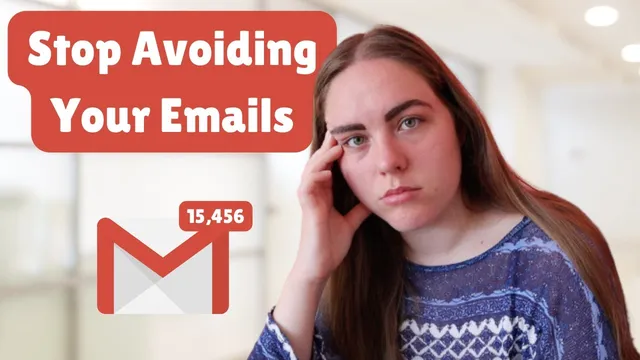
Inbox zero isn’t about ignoring emails—it’s about stopping them from turning into a daily anxiety trigger. The core idea is to treat the inbox as a temporary processing area: every incoming message gets categorized, acted on, and then removed from the inbox (deleted, archived, or snoozed). When reminders of unfinished work stay in the inbox, they repeatedly pull attention away from real tasks and create stress, especially when the “what” and “when” aren’t obvious from the email alone.
The method starts with recognizing what an email inbox should *not* be. It’s not a garbage can: unsubscribe from mailing lists that aren’t useful and delete what you don’t need, because high email volume—including spam—adds up to real-world cost (the transcript cites an estimate that average email usage is equivalent to about 128 miles of driving in a small petrol car). It’s also not an information storage system: if an email contains reference material (passwords, receipts, how-to instructions), it should be labeled and archived—or moved into a more appropriate system like a file system or Notion—so important items remain searchable without cluttering the inbox. Likewise, the inbox shouldn’t function as a follow-up reminder system. Gmail’s follow-up nudges can be annoying because they often appear before the right time to act; if a response is truly needed later, the email should be snoozed until a chosen date.
Finally, the inbox isn’t a to-do list. Tasks shouldn’t sit unread in the inbox waiting for the “right moment.” Instead, tasks belong in a dedicated task list that’s checked in the right context (for example, when there’s enough uninterrupted time to do the work). The transcript gives a practical workflow: when processing an email, if the action takes less than two minutes, do it immediately; if it takes longer, capture the next action or required information in the task list, reply if necessary, and then archive the email. For calendar items, add them to the calendar (and archive the email) so the calendar—not the inbox—becomes the source of truth.
After processing, the inbox should end up empty: messages should be deleted, archived, or snoozed. What remains in the inbox should be only the next batch of emails that still need a decision. Over time, this turns email from a constant mental burden into a controlled routine—so the inbox can reliably return to zero each day while tasks, reminders, and reference material live in the systems designed for them.
Cornell Notes
The transcript’s central claim is that inbox zero comes from changing what the inbox is for. Emails should be processed immediately—deciding what each message is, routing it to the right place, and then removing it from the inbox via delete, archive, or snooze. The inbox should not act as a garbage can, an information archive, a follow-up reminder system, or a to-do list. Reference material should be labeled and archived (or moved to a file system/Notion), follow-ups should be snoozed until a chosen date, and tasks should be captured in a task list or calendar. The result is less anxiety and a cleaner workflow where the inbox only holds messages that still need processing.
Why does leaving emails sitting in the inbox create stress and inefficiency?
What does “the inbox is not a garbage can” mean in practice?
How should reference material be handled so it doesn’t clutter the inbox?
What’s the difference between Gmail follow-up nudges and a better follow-up workflow?
How should tasks be routed so the inbox doesn’t become a to-do list?
What should the inbox contain at the end of the day?
Review Questions
- What are the four main “jobs” the transcript says an inbox should not perform, and what should replace each one?
- Describe the decision flow for an email that requires a task taking more than two minutes.
- How does snoozing change follow-up behavior compared with leaving messages in the inbox or relying on Gmail’s default nudges?
Key Points
- 1
Treat the inbox as a temporary processing queue: decide what each email is, route it, then remove it from the inbox.
- 2
Unsubscribe and delete to keep the inbox from becoming a junk repository; spam volume has real-world impact (the transcript cites an estimate tied to driving miles).
- 3
Do not store reference material in the inbox; label and archive it, or move it into a file system/Notion when email isn’t the best long-term home.
- 4
Avoid using the inbox as a follow-up reminder; snooze emails until a chosen date and reprocess them then.
- 5
Do not use the inbox as a to-do list; capture tasks in a task list/next-actions system and archive the email.
- 6
Use the calendar for calendar items—add them to the calendar and archive the email so the inbox stays clean.
- 7
Aim for inbox zero by ensuring processed emails end up as deleted, archived, or snoozed, leaving only unprocessed arrivals in the inbox.