How To Build A Subscription Budget Tracker In Notion (Recurring Payments)
Based on Red Gregory's video on YouTube. If you like this content, support the original creators by watching, liking and subscribing to their content.
Set up a subscriptions database with Frequency (monthly/quarterly/yearly), original payment date, amount, and a remove checkbox to drive both scheduling and cancellation views.
Briefing
A Notion subscription tracker can automatically generate “next payment” and “last payment” dates for monthly, quarterly, and yearly bills using only one key input: the original payment date. From there, the system calculates how much money will be spent over time and lets users maintain a separate view for subscriptions marked for cancellation—then surfaces only the upcoming charges on a dashboard.
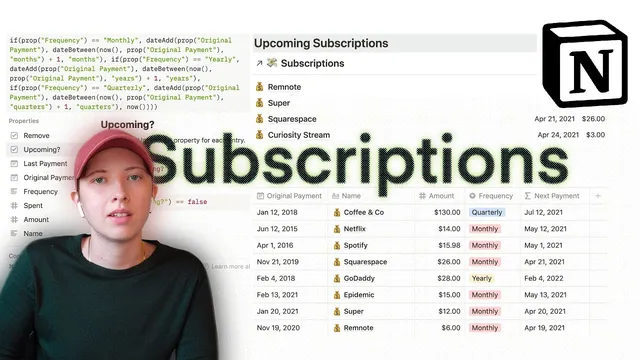
The build starts with a recurring payments database containing practical fields: subscription name, original payment date (a date property), amount, a remove checkbox, and a frequency selector (monthly, quarterly, yearly). The automation hinges on a formula property called Next payment. For monthly subscriptions, it adds one month to the result of a date range calculation between “right now” and the original payment date, ensuring the tracker skips the current billing cycle if it has already been paid. The same logic is repeated for yearly and quarterly by swapping months for years or quarters. The result is a rolling schedule that updates as time passes—so a subscription originally paid on April 1 will correctly show May 1 as the next payment when the current date falls after April 1.
To quantify spending, a second formula property called Spent calculates the number of billing intervals between now and the original payment date, then multiplies that interval count by the subscription amount. A small adjustment ensures the original payment isn’t counted as additional spend by adding an offset inside the date-between logic. The formula is implemented for each frequency type (monthly, yearly, quarterly), with a default fallback of zero when frequency doesn’t match.
Last payment is generated by copying the Next payment formula and removing the extra “+1” step that advances the schedule. With next and last dates in place, the database can be organized into views. One view, Cancelled subscriptions, filters for rows where remove is checked and hides unnecessary properties like the original payment date. A complementary filter (remove unchecked) keeps active subscriptions out of the cancellation list.
Finally, the tracker becomes useful on a dashboard through a linked database. A linked view filters for upcoming payments that fall in the current month by comparing the month of “right now” to the month of “next payment.” It also filters to only items where an “upcoming” checkbox is enabled (and optionally sorts by next payment date ascending) so the nearest charge appears first. The overall setup turns a static subscription list into a self-updating budgeting tool that can be reused for recurring non-finance schedules as well.
Cornell Notes
The tracker automates subscription billing in Notion by computing Next payment and Last payment from a single input: the original payment date, combined with a Frequency field (monthly, quarterly, yearly). Next payment uses date-between logic bounded by “right now” and the original date, then advances by one interval so it lands on the next unpaid cycle (e.g., showing May 1 instead of April 1 once April is already paid). Spent multiplies the number of billing intervals between now and the original payment date by the subscription amount, with an offset to avoid counting the original payment as extra spend. Views and linked databases then separate cancelled subscriptions and show only upcoming charges for the current month, sorted by the nearest next payment date.
How does the tracker compute Next payment for monthly subscriptions without manually entering future dates?
Why is there an offset adjustment in the Spent calculation, and what does it prevent?
What changes are needed to support yearly and quarterly subscriptions?
How does the tracker determine Last payment?
How do the Cancelled subscriptions and main subscription views stay in sync?
How does the dashboard linked database show only payments due this month?
Review Questions
- If Frequency is “monthly” and the original payment date is April 1, what part of the Next payment formula ensures the result becomes May 1 after April has already passed?
- What specific role does the offset play in the Spent formula, and what error would occur if it were removed?
- How would you modify the Next payment formula to add support for a new frequency type (e.g., biweekly) while keeping the same logic structure?
Key Points
- 1
Set up a subscriptions database with Frequency (monthly/quarterly/yearly), original payment date, amount, and a remove checkbox to drive both scheduling and cancellation views.
- 2
Compute Next payment using a formula that finds the interval boundary between “right now” and the original payment date, then advances by one interval so the date lands on the next unpaid cycle.
- 3
Reuse the same formula pattern for yearly and quarterly by swapping months for years or quarters in the date-between and date-add logic.
- 4
Calculate Spent by multiplying the number of billing intervals since the original payment date by the amount, using an offset so the original payment isn’t counted as extra spend.
- 5
Generate Last payment by copying Next payment and removing the “+1” advance step so it returns the most recently completed billing date.
- 6
Create a Cancelled subscriptions view filtered to remove checked, and keep the active list filtered to remove unchecked for automatic organization.
- 7
Build a dashboard linked database that filters to subscriptions whose Next payment month matches the current month, then sort by Next payment date ascending.