How to Create Recurring Tasks (Repeat Due Dates) in Notion
Based on Thomas Frank Explains's video on YouTube. If you like this content, support the original creators by watching, liking and subscribing to their content.
Use Done for one-time tasks, but use a formula-driven Next Due Date plus a recur interval for recurring tasks.
Briefing
Recurring tasks in Notion can be made to “come back” automatically by separating completion from scheduling: one-time tasks use the Done checkbox, while recurring tasks use a Next Due Date that gets recalculated from a recur interval whenever the task is marked complete. The core limitation is that Notion can’t directly drive a due-date state change from a checkbox in a way that re-schedules itself cleanly, so the system uses formulas and a manual step: when a recurring task is finished, the user copies the computed Next Due Date into the Due date field. That single move triggers the next cycle.
The template is built around a task table that includes both one-time and recurring items. Each task has a Type (One-Time or Recurring), a Due date, and a Next Due Date formula. The recur interval is stored as a simple number of days to wait before the task is due again. When a recurring task is checked off, the workflow is not “check Done and magically reschedule.” Instead, the user updates Due to match the Next Due Date shown by the formula, and the system automatically advances the schedule based on the interval.
A key piece is the formula logic that handles being overdue. Without special handling, a monthly task completed late could drift to the completion date (e.g., setting the next due date to the 5th of next month if the task was originally due on the 1st and was checked off on the 5th). The Next Due Date formula prevents that kind of drift by advancing forward by the interval while accounting for how far past due the task is—so the next due date stays aligned with the intended cadence rather than the day it was finally completed.
To make the system usable day to day, the setup relies on filtered views rather than trying to show everything at once. One main view lists all tasks assigned to the user, sorted by Done status and then by Due date. A second, more practical view shows tasks due on or before one week from now (including overdue and due today), while also excluding completed one-time tasks. A nested filter group further distinguishes recurring tasks from one-time tasks that haven’t been checked off.
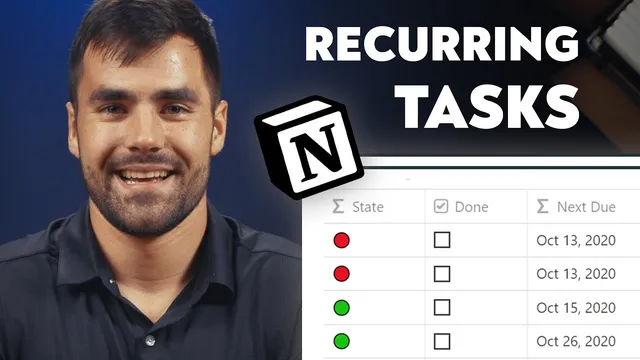
Finally, a State formula adds at-a-glance status coloring: red indicates overdue, green indicates due today, blue indicates planned (future), and white indicates tasks with no due date. The result is a Notion task manager that supports both one-time completion and recurring rescheduling, with filters and color cues that keep priorities visible.
The tutorial then walks through rebuilding the system from scratch: create the Tasks table, add properties for Type, Due, Assignee, recur interval, Done, and two formula fields (Next Due Date and State), paste in the provided formulas, and set up filter groups to produce the “next week” view and the correct behavior for one-time versus recurring tasks. A template link is provided for duplication and study, along with a written version on thomasjfrank.com/notion and links to other Notion recurring-task approaches.
Cornell Notes
Notion recurring tasks are handled by using a formula-driven Next Due Date plus a recur interval, rather than relying on the Done checkbox to reschedule. One-time tasks disappear when Done is checked; recurring tasks stay visible until their Due date is advanced. The Next Due Date formula recalculates the next scheduled date from the interval and includes logic to prevent “date drift” when tasks are completed late (e.g., keeping a monthly task aligned instead of shifting it to the day it was finally checked off). Filters then create a practical view for “due today, overdue, and due within a week,” while a State formula color-codes overdue, due today, planned, and no-due tasks. This combination turns Notion into a workable recurring task manager.
Why can’t the system simply use the Done checkbox to reschedule recurring tasks automatically?
What’s the difference between Due and Next Due Date in this approach?
How does the template prevent recurring tasks from drifting when they’re completed late?
How do the filtered views make the system practical day to day?
What does the State formula do, and how is it used?
Review Questions
- How would you update a recurring task after completing it using this system (which fields change, and which don’t)?
- What specific problem does the Next Due Date formula’s overdue logic solve, and what example illustrates the drift issue?
- How do the filter groups differ between one-time tasks and recurring tasks in the “next week” view?
Key Points
- 1
Use Done for one-time tasks, but use a formula-driven Next Due Date plus a recur interval for recurring tasks.
- 2
When a recurring task is completed, manually set Due to the displayed Next Due Date to advance the schedule.
- 3
Store recur interval as a number of days and let the Next Due Date formula compute the next occurrence.
- 4
Include overdue-handling logic in the Next Due Date formula to prevent recurring schedules from drifting when tasks are finished late.
- 5
Build filtered views that show tasks due today, overdue, and due within a week, with separate logic for one-time versus recurring items.
- 6
Add a State formula to color-code overdue, due today, planned, and no-due tasks for fast daily scanning.